





Consumer Electronics
•04 min read

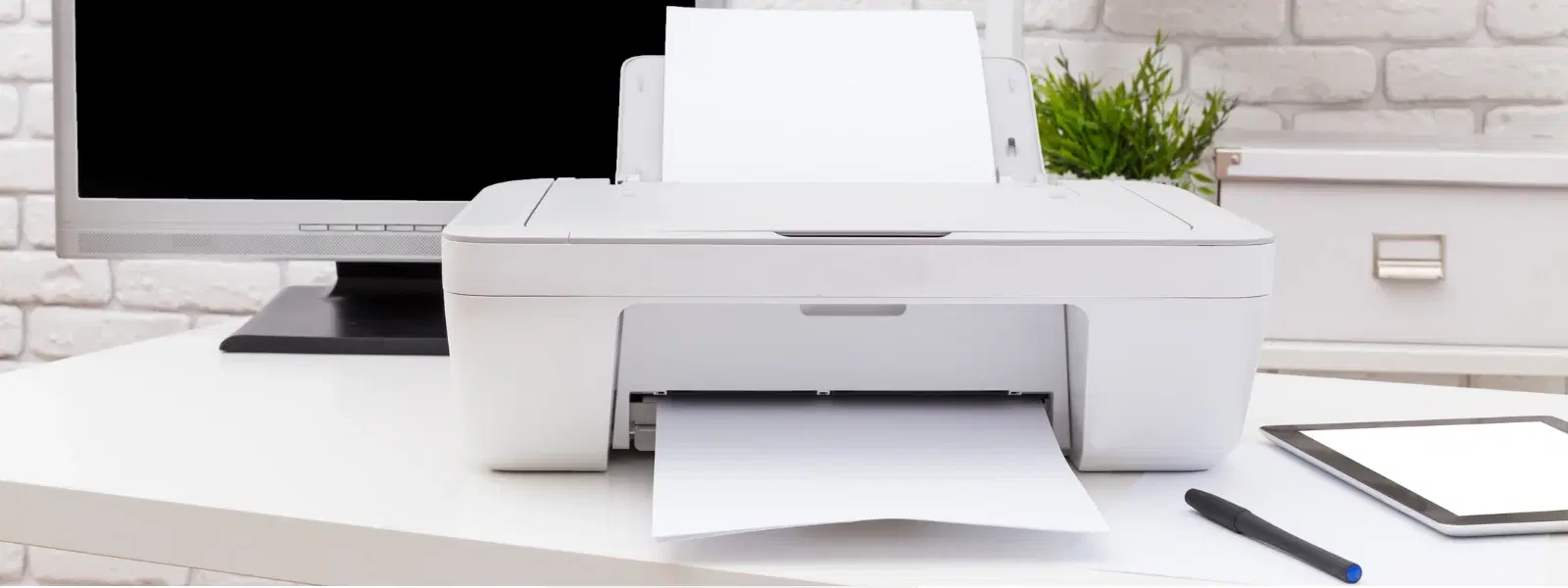
Imagine this: you’re all set to print an important document, but your printer stubbornly shows as offline. It’s a small hiccup that can disrupt your work flow, yet the problem is often simpler than it appears. In this article, we explore the reasons behind why your printer is showing offline and provide practical, step-by-step solutions to help you easily diagnose and fix the issue.
A printer marked as offline is not communicating with your computer. This status means that print jobs either do not start at all or remain stuck in a queue. Even though the printer may still be physically connected, it does not respond to printing commands, causing delays and inconvenience.
Several factors may cause your printer to appear offline. Connectivity issues such as loose cables or poor Wi-Fi signals, outdated or corrupted drivers, incorrect settings, or even hardware malfunctions can all be at fault. Diagnosing the root cause is crucial to apply the right fix and ensure smooth connectivity.
Start by examining the physical connections. Check that your cables are securely attached and that there is a consistent power supply. For wireless printers, verify that your printer is connected to the same network as your computer. These simple checks can sometimes resolve the problem immediately.
It is important to ensure that your printer is set as the default device. Open the printer settings on your computer and verify that the correct printer is active. Clearing the printer queue of any stuck jobs can also remove any temporary blocks that keep your device offline.
Outdated or corrupted drivers are common culprits behind offline errors. By updating or reinstalling your printer drivers, you can often restore smooth operation. Manufacturers regularly release driver updates that fix known issues and improve connectivity.
Sometimes a simple reboot is all it takes. Turn off your printer and computer, wait a few moments, and then power them up again. This process refreshes the network connection and can clear temporary errors that cause offline warnings.
If restarting doesn’t help, try clearing the print queue completely and ensuring that the printer is not manually set to 'Use Printer Offline' mode in your computer’s settings. This can often restore the device to an online status.
For persistent issues, consider using the built-in printer troubleshooter available on Windows or Mac systems. If you are a Windows user, restarting the print spooler service can help resolve any errors that have built up with your printer’s job queue. These advanced solutions are targeted at clearing deeper connectivity problems that basic fixes might miss.
Insight Corner: Did You Know? Common Printer Errors Are Linked to Simple Fixes
Many offline printer issues often stem from small oversights, such as incorrect Wi-Fi settings or outdated drivers. Double-checking these basics first can save you a significant amount of time troubleshooting complex problems.
When dealing with a networked printer, ensure that the device is properly connected to the shared network. Check network settings and verify that the signal is strong. Often, slight adjustments can resolve network-specific connectivity errors, leading to a fully online printing experience.
If your printer is connected to a Windows system, particularly Windows 10 or 11, the issue may lie in system settings. Some devices, especially HP models operating via Wi-Fi, require a minor tweak in their configuration to come back online. In such cases, ensuring the right device status in the settings is essential.
There might be issues with USB or wireless connections that prevent your computer and printer from communicating. Confirm that both devices are compatible in terms of their operating systems and connection protocols. A careful check can often reveal a simple fix for a printer that appears unresponsive.
Keeping your printer’s software and firmware up-to-date is a crucial step in avoiding future errors. Regular maintenance, such as cleaning hardware components and checking for necessary updates, ensures that your printer remains reliable and prevents common connectivity issues.
A few proactive steps, like ensuring that your printer and computer stay on the same network, can prevent potential offline issues. Before sending a job to print, it is wise to quickly review settings and connectivity. This not only saves time but also keeps your workflow smooth and uninterrupted.
Restart your printer and computer, check physical and wireless connections, clear any stuck print jobs, and ensure that the printer is set as your default device.
The printer may show offline due to outdated drivers, incorrect configuration settings, or network connectivity issues. Reviewing your printer settings and connection can help resolve the error.
Turn off the 'Use Printer Offline' mode in your computer’s settings and restart your printer. It’s important to verify that your HP printer is connected to the same Wi-Fi network as your computer.
Access the printer’s network settings, reconnect it to your Wi-Fi, and confirm that it matches the network settings on your computer.
Printer offline errors can be frustrating, but they’re often caused by simple connectivity or configuration issues that can be resolved with basic troubleshooting steps. By understanding the root causes and following the practical solutions detailed above, you can confidently diagnose and fix offline problems for any printer model. At Tata Neu, we are committed to offering a seamless experience by combining ease-of-use with structured support, ensuring that whether you’re shopping for the latest tech or troubleshooting a device, you always have trusted and reliable advice at your fingertips.
