





Consumer Electronics
•05 min read


<p><strong>Why buy Environics Enviroglobe Anti Radiation Ball for House & Car</strong></p> <p> </p> <ul> <li><strong>Provides E-Smog and Radiation Protection</strong> for healthier homes and families</li> <li><strong>It Covers A Radius</strong> of 250 sq.ft protect you and your loved ones from harmful radiation</li> <li><strong>Clinically Tested EMF Harmonizer</strong> that provides us 360-degree protection from radiation sources that are beyond our control</li> </ul> <p> </p> <p>Buy the <strong>Environics Enviroglobe Anti Radiation Ball for House & Car</strong> which is based on Envirochip’s radiation protection technology that helps you protect you and your loved ones from harmful radiation within an area of 250 sq. feet. You can extend the range of protection by placing multiple Enviroglobes at equal distances from one another. It is a clinically tested EMF harmonizer and provides us 360-degree protection from radiation sources that are beyond our control. Electromagnetic Radiation (EMR) refers to the constant waves of the electromagnetic field (EMF) produced by wireless communication devices such as mobile phones, laptops, Wi-Fi routers, and other sources such as mobile towers and high-tension wirelines, etc. However, The human body is accustomed to random waves and hence the constant exposure to electromagnetic radiation causes serious biological disorders such as higher stress and fatigue, irritation, headache, weakened immunity, cancer, fertility issues to name a few. The technology used in Enviroglobe changes the nature of electromagnetic radiation from constant to random waveform making it human body-friendly.</p> <p> </p> <p>When you get <strong>Environics Enviroglobe Anti Radiation Ball for House & Car</strong> online, you also get awesome companion for your home. It comes with Internationally tested and certified technology. No need of batteries or adaptors, you can simply charge by placing it under the sunlight, for only a couple of minutes every week. Enviroglobe is simple to use. Simply place it at your desk, table, living room, bedroom, car, office space, absolutely wherever you want, and get a radiation protected zone of up to 250 sq. feet. It provides e-smog and radiation protection for healthier homes and families. Purchase <strong>Environics Enviroglobe Anti Radiation Ball for House & Car</strong> online, now!</p>

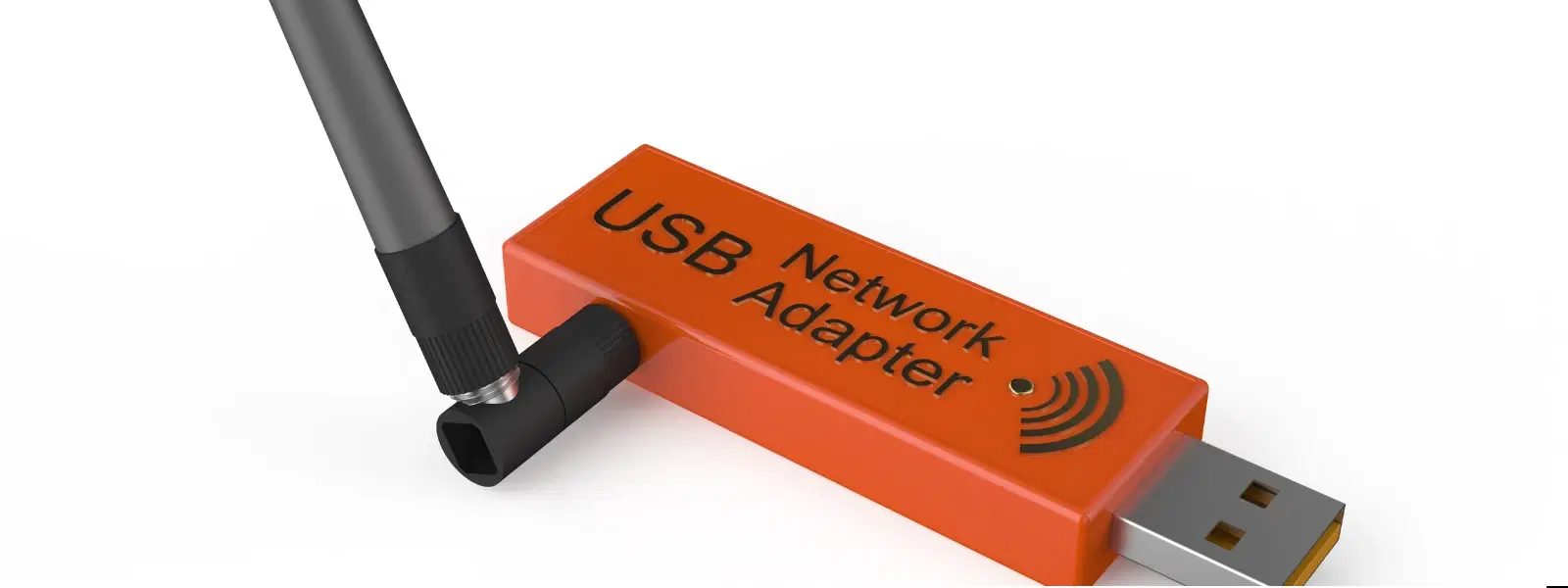
A wireless 11n USB adapter is a fantastic tool to upgrade your computer’s Wi-Fi capabilities. Whether you're struggling with an outdated network connection or simply want to explore modern technologies, this guide will walk you through every step of the installation process. With clear instructions and practical tips, you'll soon be enjoying seamless connectivity and a robust internet connection.
Wireless 11n USB adapters are compact devices designed to enhance your computer’s connectivity by integrating the 802.11n standard. When it comes to upgrading your outdated hardware, these adapters offer a simple solution for boosting speeds and reliability. Compatible with many operating systems and modern devices, this upgrade is especially useful for users who are looking to improve performance without the need for an extensive overhaul.
At its core, a wireless 11n USB adapter is a small device that plugs into your computer's USB port, enabling it to connect to Wi-Fi networks even if the built-in networking hardware is limited or obsolete. It’s perfect for desktops, older laptops, or any system that needs a connectivity boost. With a focus on user-friendly design and efficiency, these adapters transform how you access the internet.
These adapters support the 802.11n standard, ensuring faster data transmission and improved stability of your network connection. Their compact size makes them easy to install and transport, while their compatibility with multiple operating systems means you don’t have to worry about changing devices. Whether you are upgrading a family desktop or enhancing a personal laptop, a wireless USB adapter is both efficient and practical.
Before diving into the installation, a little preparation goes a long way. Ensuring you have met the prerequisites will make the process smooth and enjoyable.
Confirm that your device has a compatible USB port and that your operating system supports the adapter. Many wireless USB adapters work well with systems like Windows 7, Windows 10, and other modern OS versions. It’s also wise to check that your device’s hardware can accommodate the adapter’s needs to ensure that you get the best performance.
Make sure you have the following ready before beginning the installation process: the wireless 11n USB adapter, driver installation files (downloaded online if no CD is available), and a stable internet connection. This checklist ensures a trouble-free experience when moving on to setup and configuration.
In the absence of a CD, drivers can be easily downloaded from the hardware manufacturer’s website. Whether you are setting up on Windows 7, Windows 10, or another operating system, ensure that you download the correct version for your system. Refer to the manufacturer’s installation guide for detailed driver information. This proactive step guarantees that the adapter works correctly from the moment it is plugged in.
Let’s break down the installation process into three simple stages: the physical setup, driver installation, and adapter configuration.
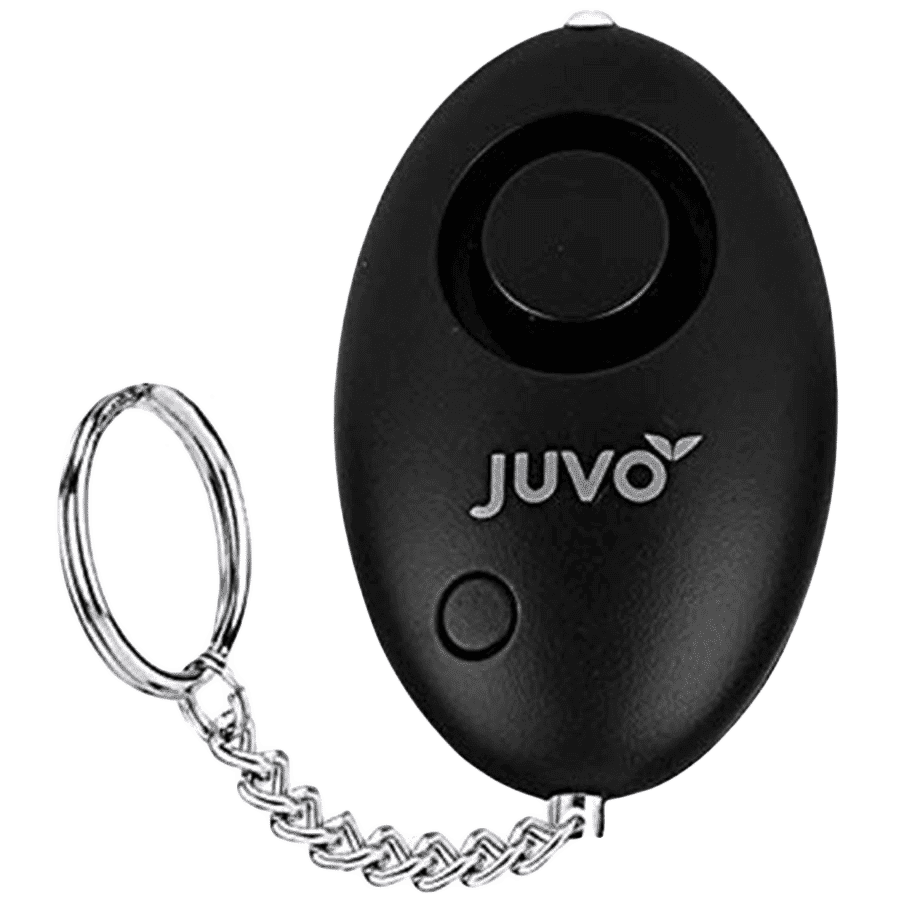
<p>Danger can overpower you at any time and your voice will not be enough in such situations to get the required aid. The amazing new <strong>Juvo PSB01 Personal Alarm</strong> is crafted for all ages and is a necessary precaution from all kinds of danger. It rings a very loud alarm at 120 dB as well as flashes the torch to warn people nearby about a danger. Whether you have a medical emergency or you are attacked by predators your voice may not be heard but this alarm will be enough to deter attackers or draw attention of people close by to give you the immediate assistance required.</p> <p><strong>Extremely Easy To Use</strong></p> <p>The <strong>Juvo PSB01 Personal Alarm</strong> is small and portable, can be attacked to even a keychain if you want. To start the siren all you need to do is separate or pull the metal key chain from the main black unit. The siren may go on for 1 1/2 hours in case nobody heard it in the first minutes. This is very important for girls returning home alone at night as it acts as a security anti-attack panic alarm that is sure to scare off a molester. Its easy portability accentuates its use.</p> <p><strong>Lights Your Way</strong></p> <p>The little and portable <strong>Juvo PSB01 Personal Alarm</strong> also features a small LED torch that helps you find your way in the dark. Don’t be scared of dark alleys when you have this with you because it is equipped to save you from all dangers.</p>
Begin by gently inserting the wireless adapter into an available USB port. It is important to ensure that the device is snugly connected. A secure plug-in not only prevents hardware recognition issues but also sets the stage for a successful installation. Once connected, you may notice a small light indicating that the adapter is receiving power.
Proceed with the driver installation by using either an automatic driver update tool or a manual installation method. For Windows users, particularly on Windows 7 or Windows 10, there are on-screen prompts to guide you. Follow these prompts closely. If you encounter any issues, a reinstallation or update of drivers may help clear up any errors. Remember, correct driver installation is essential for the adapter to perform optimally.
After installing the drivers, the next step is to configure your adapter. Typically, this involves selecting your Wi-Fi network from a list of available options. Enter your network credentials, and verify that the connection is active. If you’re prompted for settings, choose the ones that best suit your environment. This step is crucial to ensure that your device communicates effectively with your network.
Pro Tip: Ensure Driver Compatibility for Seamless Setup
Did you know that using outdated or incompatible drivers can lead to installation errors and connection issues? Always download the latest drivers directly from the manufacturer’s website to avoid unnecessary headaches and ensure optimal performance.
Sometimes, even a straightforward installation can run into minor snags. Here are some common issues and their solutions to help ensure you are up and running in no time.
If your system does not recognise the adapter, double-check your USB connection. Ensure the adapter is connected firmly and that the USB port is functional. Occasionally, trying a different USB port or restarting your computer can resolve recognition issues.
If the driver installation wasn’t successful, try downloading the driver again from the manufacturer’s website and reinstall it. Sometimes, uninstalling the previous driver before installing the new one can help eliminate any conflicting files. Following these steps should clear up any issues related to driver installation.
Even after configuring the device, you might experience slow or unstable Wi-Fi connectivity. Try repositioning the adapter to ensure it is not blocked by other devices. Other electronics might be causing interference, so placing the adapter in an area with minimal obstructions often yields better signal strength.
Once the basic setup has been completed, you may wish to delve into some advanced configurations to optimise your wireless performance further.
The versatility of wireless USB adapters means they can easily be used across multiple devices such as desktops, laptops, or other compatible systems. Always ensure that each device has the correctly installed drivers for a smooth installation experience.
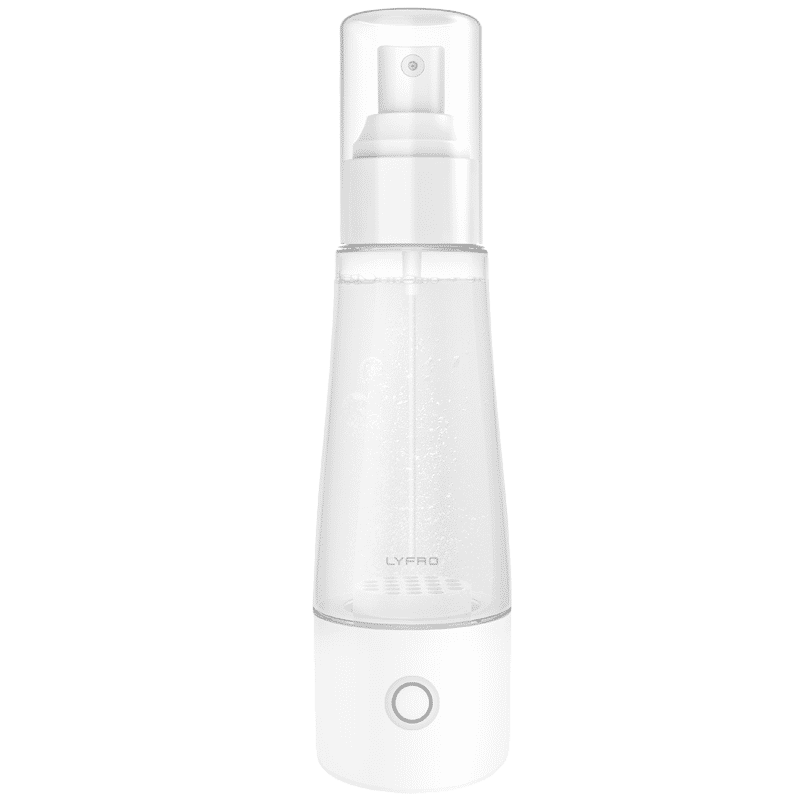
<p>The <strong>Lyfro Battery Powered Disinfectant Solution Generator</strong> is non-toxic and has no side effects</p> <ul> <li><strong>Free of Chemical Residues</strong> makes it an eco-friendly, cost-effective disinfectant</li> <li><strong>Uses Electrolysis</strong> to produce natural powerful disinfectant</li> <li><strong>300 mAh Battery</strong> with USB recharging facility</li> </ul> <p>Buy <strong>Lyfro Battery Powered Disinfectant Solution Generator</strong> to experience its awesome usages. It is an ultra-portable non-toxic disinfectant maker. It comes with an electrolysed water generator. Useful to sterilize public places as well. Use <strong>Lyfro Battery Powered Disinfectant Solution Generator</strong> which allows you to create your own non-toxic disinfectant in just 3 minutes. Simply add salt and water together. Uses electrolysis to produce natural powerful disinfectants proven to be effective against bacteria, viruses, and mold.</p> <p>When you get <strong>Lyfro Battery Powered Disinfectant Solution Generator</strong> online, you also get an awesome eco-friendly, cost-effective disinfectant for your everyday life. It is equipped with a 300 mAh battery with USB recharging facility. It is usable at home, office, or in transit. It eliminates up to 99.9 percent pathogens. It is free of chemical residues. It is a self-made disinfectant.</p>
Improving your Wi-Fi connection does not stop at installation. Small tweaks in settings can enhance the adapter’s functionality by adjusting parameters for increased speed and stability. Consider experimenting with different channels or settings to see what works best in your space.
Keeping your firmware and drivers updated is essential for a secure and efficient connection. Regular updates not only combat security vulnerabilities but also ensure compatibility with evolving network standards. This proactive maintenance supports long-term performance and reliability.
You can download the driver from the manufacturer’s website, plug in the adapter, and follow the on-screen instructions for installation.
Ensure the adapter is firmly connected to the USB port, update the drivers, and check for any hardware compatibility issues.
Yes, just make sure to download the appropriate drivers for Windows 7 from the manufacturer’s website.
Try repositioning the adapter for better signal strength, update the drivers, and look for possible interference from other devices nearby.
In most instances, the adapter will automatically detect available networks; however, you might be required to enter network credentials manually for secure access.
Installing a wireless 11n USB adapter is a straightforward process that opens up a world of faster and more reliable internet connectivity. With the instructions provided, you can confidently enhance your device’s performance by following each step systematically—from checking system requirements to optimising your setup. This tutorial aims to guide you not only in installation but also in troubleshooting any minor hiccups that may arise along the way. By taking these steps, you’re investing in a smoother and more efficient online experience that keeps you connected wherever you are.
Leveraging solutions like these is in line with the philosophy of modern digital convenience. Much like the seamless benefits of earning NeuCoins with every purchase on Tata Neu, a properly installed wireless adapter delivers lasting value, transforming everyday online tasks into efficient journeys. Enjoy the process of transformation and discover the ease of smart shopping and connectivity – all with the reassurance of reliable support and expertise.
