





Consumer Electronics
•04 min read

Imagine being able to install Windows 7 on a modern PC using USB 3.0 ports without compatibility issues. This guide shows you exactly how to overcome the hurdles of interfacing the older operating system with the faster technology of USB 3.0 ports. By reading on, you will learn how to prepare a USB drive, integrate specific drivers into your Windows 7 ISO, and create a bootable installation medium using trusted tools and best practices.
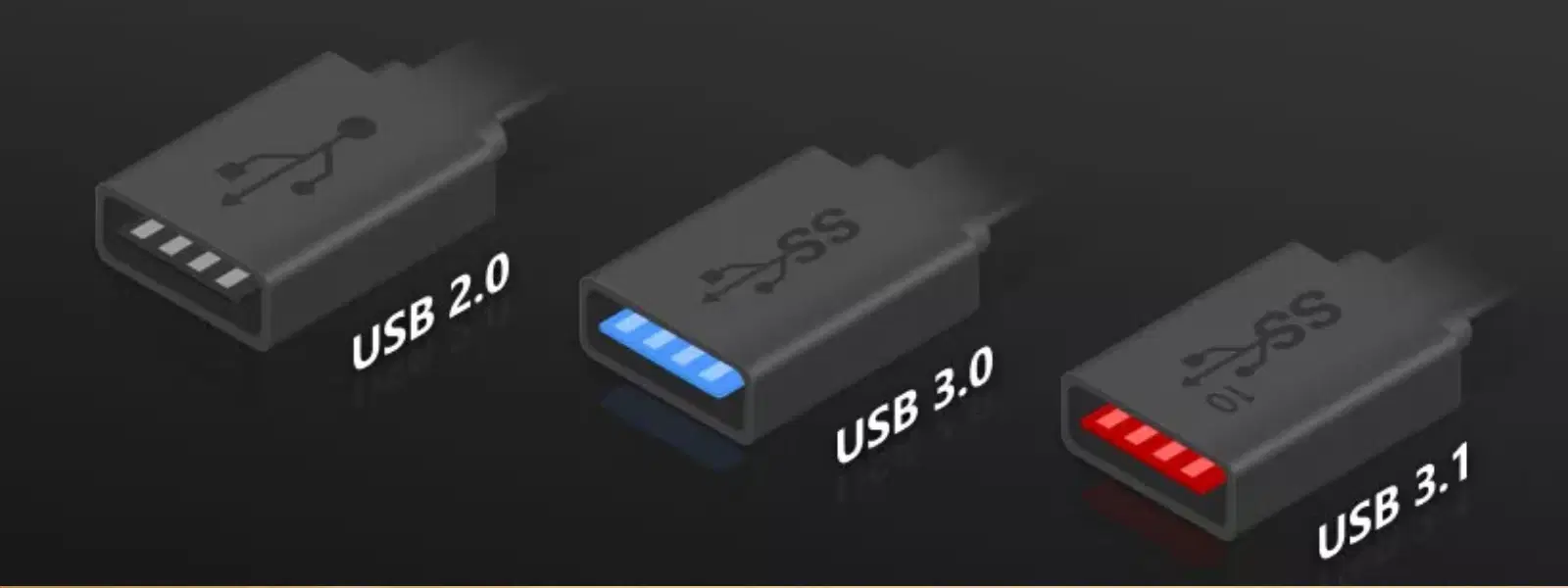
USB 3.0 offers significantly faster data transfer rates than its predecessor, USB 2.0, but Windows 7 does not natively support these advanced drivers. This incompatibility can lead to challenges when installing the operating system on devices that only have USB 3.0 ports. If your system lacks the necessary USB 3.0 drivers, the installation might not recognise the USB drive at boot time, creating frustration and missed opportunities for seamless setups.
Before you dive into the process, ensure you have all the key ingredients: a genuine Windows 7 ISO, the correct USB 3.0 drivers (both 32-bit and 64-bit, as applicable), and reliable bootable USB creation tools. Checking your hardware's compatibility is crucial to avoid roadblocks during installation.
There are several reliable utilities available to help you with USB boot drive creation. Among these, Rufus stands out as a popular choice due to its simplicity and efficiency, though there are other options, such as UltraISO and similar utilities. Choose the one that best meets your needs based on user reviews and compatibility with your system.
Acquiring the appropriate drivers is essential for ensuring that your installation journey is smooth. Locate the necessary USB 3.0 drivers from trusted sources, ensuring that they are specifically designed for Windows 7 environments. This preparation is a critical step in preventing hardware recognition issues during the subsequent installation process.
The process begins by getting your USB drive ready for action. It is best to format the drive to either FAT32 or NTFS, depending on your requirements. An 8GB USB drive (or larger) is highly recommended to avoid storage constraints during installation.
Integrating the USB 3.0 drivers into the Windows 7 ISO, a process known as slipstreaming, is the cornerstone of ensuring a hassle-free installation in modern USB 3.0-only systems. Using tools like the DISM utility or third-party applications, you can add the drivers directly into your Windows 7 installation files. This pre-integration step saves valuable time during the installation process and guarantees a smoother setup experience, so the installer recognises the USB 3.0 ports without any issues.
With drivers seamlessly integrated into your ISO, move on to using a tool like Rufus to create the bootable drive. Start by selecting your newly updated ISO file in the application. Make sure to set the partition scheme and file system according to your system's requirements, then initiate the creation process. Rufus is intuitive and guides you through each step, ensuring that even a novice can complete the task successfully.
Pro Tip: Optimize Your Installation with Pre-Integrated Drivers
Slipstreaming USB 3.0 drivers directly into your Windows 7 ISO not only simplifies the installation process but also prevents driver-related errors during setup. This ensures a smoother experience, particularly when installing on modern systems that feature USB 3.0 ports.
After creating your bootable USB drive, it’s time to install Windows 7. The first step of this process is accessing your computer’s BIOS or UEFI settings. Once inside, locate the boot order menu and configure your settings to prioritise booting from the USB drive. Remember to check the availability of these features on your system; not all devices support the same configurations.
Getting into the BIOS is typically done by pressing a specific key (often F2, Del, or Esc) during startup. Once there, seek out the boot order options and position the USB drive as the primary device. This adjustment ensures that the system recognises the bootable USB when restarting.
With your BIOS set to boot from the USB drive, the Windows 7 installation process will commence. Follow the on-screen prompts carefully. At this stage, the previously integrated USB 3.0 drivers should be automatically recognised, facilitating smooth hardware communication throughout the installation process. Your journey from booting up to a fully operational Windows 7 environment should now be markedly more efficient.
Despite following the process meticulously, occasional hiccups might appear. One common problem is the USB drive not being recognised during boot. This issue may stem from incorrect BIOS settings, a corrupted USB drive, or issues with driver integration. Rechecking the BIOS settings, reformatting the USB drive, and ensuring that the driver integration was done correctly can often remedy this problem.
Installation freezes or errors may occur if outdated drivers are used or if there is hardware incompatibility. In such cases, updating your ISO image with the latest drivers or using alternative creation utilities might help resolve these issues and ensure the installation continues smoothly.
While this guide focuses on technical nuances, it's good to note that shopping on platforms like Tata Neu not only provides access to reliable consumer electronics but also rewards you with NeuCoins. When purchasing gadgets or any tech accessories, you earn up to 5% NeuCoins, adding real value to your experience and making every transaction more rewarding. This isn’t just about getting the right tools for bootable USB drive creation—it’s about enjoying a seamless digital rewards experience from a trustworthy platform.
The solution is to download the necessary drivers from trusted sources and integrate them into your Windows 7 ISO using tools like DISM or recommended third-party applications.
Yes, USB 3.0 can work with Windows 7, but the operating system requires additional drivers to recognise and utilise USB 3.0 ports effectively.
The process involves using tools such as Rufus or similar utilities to format the USB drive, select your ISO, and create the bootable drive with pre-integrated drivers.
Before creating your bootable drive, integrate the USB 3.0 drivers into your Windows 7 ISO. This ensures that the installation setup recognises USB 3.0 ports without additional configuration.
Creating a USB 3.0 bootable Windows 7 drive might have seemed daunting at first, but with the right preparation and tools, it becomes a straightforward task. Overcoming compatibility challenges and ensuring a smooth installation process means you can continue using trusted operating systems on modern hardware. Moreover, this tutorial is a testament to the ease and convenience that modern technology offers when combined with careful planning. Explore more tutorials and resources from Tata Neu to continue gaining the insights you need to shop smartly and earn valuable NeuCoins with every transaction.
