





%20(Presentation)%20(1600%20x%20600%20px)(545)-c81b4bea-5007-4f43-b1f7-3af5f68e5325.webp&w=3840&q=75)
Consumer Electronics
•04 min read

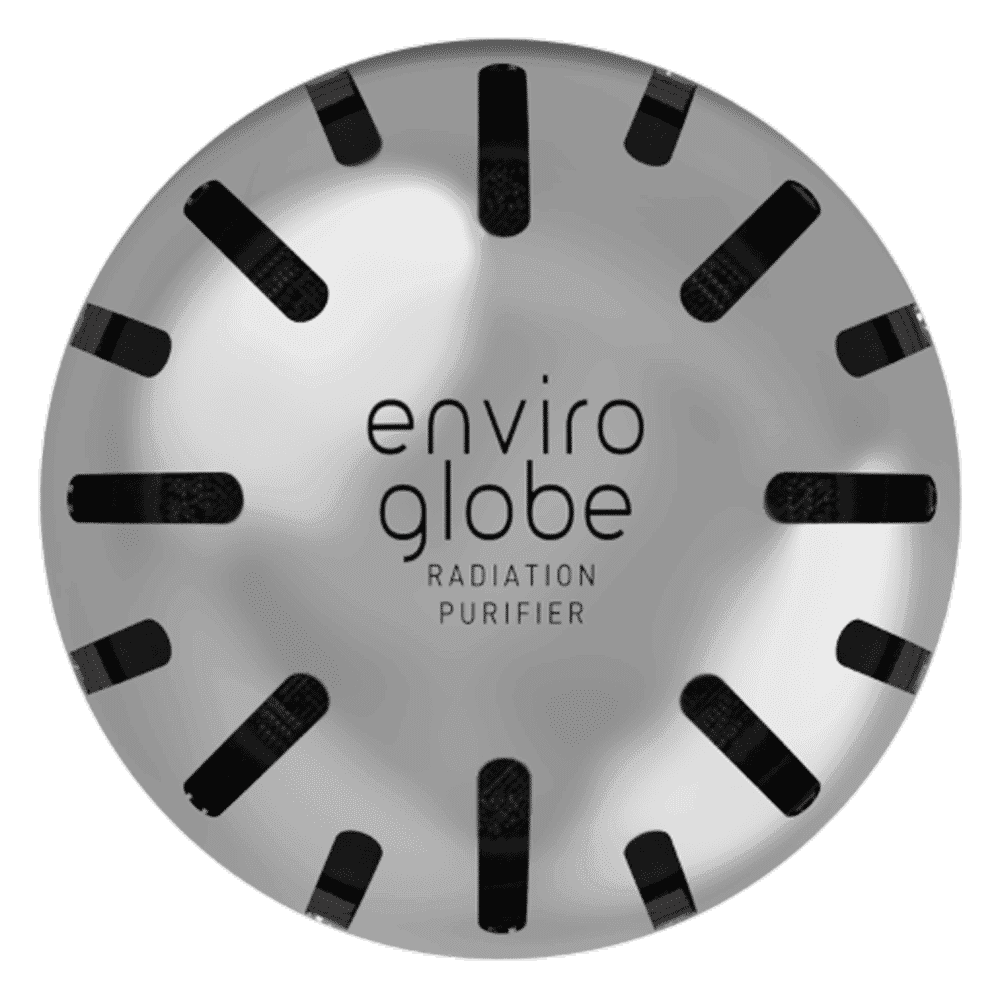
<p><strong>Why buy Environics Enviroglobe Anti Radiation Ball for House & Car</strong></p> <p> </p> <ul> <li><strong>Provides E-Smog and Radiation Protection</strong> for healthier homes and families</li> <li><strong>It Covers A Radius</strong> of 250 sq.ft protect you and your loved ones from harmful radiation</li> <li><strong>Clinically Tested EMF Harmonizer</strong> that provides us 360-degree protection from radiation sources that are beyond our control</li> </ul> <p> </p> <p>Buy the <strong>Environics Enviroglobe Anti Radiation Ball for House & Car</strong> which is based on Envirochip’s radiation protection technology that helps you protect you and your loved ones from harmful radiation within an area of 250 sq. feet. You can extend the range of protection by placing multiple Enviroglobes at equal distances from one another. It is a clinically tested EMF harmonizer and provides us 360-degree protection from radiation sources that are beyond our control. Electromagnetic Radiation (EMR) refers to the constant waves of the electromagnetic field (EMF) produced by wireless communication devices such as mobile phones, laptops, Wi-Fi routers, and other sources such as mobile towers and high-tension wirelines, etc. However, The human body is accustomed to random waves and hence the constant exposure to electromagnetic radiation causes serious biological disorders such as higher stress and fatigue, irritation, headache, weakened immunity, cancer, fertility issues to name a few. The technology used in Enviroglobe changes the nature of electromagnetic radiation from constant to random waveform making it human body-friendly.</p> <p> </p> <p>When you get <strong>Environics Enviroglobe Anti Radiation Ball for House & Car</strong> online, you also get awesome companion for your home. It comes with Internationally tested and certified technology. No need of batteries or adaptors, you can simply charge by placing it under the sunlight, for only a couple of minutes every week. Enviroglobe is simple to use. Simply place it at your desk, table, living room, bedroom, car, office space, absolutely wherever you want, and get a radiation protected zone of up to 250 sq. feet. It provides e-smog and radiation protection for healthier homes and families. Purchase <strong>Environics Enviroglobe Anti Radiation Ball for House & Car</strong> online, now!</p>

Screenshots are a handy way to save and share what’s on your screen, yet many Samsung tablet users find themselves puzzled by the array of methods available. Whether you need to share important information with a friend or safeguard a memorable moment, understanding how to take a screenshot on your Samsung tablet can be a game changer. In this guide, you will discover simple, step-by-step techniques that include using hardware buttons, gestures, the S Pen, and even keyboard shortcuts.
The screenshot feature lets you instantly capture exactly what appears on your screen. This functionality is incredibly useful for saving important details, sharing content with loved ones, or even retaining a reference for work or study. Many users find this feature essential when they are exploring new ideas on their tablet or while navigating expressive content on the web.
After you take a screenshot, a toolbar typically appears at the bottom of your screen. This toolbar offers several options including crop, annotate, and share, making it easier to adjust your screenshot on the go. Should the toolbar not automatically appear, you can enable it in your tablet’s settings under Advanced Features, in the area for Screenshots and Screen Recorder options.
The most commonly used method relies on your tablet’s hardware buttons. Pressing the Power and Volume Down buttons simultaneously captures the image instantly. Depending on the model you own, such as the Galaxy Tab A7 or S6 Lite, the process might slightly vary. It is best to check the specific button layout in your device’s manual if you encounter any unusual behaviour.
An alternative to pressing physical buttons is the palm swipe gesture. To enable this feature, head over to your tablet settings and activate the palm swipe option. Once set up, simply drag the edge of your hand across the screen, and your tablet will automatically capture what’s displayed.

<p><b>Enhanced Cleaning Technology</b><br/><br/>The MILAGROW 24W Robotic Vacuum Cleaner offers reliable wet and dry cleaning capabilities, which makes it an ideal choice for both home and office environments. Equipped with the enhanced NIDEC Brushless Motor, it delivers a powerful suction of 1500Pa, which ensures effective dirt and debris removal across various surfaces.<br/><br/><br/><b>Smart Navigation </b><br/><br/>Utilising cutting-edge Gyro Mapping technology, this robotic vacuum cleaner employs earth's gravity for optimal orientation and navigation. The rotor mechanism accurately measures rotation rates, which enables the device to stabilise and efficiently map out cleaning paths. It features four cleaning modes - smart, wall follow, spiral, and remote control – which allows for versatile cleaning strategies tailored to your space.<br/><br/><br/><b>Reliable Battery Life</b><br/><br/>Powered by a robust 2600mAh battery, this 24W vacuum cleaner boasts an optimum working time of up to 110 minutes. It can cover up to 1800 square feet on a single charge, which ensures comprehensive cleaning throughout your space without frequent interruptions. The 0.6-litre dustbin is designed to handle substantial dirt loads, while the 0.11-litre water tank facilitates effective wet cleaning.<br/><br/><br/><b>Efficient Filter System</b><br/><br/>Featuring a triple filter system which includes HEPA 12 filtration, this vacuum cleaner ensures the removal of most of the airborne particles as small as 0.3 microns. It effectively captures allergens, dust mites, mould spores, and even fine particles like smoke and bacteria, which creates a healthy environment in your home or office.<br/><br/><br/><b>User-Friendly Features </b><br/><br/>The MILAGROW vacuum cleaner affirms its reliability and safety for everyday use. Its user-friendly design allows for effortless operation and maintenance, which makes it an essential cleaning companion. With MILAGROW 9.0 Software Generation, it ensures optimal performance and user satisfaction.</b><br/><br/></p>
For users with compatible Samsung tablets, the S Pen not only offers precision for drawing and note-taking, but also an easy way to capture screenshots. By tapping the S Pen button while hovering over the screen, you trigger a screenshot, after which you have the opportunity to annotate or modify the captured image using the S Pen’s handy features.
If you are using an external keyboard with your Samsung tablet, you might find the keyboard shortcut method exceedingly practical. Configuring a shortcut within the tablet settings can streamline repeated screenshot activities, enhancing efficiency especially in a professional or academic environment. This method serves as a simple yet effective alternative for those moments when physical button use becomes inconvenient.
While Samsung tablets come with robust built-in screenshot utilities, certain scenarios may call for third-party applications. There are reliable apps designed to offer additional functionalities such as advanced editing, custom shortcut configurations, and features that go beyond the native capabilities offered by Samsung. These apps can be especially useful if you require more control over your screenshot processes, although many users will find the native options more than sufficient for everyday needs.
To truly master the screenshot functionality on your Samsung tablet, consider some practical tips. For instance, enabling scroll capture can let you grab long, scrolling pages in one seamless image. This way, lengthy articles or extensive conversations can be saved without having to take multiple screenshots. Organising your screenshots by using dedicated folders or editing them immediately after capturing can also enhance your overall user experience.
Sometimes, users might face issues such as unresponsive buttons or a non-activated gesture feature. If you encounter trouble using physical buttons, trying an alternative method like the palm swipe gesture or the S Pen may help bypass the problem. Additionally, if your tablet does not react to the initial input, a system restart or a quick check of your settings may resolve any technical hiccups. These techniques ensure you are never left without a reliable way to capture your tablet’s screen.
Pro Tip: Save Time with Screenshot Shortcuts
Did you know you can save time by enabling Samsung’s screenshot toolbar for quick edits and sharing right after capturing your screen? This feature proves extremely useful for those who frequently share screenshots on social media or via email, allowing you to streamline your workflow effortlessly.
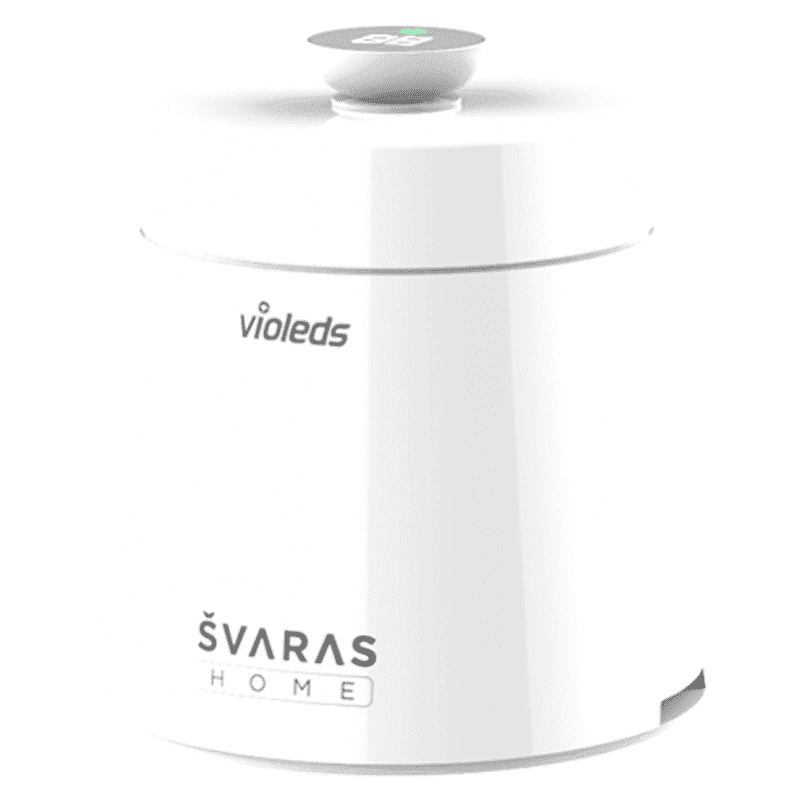
<p><b>HEUV Technology</b><br/><br/>Thanks to the HEUV technology, the SVARAS Home X2 Pro UV Steriliser effectively targets and eliminates a wide range of viruses and bacteria, including those responsible for illnesses such as the coronavirus. As a result, you can have peace of mind knowing that you can effectively protect yourself and your family from potential health threats.<br/><br/><br/><b>Enhanced Sterilisation</b><br/><br/>This rechargeable UV steriliser provides optimal sterilisation capabilities, which eliminates harmful germs. This high level of effectiveness makes it an ideal choice for homes, offices, and shops, ensuring that surfaces remain clean and safe. Thus, you can trust this steriliser to protect your health and the health of your loved ones by efficiently disinfecting various surfaces.<br/><br/><br/><b>User-Friendly Functionality</b><br/><br/>This home steriliser boasts convenient features that enhance its usability. It includes a voice alarm that signals when the sterilisation process is complete, ensuring you never forget to turn it off. Additionally, the device offers a safe automatic power-off feature, which enhances safety during operation. Convenient charging capabilities further simplify the user experience, which makes it easy to keep the steriliser ready for action.<br/><br/><br/><b>Eco-Friendly Design</b><br/><br/>Designed with sustainability in mind, this SVARAS steriliser promotes an eco-friendly lifestyle. It operates without mercury or harsh chemicals, which makes it safe for both users and the environment. This design choice allows you to maintain a clean living space while reducing your ecological footprint. Moreover, the sleek, modern appearance of the steriliser ensures that it complements any decor.</p>
The screenshot toolbar appears at the bottom of the screen immediately after capturing a screenshot. If it’s not visible, navigate to Advanced Features in your tablet’s settings under Screenshots and Screen Recorder to enable it.
You may capture a screenshot using physical buttons, the palm swipe gesture, or via the S Pen on compatible models. Each method caters to different preferences and scenarios.
The palm swipe gesture, S Pen, or a specially chosen third-party app can assist you if your physical button is not an option at that moment.
Yes, many Samsung tablets support scrolling screenshots. Once you take an initial capture, simply select the Scroll Capture option from the screenshot toolbar to extend your screenshot.
The screenshot toolbar provides options to crop, annotate, or share your screenshot right after it’s taken. For further editing, advanced tools are available in the Gallery app.
Capturing screenshots on your Samsung tablet is straightforward once you understand the available methods. Whether you favour the use of physical buttons, gesture-driven controls, or the precision of an S Pen, each technique offers its own advantages. By integrating these methods into your routine and utilising the pro tips and troubleshooting advice provided, you can streamline your screen capturing experience. Enjoy the simplicity and efficiency of this feature, and explore how Tata Neu makes your smart shopping and tech usage experience seamless and rewarding with NeuCoins earned from every transaction.
