
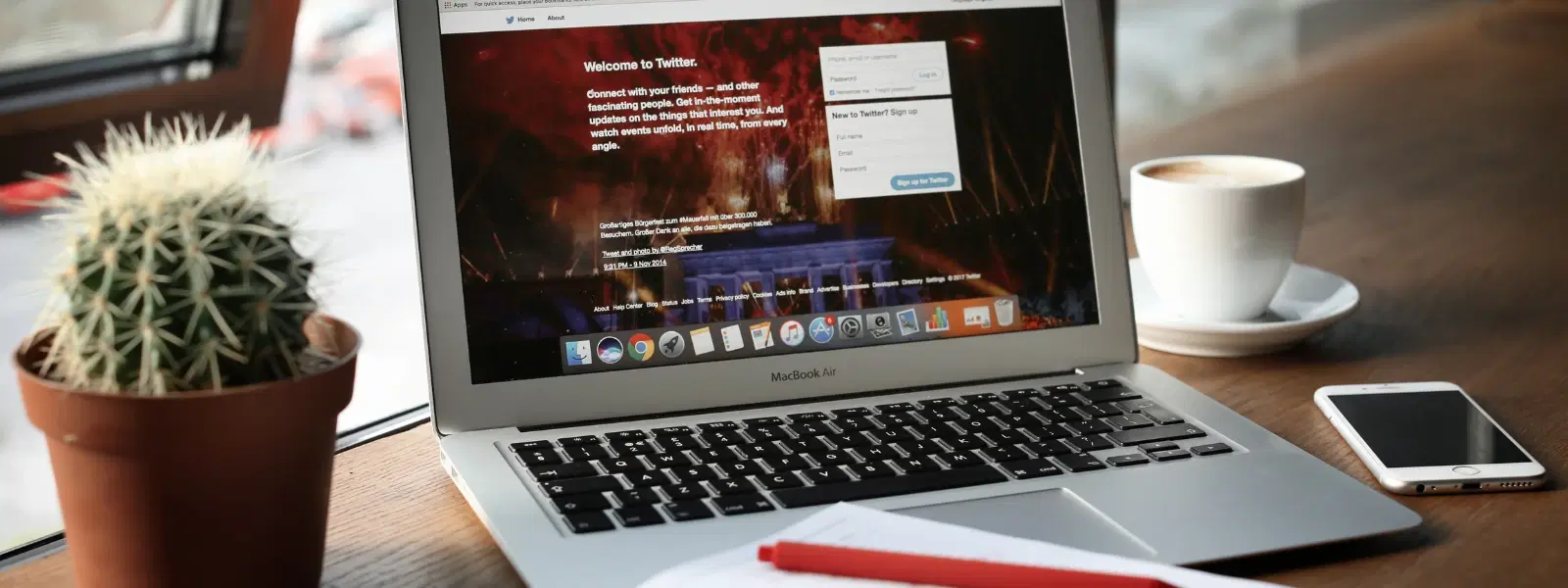
Mac Air Screenshot Checklist: Tips for Perfect Captures

Consumer Electronics

03 min read

Mac Air Screenshot Checklist: Tips for Perfect Captures

Environics Device Disinfector (Disinfects Up To 99.99%, 127ELGD, Blue)

Environics Device Disinfector (Disinfects Up To 99.99%, 127ELGD, Blue)

<b>Why Buy Environics Device Disinfector</b><ul><li><b></b> for optimised disinfection</li><li><b></b> makes sure all the germs are killed</li></ul><p>To prevent harmful bacteria and fungi from getting in contact with you, buy <b>Environics Device Disinfector</b>. The usability of your device disinfector may be affected if its installation is complex. As this device disinfector has the it prevents the extra-spill and wastage of sanitizer. Your residence and office will stay clean and hygienic with products from this device disinfector that have 99.99% high resistance against germs and viruses. </p><p>The <b>Environics Device Disinfector's</b> price is cost-effective so you don't have to adjust your budget. The longer it takes for the device disinfector to disinfect, the longer you will have to wait. As a result of its efficient and effective operation, this device disinfector requires only to inject. Your device disinfector needs to have the latest technology to make sure it kills all the germs. As this device disinfector has the to prevent viruses, you can rest assured. Purchase the <b>Environics Device Disinfector</b> online at this instant!</p>

114249
Earn NeuCoins

Have you ever struggled with finding the right keyboard shortcuts to capture the perfect screenshot on your MacBook Air? You're not alone! This guide is a straightforward checklist designed to help you master how to take a screenshot on Mac Air, whether you're preparing work presentations, capturing creative projects, or simply preserving important moments. Read on to learn step-by-step methods, handy shortcuts, and insider tips that make the process quick and hassle-free.

Understanding Mac Air Screenshot Basics

What is a Screenshot?

A screenshot is an image capture of what is displayed on your screen. It is perfect for saving ideas, sharing error messages for troubleshooting, or keeping a record of creative layouts. On your Mac Air, you have several built-in tools that allow you to take a screenshot on Mac effortlessly.

Why Mastering Screenshots Matters

Perfect screenshots are essential in many scenarios. Whether you are a tech enthusiast, a student, or a professional, having the ability to capture your screen clearly can boost your productivity. Mac Air screen capture techniques come with unique shortcuts and tools that ensure your images look professional and crisp every time.

Methods to Take Screenshots on Mac Air

Using Keyboard Shortcuts

The easiest way to take a screenshot on Mac Air is by using keyboard shortcuts. Here are your primary options:

  • Cmd + Shift + 3 captures the entire screen.

  • Cmd + Shift + 4 lets you capture a selected portion of the screen.

  • Cmd + Shift + 5 opens advanced screenshot options including screen recording.

These shortcuts are handy for a quick screen grab on Mac Air and allow you to save screenshot on Mac Air with minimum effort.

Advanced Screenshot Options

For more specific needs, you can use these techniques:

  • Cmd + Shift + 6: This shortcut is available for capturing the Touch Bar on applicable MacBook models.

Note: The Cmd + Shift + 6 shortcut is applicable only to MacBook models equipped with a Touch Bar and may not be available on your MacBook Air.

Lyfro Battery Powered Disinfectant Solution Generator (Disinfects Up To 99.9 %, Hydro Go, White)

Lyfro Battery Powered Disinfectant Solution Generator (Disinfects Up To 99.9 %, Hydro Go, White)

<p>The <strong>Lyfro Battery Powered Disinfectant Solution Generator</strong> is non-toxic and has no side effects</p> <ul> <li><strong>Free of Chemical Residues</strong> makes it an eco-friendly, cost-effective disinfectant</li> <li><strong>Uses Electrolysis</strong> to produce natural powerful disinfectant</li> <li><strong>300 mAh Battery</strong> with USB recharging facility</li> </ul> <p>Buy <strong>Lyfro Battery Powered Disinfectant Solution Generator</strong> to experience its awesome usages. It is an ultra-portable non-toxic disinfectant maker. It comes with an electrolysed water generator. Useful to sterilize public places as well. Use <strong>Lyfro Battery Powered Disinfectant Solution Generator</strong> which allows you to create your own non-toxic disinfectant in just 3 minutes. Simply add salt and water together. Uses electrolysis to produce natural powerful disinfectants proven to be effective against bacteria, viruses, and mold.</p> <p>When you get <strong>Lyfro Battery Powered Disinfectant Solution Generator</strong> online, you also get an awesome eco-friendly, cost-effective disinfectant for your everyday life. It is equipped with a 300 mAh battery with USB recharging facility. It is usable at home, office, or in transit. It eliminates up to 99.9 percent pathogens. It is free of chemical residues. It is a self-made disinfectant.</p>

6242999
Earn NeuCoins

You can also target individual windows or menus to capture exactly what you need. These mac air screenshot tips ensure you take a screenshot on Mac that meets your precise requirements.

Using the Screenshot Utility Tool

Your Mac Air offers a built-in Screenshot Utility Tool that lets you capture screens with extra control. Access it through the shortcuts mentioned above and explore options like screen recording for more dynamic captures. This mac air screenshot guide adds another level of convenience for editing and previewing your capture immediately.

Pro Tip: Master the Floating Thumbnail
Did you know? The floating thumbnail feature on Mac Air allows you to preview, edit, and share your screenshot instantly without cluttering your desktop. Use it to streamline your workflow!

Editing and Saving Screenshots

Quick Edits with Floating Thumbnail

The floating thumbnail appears shortly after you capture a screenshot. This feature allows you to make quick adjustments such as cropping or annotating before you decide where to save the file. It's a useful tool to ensure that your mac keyboard screenshot is polished and ready for use.

Advanced Editing with Preview

If you need detailed edits, opening the screenshot in the Preview app is ideal. With tools for cropping, adding annotations, or highlighting key areas, you can perfect your image for any professional or creative task.

Saving Screenshots

By default, screenshots are saved to your desktop. However, you can customise the save location through the Screenshot Utility settings. This allows for better organisation and ensures that you can quickly access your saved images on Mac Air.

Pro Tips for Perfect Mac Air Screenshots

Optimising Screenshot Quality

Choosing the right file format is essential. PNG offers a crisp image, while JPG can be useful for smaller file sizes. This tip helps you decide how to capture screen on Mac based on your specific needs.

Keyboard Customisation

SVARAS Home Rechargeable UV Sterilizer (Voice Alarm, X2 Pro, White)

SVARAS Home Rechargeable UV Sterilizer (Voice Alarm, X2 Pro, White)

<p><b>HEUV Technology</b><br/><br/>Thanks to the HEUV technology, the SVARAS Home X2 Pro UV Steriliser effectively targets and eliminates a wide range of viruses and bacteria, including those responsible for illnesses such as the coronavirus. As a result, you can have peace of mind knowing that you can effectively protect yourself and your family from potential health threats.<br/><br/><br/><b>Enhanced Sterilisation</b><br/><br/>This rechargeable UV steriliser provides optimal sterilisation capabilities, which eliminates harmful germs. This high level of effectiveness makes it an ideal choice for homes, offices, and shops, ensuring that surfaces remain clean and safe. Thus, you can trust this steriliser to protect your health and the health of your loved ones by efficiently disinfecting various surfaces.<br/><br/><br/><b>User-Friendly Functionality</b><br/><br/>This home steriliser boasts convenient features that enhance its usability. It includes a voice alarm that signals when the sterilisation process is complete, ensuring you never forget to turn it off. Additionally, the device offers a safe automatic power-off feature, which enhances safety during operation. Convenient charging capabilities further simplify the user experience, which makes it easy to keep the steriliser ready for action.<br/><br/><br/><b>Eco-Friendly Design</b><br/><br/>Designed with sustainability in mind, this SVARAS steriliser promotes an eco-friendly lifestyle. It operates without mercury or harsh chemicals, which makes it safe for both users and the environment. This design choice allows you to maintain a clean living space while reducing your ecological footprint. Moreover, the sleek, modern appearance of the steriliser ensures that it complements any decor.</p>

22647999
Earn NeuCoins

Customize your mac air screenshot shortcut within the System Preferences. This feature allows you to tailor your workflow to make taking screenshots even easier and more intuitive.

Troubleshooting Common Issues

If your screenshot does not save or the shortcuts seem unresponsive, ensure that your software is up-to-date, and check your settings in the Screenshot Utility. These basic steps often solve issues related to a mac air screen capture.

Frequently Asked Questions

Where do screenshots go on Mac Air?

Screenshots are saved to the desktop by default, but you can change the location in the Screenshot Utility settings.

How do I crop a screenshot on Mac Air?

You can use the floating thumbnail immediately after taking the screenshot or open the file in Preview to crop it.

Can I paste a screenshot directly into a document?

Yes, press Cmd + Ctrl + Shift + 4 to capture and copy the screenshot to the clipboard, then paste it into your document.

Is there a snipping tool for Mac Air?

While there is no dedicated snipping tool, using Cmd + Shift + 4 provides similar functionality for selecting specific areas of the screen.

How do I take a screenshot of the Touch Bar?

Use the shortcut Cmd + Shift + 6 to capture the Touch Bar on supported MacBook models.

Conclusion

Mac Air provides a range of versatile tools and shortcuts that make it simple to capture the perfect screenshot. Whether you're leveraging the floating thumbnail for quick edits or using advanced options within the Preview app, a good grasp of these techniques can enhance your productivity and creative expression. By following this checklist, you can confidently take and manage screenshots on your Mac Air and enjoy a seamless tech experience with Tata Neu's approachable guidance and dedicated support. Explore Tata Neu for exclusive tech rewards, including earning NeuCoins with every purchase and enjoying express delivery when orders are placed before 6pm.

Sangria Experience Logo