





Consumer Electronics
•04 min read

Did you know that USB 3.0 is generally considered to offer data transfer speeds that can be nearly 10 times faster than USB 2.0, based on common industry benchmarks? Yet, many are unsure if they are truly receiving the speed they deserve. This guide explains why checking your data transfer rate is important for smooth operations like file transfers, data backups, and ensuring device compatibility.
USB 3.0 is a modern standard offering a theoretical data transfer rate of up to 5 Gbps, according to current technical specifications. It outperforms USB 2.0 and sets the stage for even faster versions such as USB 3.1. Despite its impressive promise, performance can often be limited by hardware restrictions, file system choices, or the level of device compatibility. (Note: Gbps refers to gigabits per second, a measure of data transfer speed.)
Testing is essential whether you are troubleshooting slow performance, verifying the specifications of a new device, or comparing the performance of multiple USB drives. By understanding your device's speed, you can confidently gauge its reliability and enhance your overall tech experience.
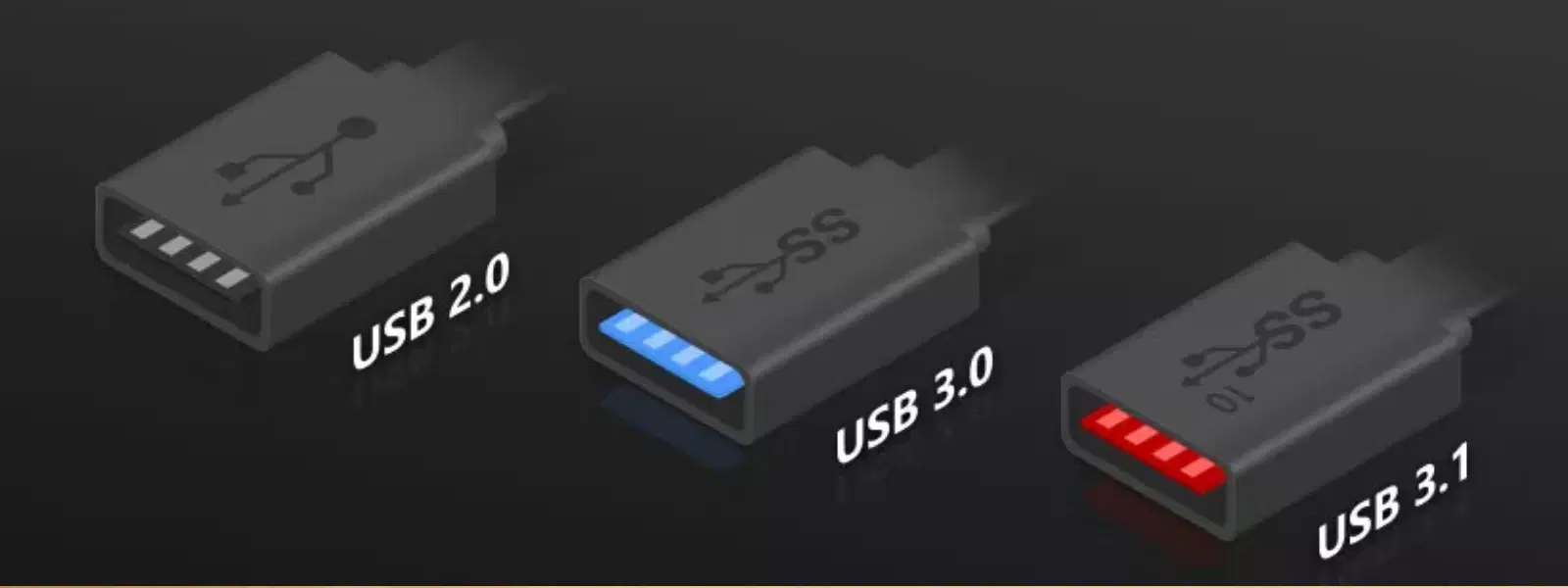
Before you test, double-check that your device supports USB 3.0. Visual indicators include a blue-coloured port or the presence of the "SS" logo. For a more precise check, you can review your system settings in Windows, macOS, or Linux.
Avoid using a USB 2.0 port or cable, as these can vastly skew your results. Additionally, disable any heavy background processes to prevent them from impacting your performance tests.
There are several dedicated tools available for different operating systems. Windows users might choose USBDeview, while macOS users can try Blackmagic Disk Speed Test. Linux enthusiasts can use hdparm (a command-line utility for disk performance analysis) for an in-depth analysis. Simply install the tool, follow the on-screen instructions, and start the speed test. This method is widely used for effective USB performance testing and is highly acclaimed for its ease of use.
If you prefer not to install additional software, you can use system utilities. Windows offers a Task Manager that can provide insights into drive performance, while macOS users can rely on Disk Utility for a straightforward test. Advanced users may opt for Command Prompt or Terminal for more customised tests.
For quick and accessible testing, consider online benchmarking tools. These require no installation and can provide fast insights into your USB drive's performance, making it easier to check USB transfer speed on-the-go.
When you test your USB 3.0 speed, focus on metrics such as read speed, write speed, and latency (the delay before a transfer begins). A robust performance in these areas confirms that you are getting the data transfer rate you expect. Generally, a standard performance is reflected in read and write speeds that fall within typical benchmarks, though actual rates will vary based on device specifics.
It is helpful to compare your results with standard benchmarks for USB 2.0, USB 3.0, and USB 3.1. If performance falls below expectations, it might indicate potential bottlenecks such as older cables or system inadequacies. Regular benchmarking helps identify when it might be time to update your setup.
Pro Tip: Maximise Your USB 3.0 Performance
Always use a high-quality USB 3.0-certified cable and ensure your device is plugged into a USB 3.0 port. Even a small oversight, like using an older cable, can significantly reduce your transfer speeds.
For reliable outcomes, run multiple tests throughout the day and at different times. Testing with files of varied sizes, such as 1 GB versus 10 GB, offers a clearer picture of your USB drive’s performance in real-world scenarios.
Enhancing performance can be as simple as updating your system's USB drivers or chipset firmware. In some cases, enabling USB 3.0 mode in the BIOS/UEFI (the firmware interface for system setup) and formatting drives to NTFS or exFAT can further boost data transfer rates. These adjustments ensure that your hardware operates at its fullest potential.
Plug the drive into a USB 3.0 port and use benchmarking tools such as CrystalDiskMark or USBDeview. These tools provide accurate performance results.
Look for visual indicators like a blue port or the "SS" logo, and confirm in your system settings that the device is connected as USB 3.0.
Use tools like USBDeview on Windows, Blackmagic Disk Speed Test on macOS, or hdparm on Linux. Alternatively, check speed through Task Manager or Disk Utility.
Make sure the USB 3.0 mode is enabled in your system’s BIOS/UEFI settings and update your USB drivers to the latest version.
A good rate usually falls between 100 and 150 MB/s for standard drives, though it can vary based on device capability and file types involved.
In summary, testing your USB 3.0 speed is essential for confirming that you receive the high performance promised by modern technology. By following these straightforward steps, you can quickly detect any performance issues while learning how to properly analyse your results. As you progress, making small optimisations can have a significant impact on your data transfer experience, paving the way for smarter and more rewarding tech interactions. When you shop on Tata Neu, you not only get top-notch tech advice but also earn up to 5% in NeuCoins and enjoy express delivery on eligible orders.
