
How to Scan Documents with iPhone Camera: A Simple Guide

Consumer Electronics

06 min read

How to Scan Documents with iPhone Camera: A Simple Guide

Environics Enviroglobe Anti Radiation Ball for House & Car (001EG, Grey)

Environics Enviroglobe Anti Radiation Ball for House & Car (001EG, Grey)

<p><strong>Why buy Environics Enviroglobe Anti Radiation Ball for House &amp; Car</strong></p> <p>&nbsp;</p> <ul> <li><strong>Provides E-Smog and Radiation Protection</strong> for healthier homes and families</li> <li><strong>It Covers A Radius</strong> of 250 sq.ft protect you and your loved ones from harmful radiation</li> <li><strong>Clinically Tested EMF Harmonizer</strong> that provides us 360-degree protection from radiation sources that are beyond our control</li> </ul> <p>&nbsp;</p> <p>Buy the <strong>Environics Enviroglobe Anti Radiation Ball for House &amp; Car</strong> which is based on Envirochip&rsquo;s radiation protection technology that helps you protect you and your loved ones from harmful radiation within an area of 250 sq. feet. You can extend the range of protection by placing multiple Enviroglobes at equal distances from one another. It is a clinically tested EMF harmonizer and provides us 360-degree protection from radiation sources that are beyond our control. Electromagnetic Radiation (EMR) refers to the constant waves of the electromagnetic field (EMF) produced by wireless communication devices such as mobile phones, laptops, Wi-Fi routers, and other sources such as mobile towers and high-tension wirelines, etc. However, The human body is accustomed to random waves and hence the constant exposure to electromagnetic radiation causes serious biological disorders such as higher stress and fatigue, irritation, headache, weakened immunity, cancer, fertility issues to name a few. The technology used in Enviroglobe changes the nature of electromagnetic radiation from constant to random waveform making it human body-friendly.</p> <p>&nbsp;</p> <p>When you get <strong>Environics Enviroglobe Anti Radiation Ball for House &amp; Car</strong> online, you also get awesome companion for your home. It comes with Internationally tested and certified technology. No need of batteries or adaptors, you can simply charge by placing it under the sunlight, for only a couple of minutes every week. Enviroglobe is simple to use. Simply place it at your desk, table, living room, bedroom, car, office space, absolutely wherever you want, and get a radiation protected zone of up to 250 sq. feet. It provides e-smog and radiation protection for healthier homes and families. Purchase&nbsp;<strong>Environics Enviroglobe Anti Radiation Ball for House &amp; Car</strong> online, now!</p>

27044499
Earn NeuCoins

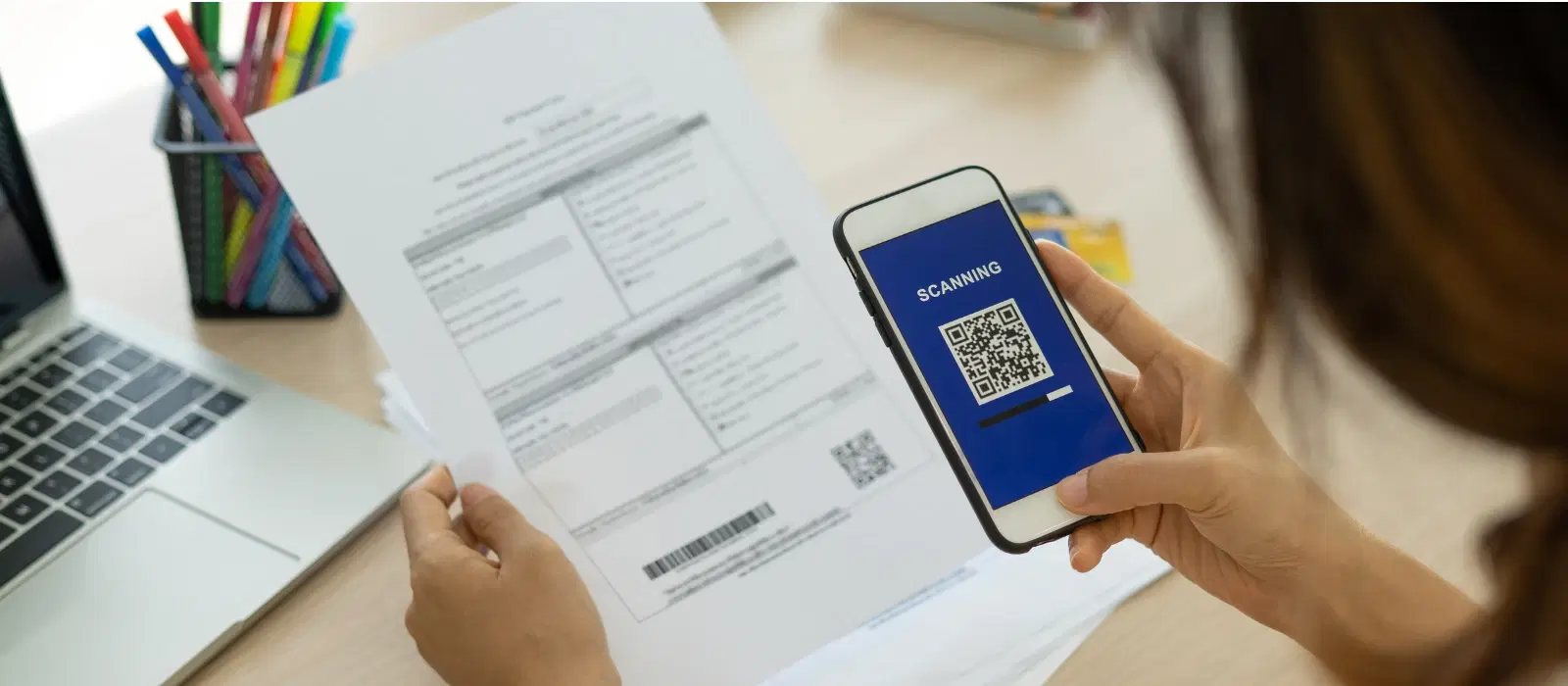
Imagine you're at a crucial meeting, and you need to quickly scan and share an important document. Instead of running to find a scanner, you can simply use your iPhone camera. The convenience and efficiency of using your iPhone for scanning documents cannot be overstated. With just a few taps, you can have a high-quality scan ready to share or save. Let's dive into how to scan with iPhone camera, making your life a whole lot easier.

In today's fast-paced world, having the ability to scan documents on the go is invaluable. Whether you're a student needing to submit assignments, a professional handling business documents, or a family member preserving important papers, your iPhone can be a powerful tool. The built-in scanning capabilities of the iPhone ensure that you have a reliable and efficient way to manage your documents without the need for additional hardware.

Getting Started with iPhone Camera Scanning

Understanding the Basics

To begin, you'll need an iPhone with iOS 11 or later. The built-in Notes app and Files app are equipped with scanning features that make the process seamless. These apps are readily available on your iPhone, eliminating the need for additional software. The Notes app is particularly user-friendly, offering a straightforward interface that even beginners can navigate with ease.

Preparing Your Document

Before you start scanning, ensure that your document is placed on a flat surface with good lighting. Remove any creases or folds to get a clear scan. This preparation step is crucial for achieving the best results. Good lighting helps in capturing all the details of the document, ensuring that the scan is clear and readable. If you're scanning multiple pages, make sure they are aligned properly to maintain consistency.

Step-by-Step Guide to Scanning Documents

Using the Notes App

To scan a document using the Notes app, follow these steps:

  • Open the Notes app and create a new note.

  • Tap the camera icon and select “Scan Documents.”

  • Position the document within the frame and capture the image.

  • Adjust the corners if needed and save the scan.

The Notes app also allows you to add annotations to your scanned documents. This can be particularly useful for students and professionals who need to highlight important sections or add comments.

Using the Files App

The Files app also offers a straightforward way to scan documents:

  • Open the Files app and tap the three dots.

  • Select “Scan Documents” and follow the same steps as the Notes app.

Juvo Personal Safety Alarm (PSB 01, Black)

Juvo Personal Safety Alarm (PSB 01, Black)

<p>Danger can overpower you at any time and your voice will not be enough in such situations to get the required aid. The amazing new <strong>Juvo PSB01 Personal Alarm</strong> is crafted for all ages and is a necessary precaution from all kinds of danger. It rings a very loud alarm at 120 dB as well as flashes the torch to warn people nearby about a danger. Whether you have a medical emergency or you are attacked by predators your voice may not be heard but this alarm will be enough to deter attackers or draw attention of people close by to give you the immediate assistance required.</p> <p><strong>Extremely Easy To Use</strong></p> <p>The <strong>Juvo PSB01 Personal Alarm</strong> is small and portable, can be attacked to even a keychain if you want. To start the siren all you need to do is separate or pull the metal key chain from the main black unit. The siren may go on for 1 1/2 hours in case nobody heard it in the first minutes. This is very important for girls returning home alone at night as it acts as a security anti-attack panic alarm that is sure to scare off a molester. Its easy portability accentuates its use.</p> <p><strong>Lights Your Way</strong></p> <p>The little and portable <strong>Juvo PSB01 Personal Alarm</strong> also features a small LED torch that helps you find your way in the dark. Don&rsquo;t be scared of dark alleys when you have this with you because it is equipped to save you from all dangers.</p>

474890
Earn NeuCoins

The Files app is ideal for organizing your scanned documents. You can create folders and subfolders to keep your documents neatly arranged, making it easy to find what you need when you need it.

Saving and Sharing Scanned Documents

Once you've scanned your document, you can save it as a PDF or image. Sharing is just as easy. You can send your scanned document via email, messaging apps, or save it to cloud storage for future access. The integration with cloud storage services like iCloud, Google Drive, and Dropbox ensures that your documents are always accessible, no matter where you are.

Tips for Optimal Scanning

Enhancing Scan Quality

To avoid blurriness, use a tripod or steady your hand while scanning. Adjust the brightness and contrast settings to enhance the clarity of your scanned document. The iPhone's camera is equipped with advanced features that can automatically enhance the quality of your scans, but taking a few extra steps can ensure the best results.

Organizing Scanned Documents

Keep your scanned documents organized by creating folders in the Notes or Files app. Use tags for easy retrieval, ensuring you can find your documents quickly when needed. This is especially useful for professionals who need to manage a large number of documents efficiently.

Exploring Third-Party Scanning Apps

Best Scanning Apps for iPhone

While the built-in apps are highly efficient, there are several third-party apps that offer additional features. Some popular options include Adobe Scan, CamScanner, and Scanner Pro. These apps provide unique functionalities such as OCR (Optical Character Recognition) and cloud integration. OCR is particularly useful for converting scanned documents into editable text, making it easier to work with the content.

Comparing Features

Each third-party app has its own set of benefits. For instance, Adobe Scan offers excellent OCR capabilities, while CamScanner provides robust cloud storage options. Many of these apps offer both free and paid versions, allowing you to choose one that fits your needs and budget. Scanner Pro, for example, offers advanced editing tools that can enhance the quality of your scans even further.

FAQs

Environics Device Disinfector (Disinfects Up To 99.99%, 127ELGD, Blue)

Environics Device Disinfector (Disinfects Up To 99.99%, 127ELGD, Blue)

<b>Why Buy Environics Device Disinfector</b><ul><li><b></b> for optimised disinfection</li><li><b></b> makes sure all the germs are killed</li></ul><p>To prevent harmful bacteria and fungi from getting in contact with you, buy <b>Environics Device Disinfector</b>. The usability of your device disinfector may be affected if its installation is complex. As this device disinfector has the it prevents the extra-spill and wastage of sanitizer. Your residence and office will stay clean and hygienic with products from this device disinfector that have 99.99% high resistance against germs and viruses. </p><p>The <b>Environics Device Disinfector's</b> price is cost-effective so you don't have to adjust your budget. The longer it takes for the device disinfector to disinfect, the longer you will have to wait. As a result of its efficient and effective operation, this device disinfector requires only to inject. Your device disinfector needs to have the latest technology to make sure it kills all the germs. As this device disinfector has the to prevent viruses, you can rest assured. Purchase the <b>Environics Device Disinfector</b> online at this instant!</p>

114249
Earn NeuCoins

How do I scan multiple pages into one document?

Use the Notes or Files app’s multi-page scan feature. This feature allows you to scan multiple pages and save them as a single PDF, making it easier to manage multi-page documents.

Can I edit scanned documents on my iPhone?

Yes, using built-in markup tools or third-party apps. The markup tools in the Notes app allow you to add text, signatures, and drawings to your scanned documents.

What’s the best format to save scanned documents?

PDF is recommended for its compatibility and security. PDFs are universally accepted and can be easily shared and viewed on any device.

How do I scan receipts with my iPhone?

Follow the same steps as document scanning, using the Notes or Files app. Scanning receipts can help you keep track of your expenses and organize your financial records.

Are there any privacy concerns with third-party scanning apps?

Ensure to read privacy policies and choose reputable apps. It's important to use apps from trusted developers to ensure the security of your scanned documents.

Can I scan photos with my iPhone?

Yes, you can use the same scanning features to digitize old photos. This is a great way to preserve your memories and share them with family and friends.

What are the advantages of using third-party apps over built-in apps?

Third-party apps often offer additional features such as OCR, advanced editing tools, and better cloud integration. Depending on your needs, these features can enhance your scanning experience.

In conclusion, scanning documents with your iPhone camera is a quick and efficient way to manage your paperwork. Whether you use the built-in Notes and Files apps or opt for third-party apps, the process is straightforward and highly effective. Explore Tata Neu for the latest iPhones and accessories, and enjoy the rewards and seamless shopping experience that comes with it. With Tata Neu, you can earn NeuCoins on every purchase, enjoy exclusive savings with the Tata Neu HDFC Bank credit card, and benefit from express delivery and expert guidance. Make the most of your iPhone's scanning capabilities and streamline your document management today.

Sangria Experience Logo