





Consumer Electronics
•04 min read

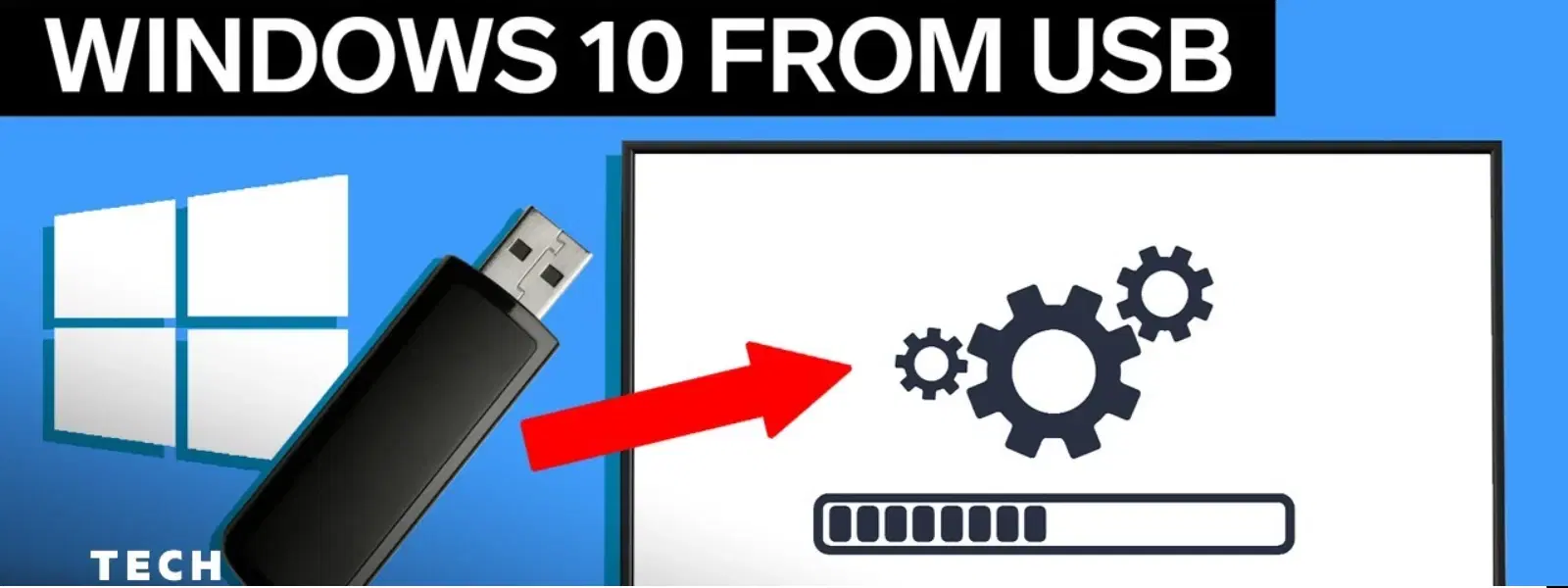
Ever found yourself with a sluggish or unresponsive Windows 10 system? In moments like these, a USB drive can be your ultimate aid, offering an efficient way to troubleshoot, reboot, or even perform a fresh installation of your operating system. Today, we explore a simple, step-by-step guide on how to reboot Windows 10 using a USB drive. This guide will help you create a bootable USB, adjust your PC settings, and carry out the necessary steps to reinstall or repair Windows 10 confidently.
USB booting is the process of starting your computer using a USB flash drive instead of the internal hard drive. This method proves extremely useful when your device faces issues like corrupted system files or malware infections. With a bootable USB drive, you can swiftly switch to an alternative startup environment, making it easier to repair your system or even enjoy a fresh install of Windows 10.
There are many situations where booting from a USB drive becomes essential. For example, if your system files become corrupted due to a virus attack or an unexpected error, a USB boot can help restore functionality. Similarly, if you wish to perform a clean installation of Windows 10 without carrying over possible errors from an older setup, this approach is ideal.
Before you begin creating a bootable USB, ensure you have the right device. The USB should have adequate storage capacity—typically 8GB or more—and offer reasonable data transfer speeds. Using a well-spec’d USB drive ensures a faster and more stable installation experience. Look for a USB drive that meets these minimum requirements to enjoy seamless performance.
The next step involves creating a bootable USB. Tools such as the Microsoft Media Creation Tool or Rufus are popular choices due to their simplicity and efficiency. Here’s a concise step-by-step breakdown:
Step 1: Format your USB drive ensuring it is clean and ready for a fresh install. It is wise to back up any important data beforehand.
Step 2: Download the Windows 10 ISO file from the official website. Verify that the file download is complete and not corrupted.
Step 3: Use the chosen tool to create the bootable USB. Follow the on-screen instructions and confirm that the process completes without any issues.
Did You Know? Ensuring your USB drive is formatted to NTFS and set as the primary active partition can prevent boot errors during installation.
To let your computer recognise the bootable USB drive, a small change in the BIOS/UEFI settings is often required. Accessing these settings may differ slightly between brands, but typically involves pressing a specific key, such as F2, F10, or Esc, right after powering on your PC. Once in BIOS/UEFI, you will have more control over your startup devices.
After entering the BIOS/UEFI, locate the boot order settings. This lets you adjust the sequence in which devices are checked for a bootable image. Make sure to set the USB drive as the primary boot option. This step is crucial to help your system recognise the bootable drive when restarting.
If accessing BIOS seems challenging, Windows 10 offers an alternative method. You can opt for advanced startup options within Windows, allowing you to boot directly from the USB drive without manually changing BIOS settings. This method can be especially helpful if you value convenience or have limited experience with BIOS navigation.
With your USB drive ready and your PC configured, it’s time to execute the reboot. Insert your bootable USB into your computer and restart your device. Your system should recognise the drive and start the boot process from it. If you encounter issues where the USB is not immediately detected, verify that the drive is properly inserted and that the boot sequence in BIOS/UEFI is correctly set.
Once your PC boots from the USB drive, you will encounter options related to the installation process. This stage allows you to choose between a clean installation—erasing previous files for a new start—or a repair option that keeps your files intact while addressing system issues. Reading the on-screen instructions carefully will ensure you make the best choice for your circumstances.
In some experiments with troubleshooting, you might only need to perform a system recovery. A well-prepared USB recovery drive can guide you through restoring your system to an earlier, functional state. This form of recovery is beneficial if you suspect recent changes or errors have compromised your computer's performance.
Even with precise steps, issues might arise during the USB boot process. One common problem is that the USB drive is not detected. This could be due to improper formatting or the USB not being assigned as the primary boot device. Double-check your settings, and ensure the drive is in good working order.
Occasionally, you might see errors during the installation phase. These errors can sometimes be resolved by verifying that Secure Boot is disabled in your BIOS/UEFI settings, as Secure Boot might interfere with recognising non-native boot media.
Insight Corner: If your USB drive isn’t recognised, check if Secure Boot is enabled in your BIOS/UEFI settings. Disabling Secure Boot can often resolve compatibility issues.
Insert a bootable USB drive, change the boot order in BIOS/UEFI to prioritise USB, and follow the on-screen instructions to reset Windows 10.
Access BIOS/UEFI settings, modify the boot order to prioritise USB, and restart your PC with the USB drive inserted.
Create a USB recovery drive using Windows settings, insert the drive, and select the recovery option during boot-up.
Reboot your PC, access BIOS/UEFI, ensure USB is set as the primary boot device, and follow the instructions for booting from USB.
Prepare a bootable USB drive with the Windows ISO, insert it into your PC, and follow the installation wizard after booting from the USB.
Rebooting Windows 10 using a USB drive is a practical and efficient solution if you need to repair, reinstall, or upgrade your PC. By following this guide, you can confidently create a bootable USB, adjust your PC settings via BIOS/UEFI or Windows’ startup options, and address common challenges during installation. With each step detailed in this tutorial, you are equipped to not only resolve issues swiftly but also to boost your tech confidence. Embrace a smarter, more reliable way to manage your system maintenance and stay in command of your digital life. Enjoy exploring other tips and resources on Tata Neu, where trust and convenience come together to empower your tech journey with every transaction.
