How to Pair a Bluetooth Headset with Your Laptop: Tutorial

Consumer Electronics

03 min read

How to Pair a Bluetooth Headset with Your Laptop: Tutorial

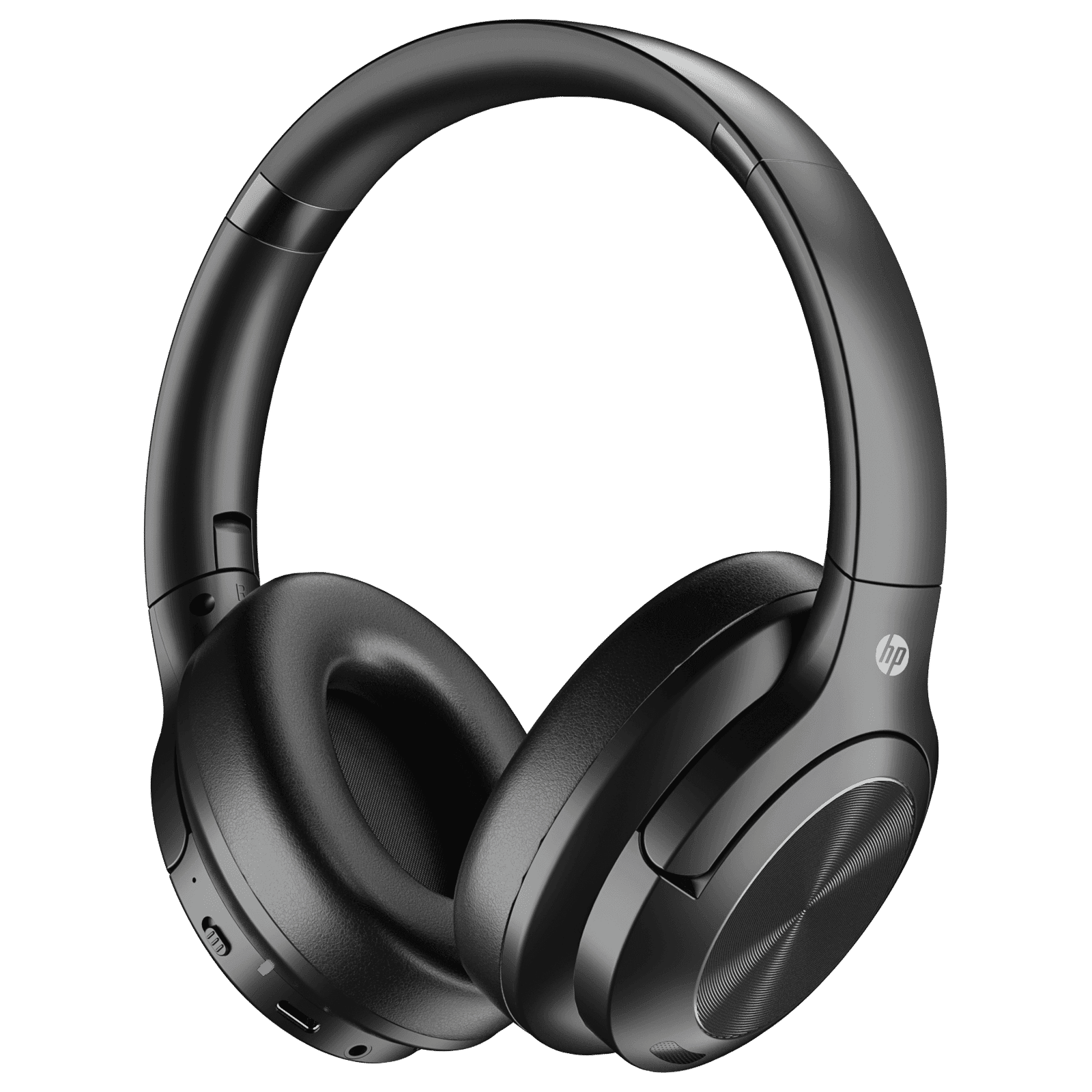
HP H300 99Y17AA Bluetooth Headset with Mic (Active Noise Cancellation, Over Ear, Black)

HP H300 99Y17AA Bluetooth Headset with Mic (Active Noise Cancellation, Over Ear, Black)

Buy HP H300 99Y17AA Bluetooth Headset with Mic (Active Noise Cancellation, Over Ear, Black) online at best prices from Croma. Check product details, reviews & more. Shop now!

25004000
Earn NeuCoins

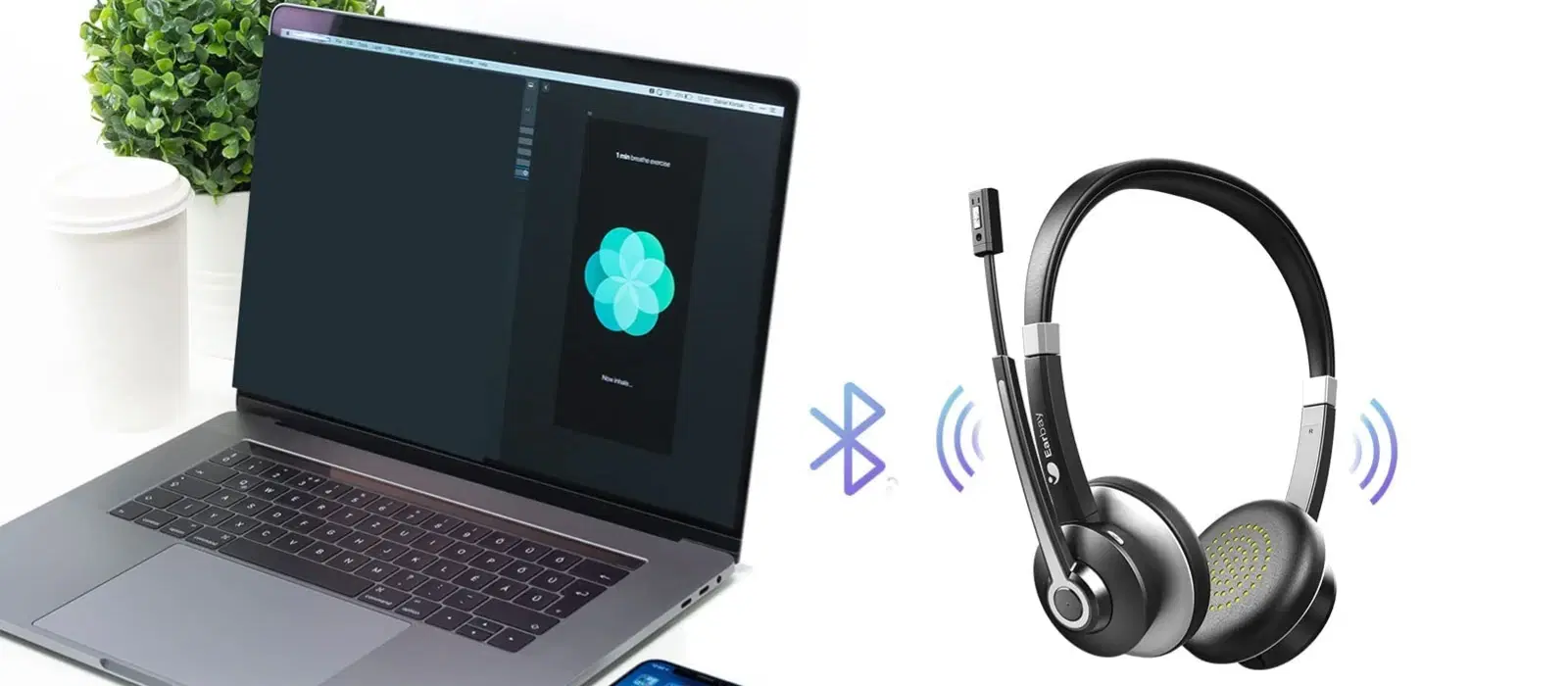
In today's tech-driven world, staying connected is more important than ever. Whether it's for work, entertainment, or keeping in touch with family and friends, technology helps us stay connected efficiently. One of the most convenient devices in this regard is a Bluetooth headset. Pairing a Bluetooth headset with your laptop can enhance your productivity, provide a hands-free experience, and allow for greater mobility. In this guide, we’ll walk you through the process of how to pair a Bluetooth headset with your laptop.

Step-by-Step Guide to Pairing Your Bluetooth Headset with a Laptop

Preparing Your Devices

Ensure Bluetooth is enabled: The first step is to check if your laptop’s Bluetooth feature is turned on. This can typically be done via the settings menu or a dedicated Bluetooth button.

Power on the headset: Make sure your Bluetooth headset is charged and turned on. Some headsets may have specific buttons or sequences to enter pairing mode, so refer to your headset’s manual if necessary.

Initiating the Pairing Process

Access Bluetooth settings: Navigate to the Bluetooth settings on your laptop. This can usually be found in the system settings menu.

Find the headset: In the list of available devices, look for your Bluetooth headset. It may take a moment for the laptop to discover available devices.

Completing the Connection

Select the headset: Click on your headset’s name in the available devices list to initiate the pairing process.

Juvo Personal Safety Alarm (PSB 01, Black)

Juvo Personal Safety Alarm (PSB 01, Black)

<p>Danger can overpower you at any time and your voice will not be enough in such situations to get the required aid. The amazing new <strong>Juvo PSB01 Personal Alarm</strong> is crafted for all ages and is a necessary precaution from all kinds of danger. It rings a very loud alarm at 120 dB as well as flashes the torch to warn people nearby about a danger. Whether you have a medical emergency or you are attacked by predators your voice may not be heard but this alarm will be enough to deter attackers or draw attention of people close by to give you the immediate assistance required.</p> <p><strong>Extremely Easy To Use</strong></p> <p>The <strong>Juvo PSB01 Personal Alarm</strong> is small and portable, can be attacked to even a keychain if you want. To start the siren all you need to do is separate or pull the metal key chain from the main black unit. The siren may go on for 1 1/2 hours in case nobody heard it in the first minutes. This is very important for girls returning home alone at night as it acts as a security anti-attack panic alarm that is sure to scare off a molester. Its easy portability accentuates its use.</p> <p><strong>Lights Your Way</strong></p> <p>The little and portable <strong>Juvo PSB01 Personal Alarm</strong> also features a small LED torch that helps you find your way in the dark. Don&rsquo;t be scared of dark alleys when you have this with you because it is equipped to save you from all dangers.</p>

474890
Earn NeuCoins

Follow prompts: You may be prompted to enter a PIN or passcode. Common default codes are ‘0000’ or ‘1234’, but refer to the headset’s manual if unsure.

Troubleshooting Common Issues

Connection Problems

Bluetooth not working on laptop: Ensure that Bluetooth is enabled on your laptop. Check for any driver updates and ensure that your Bluetooth adapter is functioning properly.

Headset not discoverable: Reset the headset and ensure it is in pairing mode. Some headsets have a dedicated pairing button that needs to be held down for a few seconds.

Audio Quality Issues

Poor sound quality: Ensure the headphones are within the recommended range (usually about 10 meters). Check for any interference from other wireless devices.

Microphone not working: Confirm that the Bluetooth headset is set as the default audio input device in your laptop’s sound settings.

Expert Tip: When purchasing a laptop or Bluetooth headset from Tata Neu, explore options that support the latest Bluetooth versions for better compatibility and performance. Utilizing Croma’s advanced technology offerings within a wide budget range ensures a smooth and high-quality experience.

FAQs

Environics Device Disinfector (Disinfects Up To 99.99%, 127ELGD, Blue)

Environics Device Disinfector (Disinfects Up To 99.99%, 127ELGD, Blue)

<b>Why Buy Environics Device Disinfector</b><ul><li><b></b> for optimised disinfection</li><li><b></b> makes sure all the germs are killed</li></ul><p>To prevent harmful bacteria and fungi from getting in contact with you, buy <b>Environics Device Disinfector</b>. The usability of your device disinfector may be affected if its installation is complex. As this device disinfector has the it prevents the extra-spill and wastage of sanitizer. Your residence and office will stay clean and hygienic with products from this device disinfector that have 99.99% high resistance against germs and viruses. </p><p>The <b>Environics Device Disinfector's</b> price is cost-effective so you don't have to adjust your budget. The longer it takes for the device disinfector to disinfect, the longer you will have to wait. As a result of its efficient and effective operation, this device disinfector requires only to inject. Your device disinfector needs to have the latest technology to make sure it kills all the germs. As this device disinfector has the to prevent viruses, you can rest assured. Purchase the <b>Environics Device Disinfector</b> online at this instant!</p>

114249
Earn NeuCoins

How do I know if my laptop has Bluetooth?

Check the device manager for Bluetooth settings or look for a Bluetooth icon in the system tray.

Why isn’t my Bluetooth headset connecting to my laptop?

Ensure the headset is in pairing mode, and the laptop's Bluetooth is turned on.

Can I connect multiple Bluetooth devices to my laptop?

Yes, but the performance might vary depending on the laptop’s Bluetooth version and capabilities.

What should I do if my laptop doesn’t have Bluetooth?

Consider purchasing a Bluetooth adapter available at Tata Neu’s Croma store.

Conclusion

Pairing your Bluetooth headset with your laptop is a straightforward process that significantly enhances your tech experience. By following the steps outlined in this guide, you can enjoy seamless connectivity and address any common issues that may arise. Explore Tata Neu’s range of Bluetooth headsets and laptops for an enhanced tech experience. Enjoy rewards like NeuCoins, exclusive EMI plans, and express delivery with Tata Neu.

Sangria Experience Logo