





Consumer Electronics
•04 min read

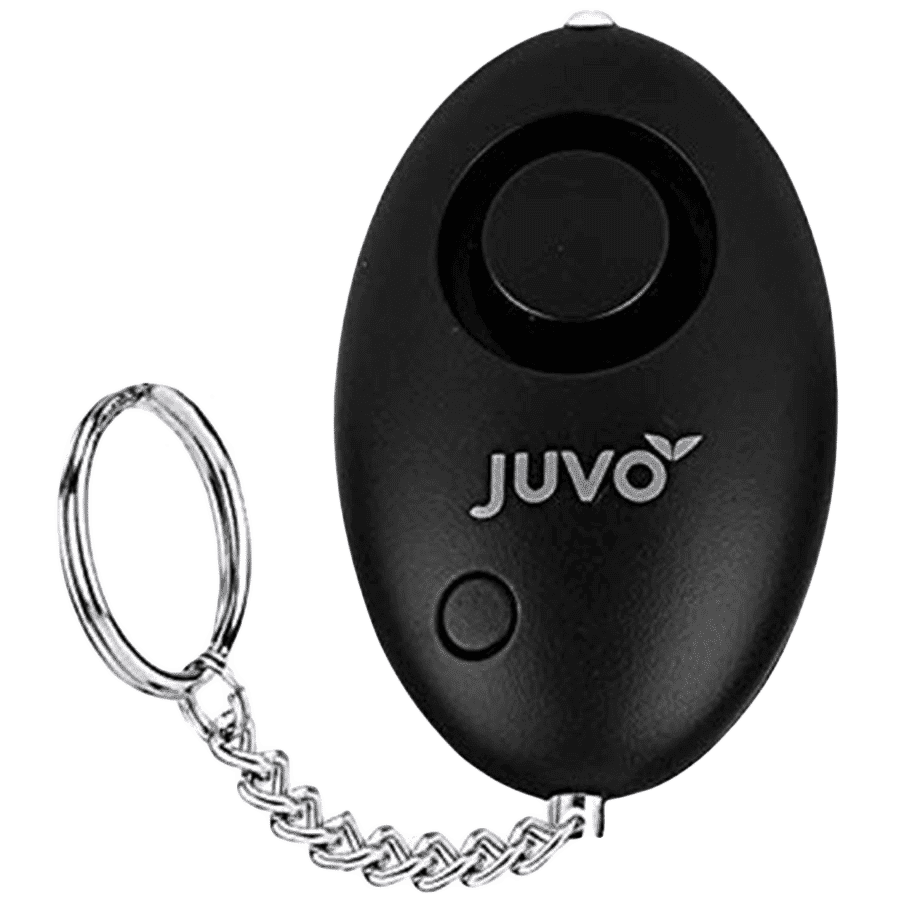
<p>Danger can overpower you at any time and your voice will not be enough in such situations to get the required aid. The amazing new <strong>Juvo PSB01 Personal Alarm</strong> is crafted for all ages and is a necessary precaution from all kinds of danger. It rings a very loud alarm at 120 dB as well as flashes the torch to warn people nearby about a danger. Whether you have a medical emergency or you are attacked by predators your voice may not be heard but this alarm will be enough to deter attackers or draw attention of people close by to give you the immediate assistance required.</p> <p><strong>Extremely Easy To Use</strong></p> <p>The <strong>Juvo PSB01 Personal Alarm</strong> is small and portable, can be attacked to even a keychain if you want. To start the siren all you need to do is separate or pull the metal key chain from the main black unit. The siren may go on for 1 1/2 hours in case nobody heard it in the first minutes. This is very important for girls returning home alone at night as it acts as a security anti-attack panic alarm that is sure to scare off a molester. Its easy portability accentuates its use.</p> <p><strong>Lights Your Way</strong></p> <p>The little and portable <strong>Juvo PSB01 Personal Alarm</strong> also features a small LED torch that helps you find your way in the dark. Don’t be scared of dark alleys when you have this with you because it is equipped to save you from all dangers.</p>

In today's digital age, safeguarding sensitive data is not a luxury—it's a necessity. USB drives are a convenient solution for portable storage, yet they can become a security risk if left unencrypted. This tutorial offers a step-by-step guide on how to encrypt a USB drive, ensuring your files remain private and secure.
Encryption is the method of transforming readable data into coded information. By using strong passwords and sophisticated algorithms, encryption converts your files into a format that only authorised access—typically via a password—can decrypt. When you encrypt your USB drive, you create a secure barrier that prevents anyone from reading the data without the appropriate credentials.
Unprotected USB drives carry risks such as data theft, loss, or unauthorised access. Whether you are storing sensitive business documents or personal records, encryption adds a critical layer of security to protect this information. This is particularly important when you travel or use public computers where the risk of data breaches is higher.
Before you begin, ensure your operating system is compatible with the encryption tool you intend to use. Back up all your data as a safeguard against unexpected data loss during the encryption process. This preparation step will help prevent any accidental loss of important files.
There are several methods available. Windows users often use built-in tools like BitLocker to secure their drives, while macOS users can rely on Disk Utility. For those seeking additional features or a cross-platform solution, third-party software like VeraCrypt provides robust security. Another viable option is to opt for USB drives that come with built-in hardware encryption, offering an alternative approach to secure storage without needing to rely on software alone.
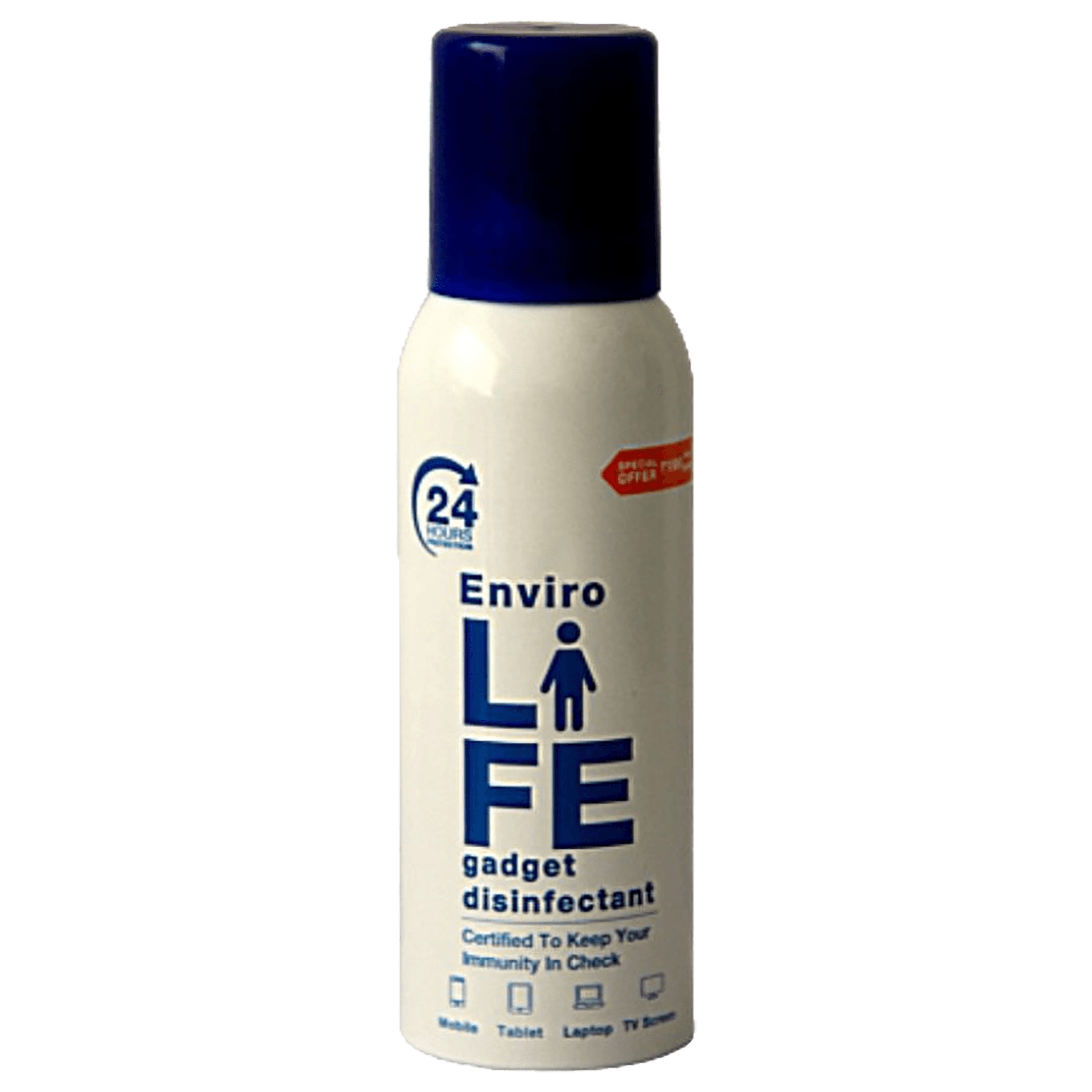
<b>Why Buy Environics Device Disinfector</b><ul><li><b></b> for optimised disinfection</li><li><b></b> makes sure all the germs are killed</li></ul><p>To prevent harmful bacteria and fungi from getting in contact with you, buy <b>Environics Device Disinfector</b>. The usability of your device disinfector may be affected if its installation is complex. As this device disinfector has the it prevents the extra-spill and wastage of sanitizer. Your residence and office will stay clean and hygienic with products from this device disinfector that have 99.99% high resistance against germs and viruses. </p><p>The <b>Environics Device Disinfector's</b> price is cost-effective so you don't have to adjust your budget. The longer it takes for the device disinfector to disinfect, the longer you will have to wait. As a result of its efficient and effective operation, this device disinfector requires only to inject. Your device disinfector needs to have the latest technology to make sure it kills all the germs. As this device disinfector has the to prevent viruses, you can rest assured. Purchase the <b>Environics Device Disinfector</b> online at this instant!</p>
For Windows 10 and Windows 11, BitLocker provides a simple way to encrypt your drive. Insert your USB drive and launch BitLocker from the Control Panel. Follow the prompts to enable encryption, and be sure to set a strong password along with creating a recovery key. Keep these details in a secure location, as they are essential for data recovery.
If BitLocker is unavailable or you prefer an alternative, VeraCrypt is a popular third-party tool. Install VeraCrypt and launch the application. Create an encrypted volume on your USB drive by selecting the relevant drive and following the on-screen instructions. This method secures your files by creating a virtual encrypted disk within your USB drive that can be mounted using your chosen password.
macOS users can rely on Disk Utility for an effective encryption process. Insert your USB drive, open Disk Utility, select your drive, and choose the option to encrypt. Set a strong password and ensure that you store it securely. Disk Utility encrypts the entire drive, making it unreadable without the designated password.
For those who prefer third-party solutions on macOS, tools such as VeraCrypt provide similar benefits as on Windows. The process is very much the same: install the tool, follow the guided steps to create an encrypted volume on your drive, and use a strong password for optimal security.
Maintaining the security of your encrypted USB drive requires regular updates, such as changing your password periodically and using multi-factor authentication where supported. It is also critical to securely store your recovery keys. Whether the drive is used for business or personal data, these measures help preserve the integrity of your sensitive content over time.
If you ever face issues unlocking your encrypted drive due to forgotten credentials, most encryption tools offer recovery options using the recovery key. Additionally, compatibility issues with older USB drives or older operating systems may occasionally arise. In such cases, ensure that you update your tools, or refer to the on-screen troubleshooting instructions provided by the software.
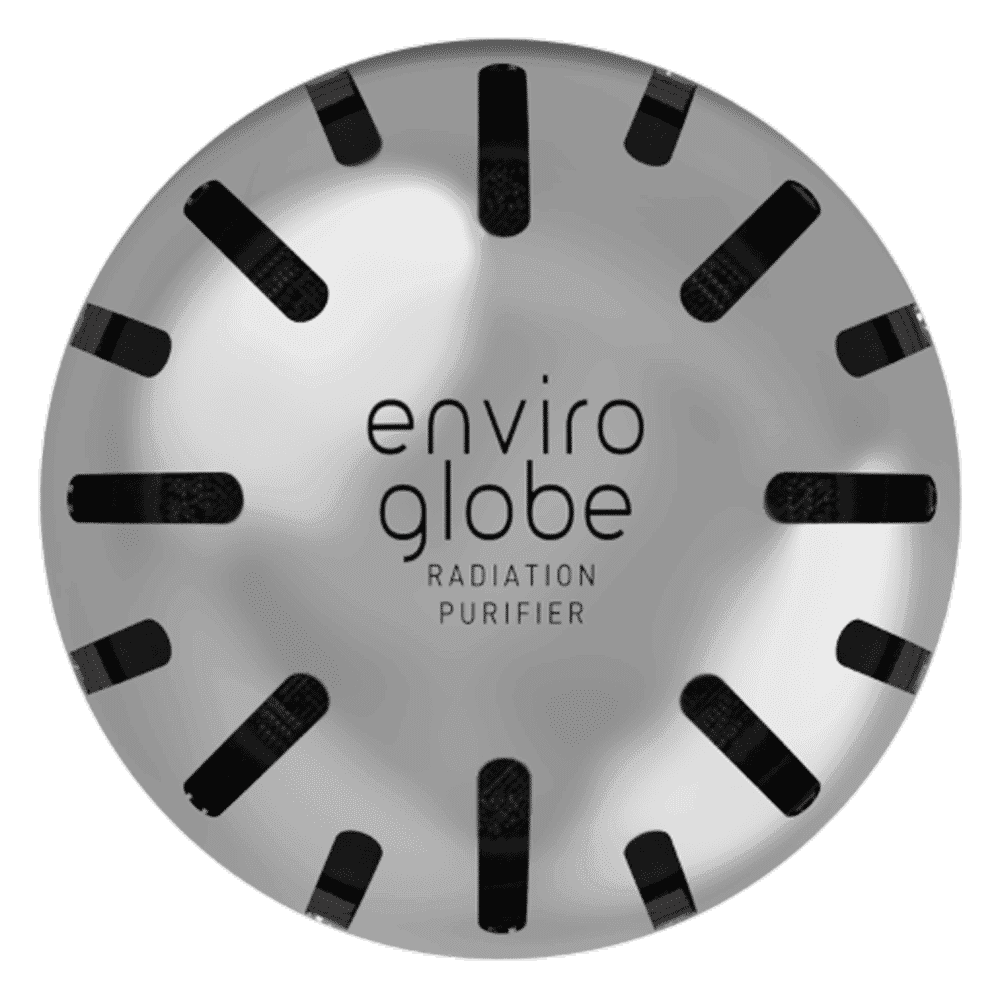
<p><strong>Why buy Environics Enviroglobe Anti Radiation Ball for House & Car</strong></p> <p> </p> <ul> <li><strong>Provides E-Smog and Radiation Protection</strong> for healthier homes and families</li> <li><strong>It Covers A Radius</strong> of 250 sq.ft protect you and your loved ones from harmful radiation</li> <li><strong>Clinically Tested EMF Harmonizer</strong> that provides us 360-degree protection from radiation sources that are beyond our control</li> </ul> <p> </p> <p>Buy the <strong>Environics Enviroglobe Anti Radiation Ball for House & Car</strong> which is based on Envirochip’s radiation protection technology that helps you protect you and your loved ones from harmful radiation within an area of 250 sq. feet. You can extend the range of protection by placing multiple Enviroglobes at equal distances from one another. It is a clinically tested EMF harmonizer and provides us 360-degree protection from radiation sources that are beyond our control. Electromagnetic Radiation (EMR) refers to the constant waves of the electromagnetic field (EMF) produced by wireless communication devices such as mobile phones, laptops, Wi-Fi routers, and other sources such as mobile towers and high-tension wirelines, etc. However, The human body is accustomed to random waves and hence the constant exposure to electromagnetic radiation causes serious biological disorders such as higher stress and fatigue, irritation, headache, weakened immunity, cancer, fertility issues to name a few. The technology used in Enviroglobe changes the nature of electromagnetic radiation from constant to random waveform making it human body-friendly.</p> <p> </p> <p>When you get <strong>Environics Enviroglobe Anti Radiation Ball for House & Car</strong> online, you also get awesome companion for your home. It comes with Internationally tested and certified technology. No need of batteries or adaptors, you can simply charge by placing it under the sunlight, for only a couple of minutes every week. Enviroglobe is simple to use. Simply place it at your desk, table, living room, bedroom, car, office space, absolutely wherever you want, and get a radiation protected zone of up to 250 sq. feet. It provides e-smog and radiation protection for healthier homes and families. Purchase <strong>Environics Enviroglobe Anti Radiation Ball for House & Car</strong> online, now!</p>
Did You Know? USB Encryption Enhances Data Security Beyond Password Protection
Encryption doesn’t just lock your files—it transforms them into unreadable code that only your password can decrypt. This ensures your data remains safe even if your USB drive is lost or stolen.
Yes, USB flash drives can be encrypted using built-in tools like BitLocker on Windows or Disk Utility on macOS, and also through third-party software such as VeraCrypt.
To encrypt an external USB drive, use popular tools like BitLocker (for Windows), Disk Utility (for macOS), or VeraCrypt. Follow the steps outlined in this tutorial to secure your files.
Encrypt your USB drive using tools like BitLocker or VeraCrypt, set a strong password, and store recovery keys securely while avoiding sharing access credentials.
While USB ports themselves cannot be encrypted, software solutions can be employed to restrict access or disable ports on your computer to enhance security.
You can use VeraCrypt or other trusted third-party tools to encrypt a USB drive without relying on BitLocker. These applications allow you to create encrypted volumes and secure your files efficiently.
Encrypting your USB drive is a straightforward yet powerful way to protect your files from unauthorised access. By following the methods outlined above for Windows, macOS, and third-party tools, you can secure your vital data and enjoy safe portable storage. Whether you use BitLocker, Disk Utility, or VeraCrypt, remember that a proactive approach to data security is the key to lasting protection. With Tata Neu, you also enjoy the added benefit of earning NeuCoins on every purchase, rewarding your smart shopping decisions. The platform is designed to support your tech and lifestyle needs through customer-first service and unmatched convenience.
