





Consumer Electronics
•04 min read

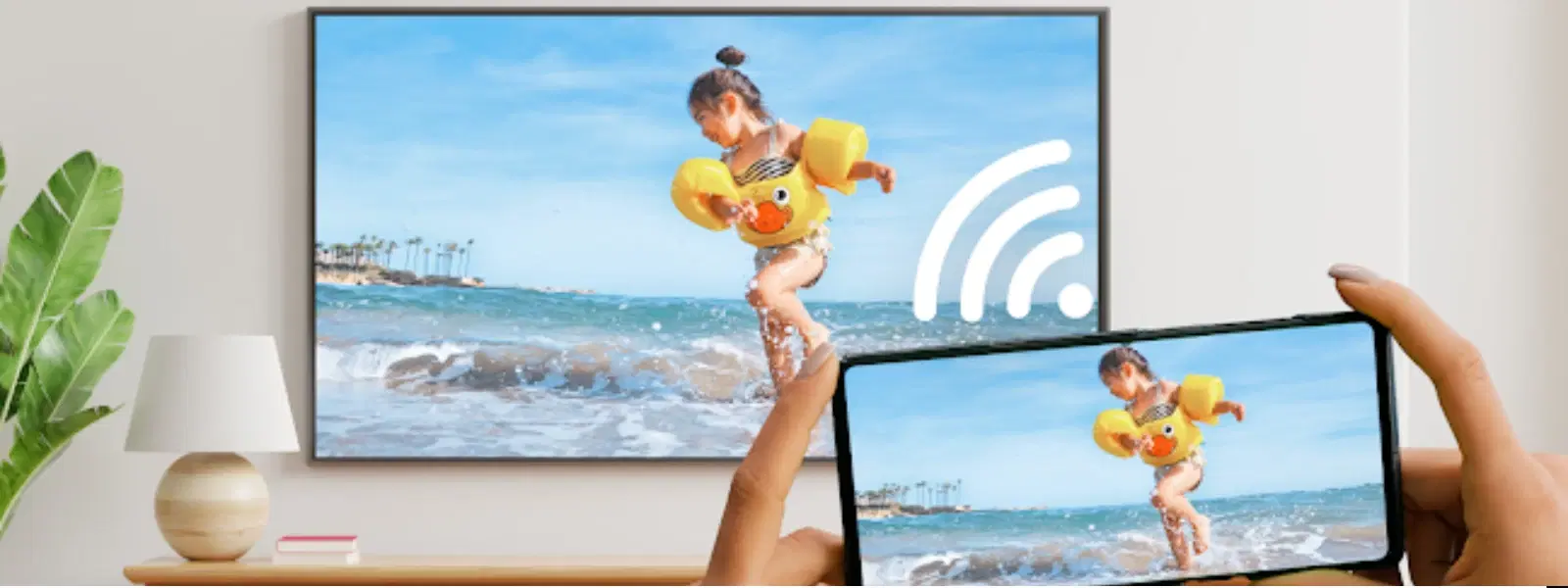
Imagine effortlessly sharing your favourite photos, videos, or even important presentations from your phone onto your TV screen with just a simple USB cable—no need for Wi-Fi or HDMI cables. This guide will walk you through everything you need to know on how to connect mobile screen to TV with USB. By following the steps detailed here, you can enjoy media on a larger display, troubleshoot potential issues, and further explore alternative methods for an optimised viewing experience.
USB screen sharing offers a direct method to mirror your mobile device’s display or transfer data by using a USB cable. Unlike HDMI connections which often require additional cables and converters, a USB connection allows you to display content directly by utilising the data transfer capabilities inherent in your phone’s port. The process is typically straightforward, and more importantly, it provides a seamless way to view content without the need to connect to a network.
Before setting up your connection, it’s essential to confirm that your devices are compatible. Most modern Android smartphones, and many iOS devices when used with the right adapters, can utilise USB connections to display content on TVs. Similarly, many smart TVs have USB ports designed not only for media playback but also for screen mirroring. In cases where the connection requires a specific format, USB-C or Micro USB cables are commonly used along with necessary adapters for iPhones with Lightning cables. This ensures that your mobile to TV USB setup works as intended.
Start by ensuring you have the correct cable for your device—whether it is a USB-C, Micro USB, or Lightning cable for iPhones. Also, verify that your TV not only has an available USB port but also supports the desired mode, be it screen mirroring or file transfer. This preparation is crucial to avoid any disruptions during your setup process.
For Android users, the process is typically simple. First, plug the USB cable into both your Android phone and the TV. Next, on your phone, select the appropriate mode, often labelled as either "File Transfer" or "Screen Mirroring." Once this setting is enabled, adjust your TV’s settings to detect USB input. These few straightforward steps will link your smartphone to your TV, allowing you to view content on the big screen.
iOS users can enjoy a similar experience, although a Lightning-to-USB adapter may be necessary if your TV’s USB port requires it. With the adapter in place, connect your iPhone to the TV, then enable the screen mirroring or file-sharing mode from your phone’s settings. Finally, adjust the input settings on your TV to allow for a successful USB connection. This setup simplifies the process of transferring your phone display to TV using USB.
If your TV seems to only display a storage device interface or the phone is not mirroring its screen, it might be due to several issues. Sometimes, the TV may mistakenly read your phone as a storage device rather than a mirror. Additionally, your device might lack essential support such as MHL or DP for displaying video output effectively. In some cases, the USB cable itself might be damaged or incompatible with the setup.
On occasions when the sound and video are not synchronised or the display appears abnormal, this often points to issues with the audio output or video resolution settings. For instance, unexpected flickering or a lack of clear audio can be resolved by checking if both devices are set to compatible modes. Adjust the settings on your phone and TV as needed, ensuring that any resolution or audio enhancements are correctly configured.
If your TV fails to recognise your phone altogether, start by testing the USB port functionality. A simple restart for both devices can sometimes resolve detection issues. Additionally, it’s advisable to check if your phone’s software or the TV’s firmware requires an update. Making sure your devices are running the latest software can be a key step in achieving a smooth connection experience.
For some TV models that do not support direct USB mirroring, using a USB-to-HDMI adapter can be incredibly beneficial. This alternative method not only enhances connectivity but also ensures that video and audio are transmitted with greater clarity. It serves as another option for those facing compatibility challenges.
If you happen to own an older TV model, adapters to VGA, RCA, or SCART can bridge the technological gap. These adapters allow you to link smartphone to TV with USB even on devices that were not originally designed for advanced screen sharing.
Several apps in the market can facilitate screen mirroring using a USB cable. Applications such as AirDroid or ApowerMirror provide a user-friendly interface that assists in connecting your phone to your TV with a USB cable. These solutions are particularly useful when your TV recognises your phone only as a storage device rather than a mirroring tool.
Pro Tip: "Did you know? Not all TVs support direct USB screen mirroring. If your TV only recognises your phone as a storage device, consider using a USB-to-HDMI adapter or screen-sharing apps to achieve seamless video output."
Yes, USB can be used to display content on a TV provided both the phone and TV support the necessary features. Some TVs might only offer file transfer mode, while others provide a full mirroring experience via a USB connection.
Absolutely! USB-C cables are commonly used for both screen mirroring and file transfer. Ensure your phone and TV support this feature, and you’re set for an efficient connection.
This may be due to several factors such as incompatibility, outdated software, or a damaged cable. Check your TV’s USB settings, confirm that your phone supports video output over USB, and consider trying a different cable if necessary.
Connecting your phone screen to your TV with a USB cable is a practical and straightforward solution for expanding your viewing experience. With this guide, you now have comprehensive insights on the process—from the initial setup of a USB connection, troubleshooting common issues, to exploring alternative methods for older TV models. Just as Tata Neu revolutionises online shopping by combining ease, convenience, and rewards like NeuCoins, this guide aims to simplify your tech needs using clear, empathetic instruction. Enjoy the simplicity of achieving a mobile to TV USB setup that fits your daily entertainment and productivity requirements.
