





Consumer Electronics
•04 min read

Want to seamlessly connect your iPhone to your Mac via USB cable? Whether you are transferring files, syncing data, or troubleshooting issues, this guide is designed to help you achieve a smooth and efficient connection. By the end of this post, you will learn step-by-step instructions that cover everything from preparing your devices to optimising the USB connection for charging and data transfer.
Connecting your iPhone to your Mac using a USB cable provides several benefits, including faster data transfer speeds and a reliable syncing process. USB connectivity offers a secure method for charging your device as well, ensuring that your iPhone remains powered up while you work on file transfers. In many scenarios, especially when large files are involved or when a stable connection is paramount, a USB connection is preferred over wireless methods, making it an ideal choice for both day-to-day tasks and specialised requirements.
Before connecting your devices, it is important to understand the types of cables available. With options such as USB-C to Lightning and USB-A to Lightning, you might need an adapter if your Mac features older USB ports. These cables are engineered to support fast data transfer and efficient charging, though the experience might vary based on your Mac’s port type. Adapters for older models help maintain smooth connectivity but it is wise to check for compatibility to ensure that the connection remains stable.
Start by ensuring both your iPhone and your Mac are updated to the latest software versions. A modern operating system ensures better compatibility and a smoother experience. Equally important is checking that you have a functional USB cable and that the ports on your Mac are working properly. This preparation step prevents any unforeseen issues during the connection process and lays the groundwork for a hassle-free experience.
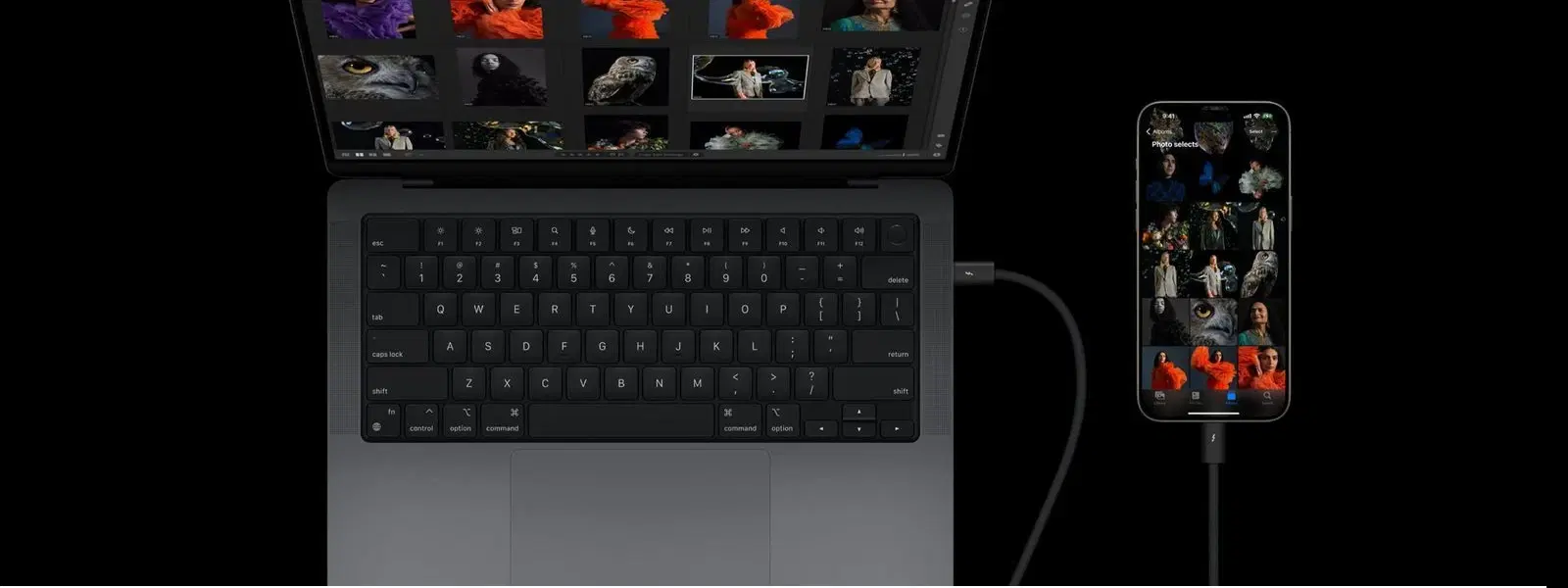
Once your devices are ready, simply plug the Lightning end of the cable into your iPhone and the USB end into your Mac. After connecting them, unlock your iPhone. You will soon see a prompt asking you to 'Trust This Computer'. Tap on it to confirm your action; this authorises the connection and allows your Mac to access your iPhone’s data securely. This step is crucial as it ensures that your devices are communicating in a trusted manner.
After you have established a connection, you can use Finder – if you are running macOS Catalina or later – or iTunes on macOS Mojave and earlier, to manage your data. These tools not only support file transfers and syncing, but they also enable you to back up your important data. Whether transferring photos, videos, documents or other data, the transition is straightforward, ensuring that your files are safely stored on your Mac.
Many users appreciate the convenience of charging their iPhone using their Mac's USB port. This method is especially useful when you are tethered to your workspace. While the charging speeds can vary based on the type of USB port and cable used, it remains a practical solution for maintaining your device’s battery during work or while syncing media files. It is important to be aware of the limitations depending on the cable, so opting for a certified USB-C to Lightning cable with a newer MacBook may offer significant advantages in both charging and data transfer pace.
Occasionally, you might encounter issues such as your Mac failing to recognise your iPhone or interruptions during file transfers. In such cases, simple troubleshooting steps can make a difference. Start by restarting both devices and checking the integrity of your USB cable. Often, a loose or malfunctioning cable is the culprit. Also, make sure that your device drivers and software are up to date. If the problem persists, verifying the settings on your Mac can help clear any miscommunication between the devices.
For those seeking a more refined file transfer process, several third-party applications can help streamline the experience. Tools such as FileMail, among others, often offer features that go beyond what Finder or iTunes provide. These apps are designed to simplify the process, especially when dealing with large files or multiple file types, ensuring that your transfer is as efficient as possible while still benefitting from the robust security measures on your Mac and iPhone.
There are instances where you might need to use your iPhone’s USB connection for more than just data transfer. For example, tethering your iPhone to your Mac allows you to share internet connections when traditional networks are unavailable. Additionally, you can set up your USB connection for screen sharing through QuickTime. To do this, connect your iPhone, open QuickTime on your Mac, and select your iPhone as the input source. This setup is ideal for presentations or monitoring your mobile device’s screen in a larger format.
Pro Tip: Maximise Your USB Connection Efficiency
Did you know? Using a USB-C to Lightning cable with a newer MacBook can significantly boost data transfer speeds and charging efficiency compared to older USB-A cables. Always opt for certified cables to ensure compatibility and safety.
Yes, you can connect your iPhone to a Mac using a USB cable. Simply plug the Lightning end into your iPhone and the USB end into your Mac's USB port.
Use a compatible USB cable to connect your iPhone to your Mac. Once connected, unlock your iPhone and select 'Trust This Computer' if prompted.
To share your iPhone screen with your Mac via USB, use apps like QuickTime Player. Connect your iPhone to your Mac, open QuickTime, and select the iPhone as the input source.
This guide has walked you through the essential steps to connect your iPhone to your Mac via USB, from preparing and connecting your devices to probing deeper into optimising the connection for reliable syncing, fast file transfers, and efficient charging. By following these steps, you ensure that your devices perform at their best and that your data is easily managed. With the trustworthiness of platforms like Tata Neu, along with benefits such as NeuCoin rewards on every shop, you can enjoy a holistic and rewarding consumer electronics experience. Whether you explore advanced third-party apps or simply streamline your day-to-day file transfers, making smart use of your devices has never been easier.
