
How to Connect Pendrive to Smart TV: Easy Step-by-Step Guide

Consumer Electronics

•06 min read

How to Connect Pendrive to Smart TV: Easy Step-by-Step Guide

Juvo Personal Safety Alarm (PSB 01, Black)

Juvo Personal Safety Alarm (PSB 01, Black)

<p>Danger can overpower you at any time and your voice will not be enough in such situations to get the required aid. The amazing new <strong>Juvo PSB01 Personal Alarm</strong> is crafted for all ages and is a necessary precaution from all kinds of danger. It rings a very loud alarm at 120 dB as well as flashes the torch to warn people nearby about a danger. Whether you have a medical emergency or you are attacked by predators your voice may not be heard but this alarm will be enough to deter attackers or draw attention of people close by to give you the immediate assistance required.</p> <p><strong>Extremely Easy To Use</strong></p> <p>The <strong>Juvo PSB01 Personal Alarm</strong> is small and portable, can be attacked to even a keychain if you want. To start the siren all you need to do is separate or pull the metal key chain from the main black unit. The siren may go on for 1 1/2 hours in case nobody heard it in the first minutes. This is very important for girls returning home alone at night as it acts as a security anti-attack panic alarm that is sure to scare off a molester. Its easy portability accentuates its use.</p> <p><strong>Lights Your Way</strong></p> <p>The little and portable <strong>Juvo PSB01 Personal Alarm</strong> also features a small LED torch that helps you find your way in the dark. Don&rsquo;t be scared of dark alleys when you have this with you because it is equipped to save you from all dangers.</p>

₹474₹890
Earn NeuCoins

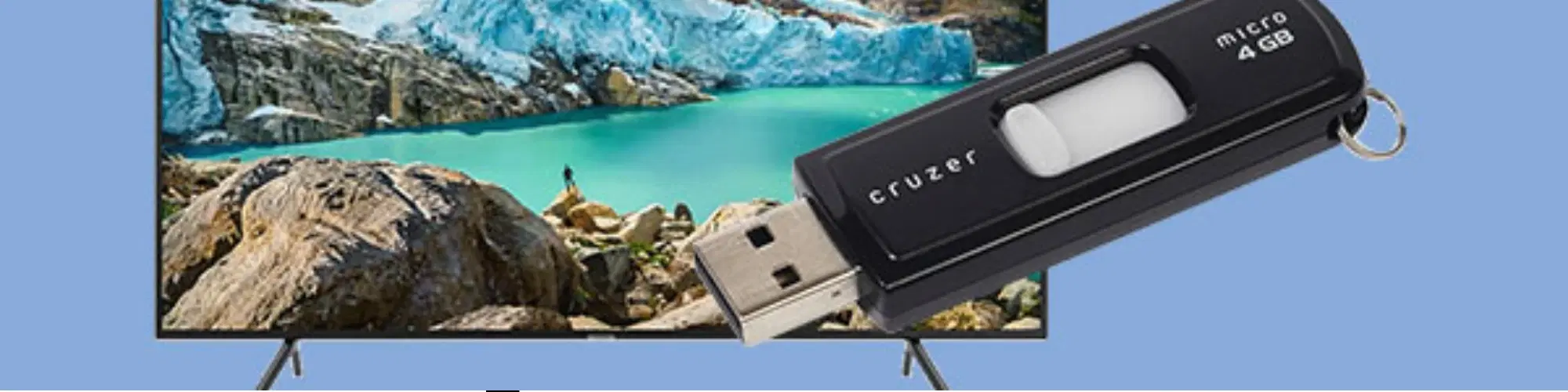
In today's tech-savvy world, knowing how to connect a pendrive to a smart TV can significantly enhance your entertainment experience. Whether you want to watch movies, view photos, or listen to music, using a pendrive with your smart TV offers a convenient and efficient solution. This guide will walk you through the process step-by-step, ensuring you can make the most out of your smart TV's capabilities.

Understanding USB Compatibility with Smart TVs

Before diving into the connection process, it's essential to understand the types of USB ports commonly found on smart TVs. Most modern smart TVs come equipped with USB 2.0 or USB 3.0 ports. The latter offers faster data transfer rates, which can be beneficial for playing high-definition videos.

Checking the USB compatibility with your smart TV is crucial. Refer to your TV's manual or specifications to ensure the pendrive you plan to use is supported. This step helps avoid any compatibility issues that might arise during the connection process.

Preparing Your Pendrive

To ensure a smooth experience, it's important to prepare your pendrive correctly. Here are the steps to follow:

  1. Format the Pendrive: Use a computer to format the pendrive to a file system compatible with your TV, such as FAT32 or NTFS. This step is crucial for the TV to recognize the pendrive.

  2. Organize Your Files: Create folders for different types of media (e.g., movies, music, photos) to make it easier to navigate and access files on the TV.

  3. Check for Corrupted Files: Ensure that the files you plan to transfer are not corrupted, as this can cause playback issues on your TV.

  4. Use High-Quality Pendrives: Opt for reputable brands that offer high-speed data transfer and reliability to avoid any interruptions during playback.

By following these steps, you can use the pendrive with your TV seamlessly and access files on the TV from the pendrive without any hassle.

Connecting the Pendrive to Your Smart TV

Now that your pendrive is ready, it's time to connect it to your smart TV. Follow these steps:

  1. Physically Connect the Pendrive: Insert the pendrive into the USB port on your smart TV. Ensure it is securely connected.

  2. Navigate the TV Menu: Use your TV remote to access the media player or file browser on your TV. This option is usually found in the main menu or under the 'Source' or 'Input' settings.

  3. Select the Pendrive: Once in the media player, select the pendrive from the list of available devices. You can now browse and play movies from the USB on your TV.

  4. Adjust Playback Settings: Utilize your TV's playback settings to enhance your viewing experience, such as adjusting the picture quality or enabling subtitles.

These simple steps will help you connect the USB to your smart TV and enjoy your media files on a larger screen.

Arctic Fox N95 Gold Series Face Respirator Mask (FACMSKWHIWZ11900A, Black)

Arctic Fox N95 Gold Series Face Respirator Mask (FACMSKWHIWZ11900A, Black)

<p style="margin-left:0cm; margin-right:0cm">Keep away from breathing in harmful germs, dust and pollution by using the <strong>Arctic Fox N95 Gold Series</strong> <strong>Face Respirator Mask.</strong> The mask is designed specially ensuring that it fits comfortably on your face and covers all the essential parts of your face. The soft ear loops ensure the comfort-ability for longer use. It has a 3 mm foam material for comfort fit and air seal.</p> <p style="margin-left:0cm; margin-right:0cm">The <strong>Arctic Fox N95 Gold Series</strong> <strong>Face Respirator Mask</strong> is super breathable because of the comfortable fabric and is also splash resistant.</p> <p style="margin-left:0cm; margin-right:0cm">Whether you are travelling or for that matter, moving out of your house, wearing the <strong>Arctic Fox N95 Gold Series</strong> <strong>Face Respirator Mask </strong>will ensure security to your health by helping you keep the dust and germs out from inhaling it.</p>

₹134₹149
Earn NeuCoins

Troubleshooting Common Issues

Sometimes, you might encounter issues such as the pendrive not being recognized by the TV. Here are some common problems and their solutions:

  • Pendrive Not Recognized: Ensure the pendrive is formatted correctly. If the issue persists, try using a different USB port or another pendrive.

  • Pendrive Not Working on TV: Check if the pendrive works on other devices. If it does, the issue might be with the TV's USB port. Restart the TV and try again.

  • Playback Issues: If videos or music files are not playing smoothly, ensure that the files are in a format supported by your TV. High-resolution files may require a USB 3.0 port for optimal performance.

  • File Navigation Problems: If you have difficulty navigating your files, reorganize them into clearly labeled folders and ensure that the file names are not too long or complex.

By following these troubleshooting tips, you can troubleshoot USB connection on your TV and resolve any issues that arise.

Enhancing Your Viewing Experience

Using a pendrive with your smart TV can significantly enhance your viewing experience. Here are some tips:

  • Watch Videos from the Pendrive on TV: Ensure your video files are in a format supported by your TV for the best playback experience.

  • Use the Pendrive for External Storage: Store and access other media files such as music and photos, turning your TV into a multimedia hub.

  • Optimize File Formats: Some smart TVs perform better with specific file formats. Refer to your TV's manual for the best file types to use.

  • Utilize High-Speed USBs: Using a high-speed USB 3.0 pendrive can improve playback quality and reduce buffering times.

By following these tips, you can make the most of your smart TV's external storage capabilities and enjoy a seamless entertainment experience.

FAQs

What should I do if my TV doesn't recognize the pendrive?

Check the format of the pendrive and reformat if necessary. Ensure the TV's USB port is functional.

Environics Enviroglobe Anti Radiation Ball for House & Car (001EG, Grey)

Environics Enviroglobe Anti Radiation Ball for House & Car (001EG, Grey)

<p><strong>Why buy Environics Enviroglobe Anti Radiation Ball for House &amp; Car</strong></p> <p>&nbsp;</p> <ul> <li><strong>Provides E-Smog and Radiation Protection</strong> for healthier homes and families</li> <li><strong>It Covers A Radius</strong> of 250 sq.ft protect you and your loved ones from harmful radiation</li> <li><strong>Clinically Tested EMF Harmonizer</strong> that provides us 360-degree protection from radiation sources that are beyond our control</li> </ul> <p>&nbsp;</p> <p>Buy the <strong>Environics Enviroglobe Anti Radiation Ball for House &amp; Car</strong> which is based on Envirochip&rsquo;s radiation protection technology that helps you protect you and your loved ones from harmful radiation within an area of 250 sq. feet. You can extend the range of protection by placing multiple Enviroglobes at equal distances from one another. It is a clinically tested EMF harmonizer and provides us 360-degree protection from radiation sources that are beyond our control. Electromagnetic Radiation (EMR) refers to the constant waves of the electromagnetic field (EMF) produced by wireless communication devices such as mobile phones, laptops, Wi-Fi routers, and other sources such as mobile towers and high-tension wirelines, etc. However, The human body is accustomed to random waves and hence the constant exposure to electromagnetic radiation causes serious biological disorders such as higher stress and fatigue, irritation, headache, weakened immunity, cancer, fertility issues to name a few. The technology used in Enviroglobe changes the nature of electromagnetic radiation from constant to random waveform making it human body-friendly.</p> <p>&nbsp;</p> <p>When you get <strong>Environics Enviroglobe Anti Radiation Ball for House &amp; Car</strong> online, you also get awesome companion for your home. It comes with Internationally tested and certified technology. No need of batteries or adaptors, you can simply charge by placing it under the sunlight, for only a couple of minutes every week. Enviroglobe is simple to use. Simply place it at your desk, table, living room, bedroom, car, office space, absolutely wherever you want, and get a radiation protected zone of up to 250 sq. feet. It provides e-smog and radiation protection for healthier homes and families. Purchase&nbsp;<strong>Environics Enviroglobe Anti Radiation Ball for House &amp; Car</strong> online, now!</p>

₹2704₹4499
Earn NeuCoins

Can I use any pendrive with my smart TV?

Most pendrives are compatible, but it's best to check your TV's specifications.

How do I play movies from my pendrive on my TV?

Connect the pendrive, navigate to the media player on your TV, and select the movie file.

Why is my pendrive slow when connected to the TV?

Using a USB 2.0 pendrive can result in slower performance. Consider upgrading to USB 3.0.

What file formats are best for playback on a smart TV?

Commonly supported formats include MP4, AVI, and MKV. Refer to your TV's manual for a complete list of supported formats.

How can I improve the playback quality of videos from my pendrive?

Use high-resolution files and ensure your pendrive is USB 3.0 for faster data transfer and smoother playback.

Connecting a pendrive to your smart TV is a simple process that can greatly enhance your entertainment options. By following the steps outlined in this guide, you can enjoy your favorite media files on a larger screen with ease. For more tech solutions and rewards, explore Tata Neu. Feel free to leave comments or questions for further assistance.

At Tata Neu, we offer a range of tech products and exclusive benefits. Enjoy cashback through NeuCoins, express delivery, and expert guidance on all your purchases. Visit Tata Neu for high-quality tech products and make the most of your shopping experience with us.

Sangria Experience Logo