
How to Connect AirPods to MacBook: Easy Setup Guide

Consumer Electronics

06 min read

How to Connect AirPods to MacBook: Easy Setup Guide

Juvo Personal Safety Alarm (PSB 01, Black)

Juvo Personal Safety Alarm (PSB 01, Black)

<p>Danger can overpower you at any time and your voice will not be enough in such situations to get the required aid. The amazing new <strong>Juvo PSB01 Personal Alarm</strong> is crafted for all ages and is a necessary precaution from all kinds of danger. It rings a very loud alarm at 120 dB as well as flashes the torch to warn people nearby about a danger. Whether you have a medical emergency or you are attacked by predators your voice may not be heard but this alarm will be enough to deter attackers or draw attention of people close by to give you the immediate assistance required.</p> <p><strong>Extremely Easy To Use</strong></p> <p>The <strong>Juvo PSB01 Personal Alarm</strong> is small and portable, can be attacked to even a keychain if you want. To start the siren all you need to do is separate or pull the metal key chain from the main black unit. The siren may go on for 1 1/2 hours in case nobody heard it in the first minutes. This is very important for girls returning home alone at night as it acts as a security anti-attack panic alarm that is sure to scare off a molester. Its easy portability accentuates its use.</p> <p><strong>Lights Your Way</strong></p> <p>The little and portable <strong>Juvo PSB01 Personal Alarm</strong> also features a small LED torch that helps you find your way in the dark. Don&rsquo;t be scared of dark alleys when you have this with you because it is equipped to save you from all dangers.</p>

474890
Earn NeuCoins

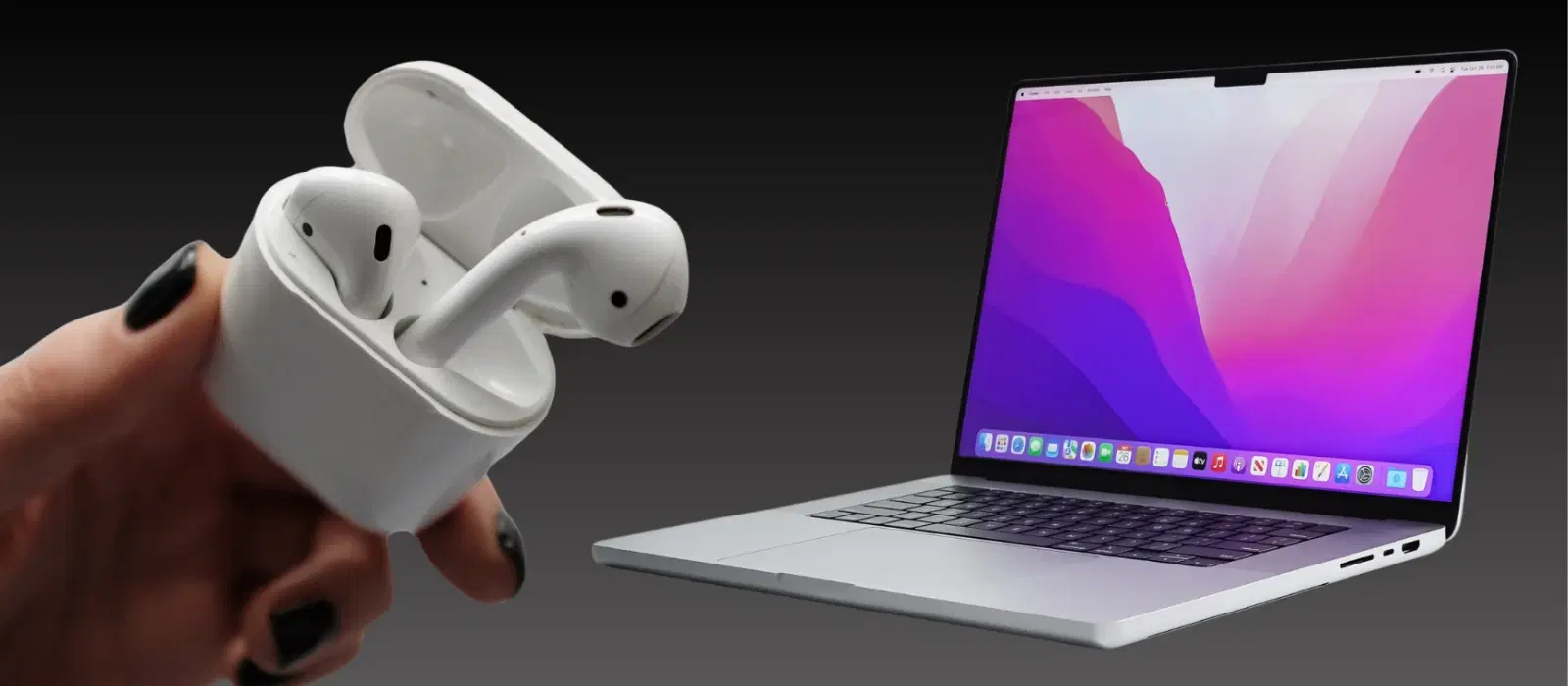
Connecting your AirPods to a MacBook can significantly enhance your audio experience, whether you're working, watching a movie, or listening to music. Tata Neu is here to provide you with expert guidance on all your tech-related queries, ensuring a seamless setup process. With Tata Neu, you can enjoy not just expert advice but also exclusive benefits and rewards that make your tech journey more fulfilling.

Preparing Your AirPods and MacBook

Ensure AirPods are Charged

Before you begin, make sure your AirPods are charged. Check the battery level by opening the case near your iPhone or by looking at the battery widget on your MacBook. If the battery is low, place the AirPods in the charging case and connect it to a power source. Ensuring your AirPods are fully charged will prevent any interruptions during the pairing process.

Update Your MacBook

Ensure your MacBook is running the latest macOS version. To check for updates, click on the Apple menu in the top-left corner, select 'System Preferences,' and then 'Software Update.' If an update is available, follow the on-screen instructions to install it. Keeping your MacBook updated ensures compatibility with the latest devices and features.

Step-by-Step Guide to Connect AirPods to MacBook

Turn on Bluetooth on MacBook

First, navigate to 'System Preferences' from the Apple menu. Select 'Bluetooth' and ensure it is turned on. You should see the Bluetooth icon in the menu bar at the top of your screen. This step is crucial as Bluetooth is the primary method for wireless communication between your MacBook and AirPods.

Pairing AirPods with MacBook

Open the AirPods case and hold it near your MacBook. Press and hold the setup button on the back of the case until the status light flashes white. Your AirPods should appear in the Bluetooth menu on your MacBook. Click 'Connect' to pair the devices. This simple process ensures that your devices are ready to work together seamlessly.

Confirming Connection

Once connected, check the status in the Bluetooth menu. You can also test audio playback by playing a song or video to ensure the AirPods are working correctly. This step helps verify that the connection is stable and that you can enjoy high-quality audio output.

Troubleshooting Common Issues

AirPods Not Connecting

Environics Device Disinfector (Disinfects Up To 99.99%, 127ELGD, Blue)

Environics Device Disinfector (Disinfects Up To 99.99%, 127ELGD, Blue)

<b>Why Buy Environics Device Disinfector</b><ul><li><b></b> for optimised disinfection</li><li><b></b> makes sure all the germs are killed</li></ul><p>To prevent harmful bacteria and fungi from getting in contact with you, buy <b>Environics Device Disinfector</b>. The usability of your device disinfector may be affected if its installation is complex. As this device disinfector has the it prevents the extra-spill and wastage of sanitizer. Your residence and office will stay clean and hygienic with products from this device disinfector that have 99.99% high resistance against germs and viruses. </p><p>The <b>Environics Device Disinfector's</b> price is cost-effective so you don't have to adjust your budget. The longer it takes for the device disinfector to disinfect, the longer you will have to wait. As a result of its efficient and effective operation, this device disinfector requires only to inject. Your device disinfector needs to have the latest technology to make sure it kills all the germs. As this device disinfector has the to prevent viruses, you can rest assured. Purchase the <b>Environics Device Disinfector</b> online at this instant!</p>

114249
Earn NeuCoins

If your AirPods are not connecting, try resetting them. Place the AirPods in the case, close the lid, and wait for 30 seconds. Open the lid and press the setup button until the status light flashes white. Restart your MacBook and attempt pairing again. This method often resolves minor connectivity issues.

Audio Quality Issues

If you experience audio quality issues, check for interference from other Bluetooth devices. You can also adjust your MacBook's audio settings by going to 'System Preferences,' selecting 'Sound,' and making sure the output device is set to your AirPods. Ensuring a clear signal path can significantly improve audio quality.

Sync Issues

If your AirPods are not syncing correctly, ensure both AirPods are properly seated in your ears. You may also need to update the firmware for your AirPods. To do this, connect your AirPods to your iPhone, go to 'Settings,' select 'General,' then 'About,' and check for firmware updates. Keeping firmware updated ensures optimal performance.

Enhancing Your Experience with Tata Neu

Expert Advice and Support

Tata Neu offers expert guidance for tech enthusiasts through blogs, FAQs, and live support. Our goal is to provide you with the best solutions for all your tech needs. Whether you are a tech enthusiast or a casual user, Tata Neu ensures you have the right information at your fingertips.

Rewards and Savings

With Tata Neu, you can earn NeuCoins on every purchase, which can be redeemed for future shopping. Additionally, enjoy exclusive savings with the Tata Neu HDFC Bank credit card, offering an extra 5% off on purchases. These rewards make every purchase more valuable and cost-effective.

Express Delivery and After-Sales Support

Experience the convenience of same-day delivery for orders placed before 4 PM. Tata Neu also provides unmatched after-sales support, including ZipCare services for protecting and maintaining your devices. Our comprehensive support ensures your devices are always in top condition.

FAQs

How do I reset my AirPods?

To reset your AirPods, place them in the charging case, close the lid, and wait for 30 seconds. Open the lid and press and hold the setup button on the back of the case until the status light flashes amber, then white. This process helps resolve most connection issues.

Environics Enviroglobe Anti Radiation Ball for House & Car (001EG, Grey)

Environics Enviroglobe Anti Radiation Ball for House & Car (001EG, Grey)

<p><strong>Why buy Environics Enviroglobe Anti Radiation Ball for House &amp; Car</strong></p> <p>&nbsp;</p> <ul> <li><strong>Provides E-Smog and Radiation Protection</strong> for healthier homes and families</li> <li><strong>It Covers A Radius</strong> of 250 sq.ft protect you and your loved ones from harmful radiation</li> <li><strong>Clinically Tested EMF Harmonizer</strong> that provides us 360-degree protection from radiation sources that are beyond our control</li> </ul> <p>&nbsp;</p> <p>Buy the <strong>Environics Enviroglobe Anti Radiation Ball for House &amp; Car</strong> which is based on Envirochip&rsquo;s radiation protection technology that helps you protect you and your loved ones from harmful radiation within an area of 250 sq. feet. You can extend the range of protection by placing multiple Enviroglobes at equal distances from one another. It is a clinically tested EMF harmonizer and provides us 360-degree protection from radiation sources that are beyond our control. Electromagnetic Radiation (EMR) refers to the constant waves of the electromagnetic field (EMF) produced by wireless communication devices such as mobile phones, laptops, Wi-Fi routers, and other sources such as mobile towers and high-tension wirelines, etc. However, The human body is accustomed to random waves and hence the constant exposure to electromagnetic radiation causes serious biological disorders such as higher stress and fatigue, irritation, headache, weakened immunity, cancer, fertility issues to name a few. The technology used in Enviroglobe changes the nature of electromagnetic radiation from constant to random waveform making it human body-friendly.</p> <p>&nbsp;</p> <p>When you get <strong>Environics Enviroglobe Anti Radiation Ball for House &amp; Car</strong> online, you also get awesome companion for your home. It comes with Internationally tested and certified technology. No need of batteries or adaptors, you can simply charge by placing it under the sunlight, for only a couple of minutes every week. Enviroglobe is simple to use. Simply place it at your desk, table, living room, bedroom, car, office space, absolutely wherever you want, and get a radiation protected zone of up to 250 sq. feet. It provides e-smog and radiation protection for healthier homes and families. Purchase&nbsp;<strong>Environics Enviroglobe Anti Radiation Ball for House &amp; Car</strong> online, now!</p>

27044499
Earn NeuCoins

Why won’t my AirPods connect to my MacBook?

If your AirPods won’t connect, try resetting them and restarting your MacBook. Ensure Bluetooth is turned on and that your MacBook is running the latest macOS version. These steps often resolve common connectivity problems.

Can I use AirPods with multiple devices?

Yes, you can use AirPods with multiple devices. To switch between devices, make sure Bluetooth is enabled on the device you want to connect to and select your AirPods from the Bluetooth menu. This feature allows for seamless transitions between different devices.

How do I update my AirPods firmware?

To update your AirPods firmware, connect them to your iPhone, go to 'Settings,' select 'General,' then 'About,' and check for firmware updates under the AirPods section. Keeping firmware updated ensures optimal performance and compatibility.

What should I do if one AirPod is not working?

If one AirPod is not working, try cleaning it and ensuring it is properly seated in your ear. You can also reset your AirPods or check for firmware updates to resolve the issue. Proper maintenance ensures your AirPods function correctly.

How can I improve the battery life of my AirPods?

To improve the battery life of your AirPods, avoid exposing them to extreme temperatures, and store them in their case when not in use. Regularly updating the firmware and ensuring they are fully charged before use can also help maintain battery health.

Can I use my AirPods during workouts?

Yes, AirPods are designed to be used during workouts. They offer a secure fit and are sweat-resistant, making them ideal for physical activities. Ensure they are properly fitted to avoid any discomfort or risk of falling out.

Conclusion

Connecting your AirPods to a MacBook is a straightforward process that enhances your audio experience. By following the steps outlined above, you can ensure a seamless connection. Tata Neu is committed to providing expert guidance and support for all your tech needs, offering rewards, savings, and exceptional after-sales services. Explore Tata Neu’s wide range of products and services for a rewarding shopping experience.

Sangria Experience Logo