
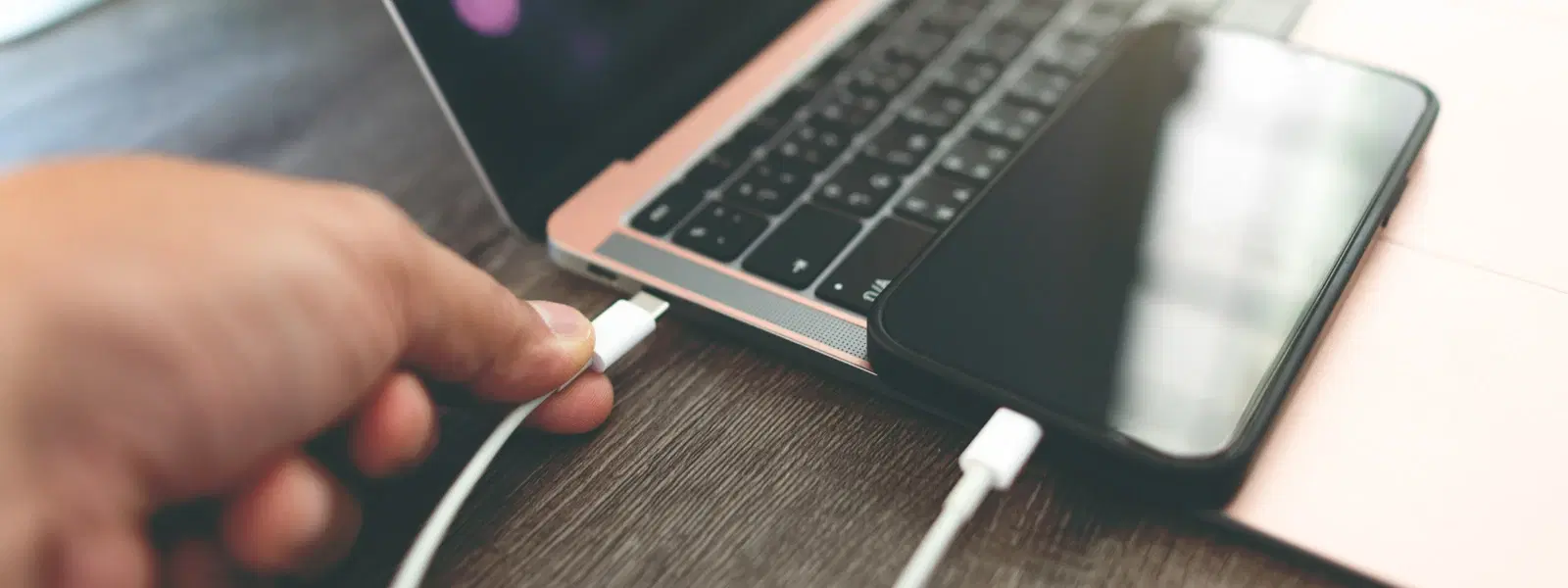
FAQs: Transfer Files from Phone to Laptop Using USB

Consumer Electronics

04 min read

FAQs: Transfer Files from Phone to Laptop Using USB

Environics Enviroglobe Anti Radiation Ball for House & Car (001EG, Grey)

Environics Enviroglobe Anti Radiation Ball for House & Car (001EG, Grey)

<p><strong>Why buy Environics Enviroglobe Anti Radiation Ball for House &amp; Car</strong></p> <p>&nbsp;</p> <ul> <li><strong>Provides E-Smog and Radiation Protection</strong> for healthier homes and families</li> <li><strong>It Covers A Radius</strong> of 250 sq.ft protect you and your loved ones from harmful radiation</li> <li><strong>Clinically Tested EMF Harmonizer</strong> that provides us 360-degree protection from radiation sources that are beyond our control</li> </ul> <p>&nbsp;</p> <p>Buy the <strong>Environics Enviroglobe Anti Radiation Ball for House &amp; Car</strong> which is based on Envirochip&rsquo;s radiation protection technology that helps you protect you and your loved ones from harmful radiation within an area of 250 sq. feet. You can extend the range of protection by placing multiple Enviroglobes at equal distances from one another. It is a clinically tested EMF harmonizer and provides us 360-degree protection from radiation sources that are beyond our control. Electromagnetic Radiation (EMR) refers to the constant waves of the electromagnetic field (EMF) produced by wireless communication devices such as mobile phones, laptops, Wi-Fi routers, and other sources such as mobile towers and high-tension wirelines, etc. However, The human body is accustomed to random waves and hence the constant exposure to electromagnetic radiation causes serious biological disorders such as higher stress and fatigue, irritation, headache, weakened immunity, cancer, fertility issues to name a few. The technology used in Enviroglobe changes the nature of electromagnetic radiation from constant to random waveform making it human body-friendly.</p> <p>&nbsp;</p> <p>When you get <strong>Environics Enviroglobe Anti Radiation Ball for House &amp; Car</strong> online, you also get awesome companion for your home. It comes with Internationally tested and certified technology. No need of batteries or adaptors, you can simply charge by placing it under the sunlight, for only a couple of minutes every week. Enviroglobe is simple to use. Simply place it at your desk, table, living room, bedroom, car, office space, absolutely wherever you want, and get a radiation protected zone of up to 250 sq. feet. It provides e-smog and radiation protection for healthier homes and families. Purchase&nbsp;<strong>Environics Enviroglobe Anti Radiation Ball for House &amp; Car</strong> online, now!</p>

27044499
Earn NeuCoins

Ever found yourself struggling to transfer important files from your phone to your laptop? USB file sharing is one of the quickest and most reliable methods to move your photos, videos, documents and more from your mobile device to your computer. This guide will help you understand how to transfer files from phone to laptop via USB, answer your frequently asked questions, and offer troubleshooting tips along with expert insights.

Understanding USB File Transfers

What is USB File Sharing and How Does It Work?

USB file sharing is the process of using a USB cable to physically connect your phone and laptop to transfer data. This method harnesses the power of direct connectivity which offers faster transfer speeds and a secure connection compared to wireless options.

Why Choose USB for File Transfers?

Unlike wireless alternatives such as Bluetooth or Wi-Fi, using a USB cable for file transfers does not require an internet connection. It is highly reliable, does not suffer from interference, and offers the bonus of faster transfer speeds. This means you can quickly move data across devices without having to worry about network issues.

Step-by-Step Guide to Transfer Files from Phone to Laptop Using USB

Preparing Your Devices for File Transfer

Before you begin, check that your phone and laptop are fully compatible with the USB cable you intend to use. For Android devices, you may need to enable the USB preferences and set your phone to file transfer mode. If you are using an iPhone, ensure that you trust your computer when prompted.

How to Transfer Files from Android to Laptop

For Android users, follow these steps: connect your phone to your laptop using an appropriate USB cable, then tap on the notification that appears to select "File Transfer." Once activated, use Windows File Explorer or macOS Finder to locate your device and navigate to the files you wish to copy. Simply drag and drop the files to your desired folder on your laptop.

How to Transfer Files from iPhone to Laptop

If you are using an iPhone, connect it with a suitable USB cable and, when prompted, choose to trust your computer. For macOS users, open Finder to access your device and copy files directly. Windows users might consider using iTunes as an interface to manage file transfers.

Troubleshooting Common Issues with USB File Transfers

Lyfro Battery Powered Disinfectant Solution Generator (Disinfects Up To 99.9 %, Hydro Go, White)

Lyfro Battery Powered Disinfectant Solution Generator (Disinfects Up To 99.9 %, Hydro Go, White)

<p>The <strong>Lyfro Battery Powered Disinfectant Solution Generator</strong> is non-toxic and has no side effects</p> <ul> <li><strong>Free of Chemical Residues</strong> makes it an eco-friendly, cost-effective disinfectant</li> <li><strong>Uses Electrolysis</strong> to produce natural powerful disinfectant</li> <li><strong>300 mAh Battery</strong> with USB recharging facility</li> </ul> <p>Buy <strong>Lyfro Battery Powered Disinfectant Solution Generator</strong> to experience its awesome usages. It is an ultra-portable non-toxic disinfectant maker. It comes with an electrolysed water generator. Useful to sterilize public places as well. Use <strong>Lyfro Battery Powered Disinfectant Solution Generator</strong> which allows you to create your own non-toxic disinfectant in just 3 minutes. Simply add salt and water together. Uses electrolysis to produce natural powerful disinfectants proven to be effective against bacteria, viruses, and mold.</p> <p>When you get <strong>Lyfro Battery Powered Disinfectant Solution Generator</strong> online, you also get an awesome eco-friendly, cost-effective disinfectant for your everyday life. It is equipped with a 300 mAh battery with USB recharging facility. It is usable at home, office, or in transit. It eliminates up to 99.9 percent pathogens. It is free of chemical residues. It is a self-made disinfectant.</p>

6242999
Earn NeuCoins

Why Can't I Connect My Phone to My Laptop via USB?

If your laptop does not recognise your phone, consider checking the cable type, inspect if the drivers are updated, or test a different USB port. Sometimes, a simple switch of the cable or port can resolve connection issues.

Fixing File Transfer Errors

Error messages such as "Device not recognised" or issues with the file transfer mode are generally resolved by ensuring that your devices are set correctly for file transfer. A quick restart of both your phone and laptop can often address lingering issues.

Ensuring a Smooth Transfer Process

To help avoid interruptions during data sharing, always opt for high-quality cables and confirm that both devices have sufficient storage available. This simple precaution can save you time and eliminate frustration during the transfer process.

Pro Tip: Maximise Your Transfer Speed

Did you know that using a USB 3.0 cable can drastically shorten file transfer times compared to older USB versions? Always check your devices for compatibility to ensure the fastest possible transfers!

Best Practices for USB File Transfers

Organising Files Before Transfer

Taking a few minutes to sort your files into folders can simplify the transfer process once your devices are connected. A good organisation strategy not only saves time but also helps keep data protected and accessible.

Using USB 3.0 or Higher for Faster Transfers

Modern USB cables, especially those with USB 3.0 or higher specifications, provide significantly faster data transfer speeds. Using these cables means you can move large files such as high-resolution images and videos in a fraction of the time.

Protecting Your Data During Transfers

Before transferring files, always ensure your phone and laptop are secure. Avoid using public or dubious USB ports and consider having up-to-date antivirus software. These habits safeguard your data during the transfer process.

Juvo Personal Safety Alarm (PSB 01, Black)

Juvo Personal Safety Alarm (PSB 01, Black)

<p>Danger can overpower you at any time and your voice will not be enough in such situations to get the required aid. The amazing new <strong>Juvo PSB01 Personal Alarm</strong> is crafted for all ages and is a necessary precaution from all kinds of danger. It rings a very loud alarm at 120 dB as well as flashes the torch to warn people nearby about a danger. Whether you have a medical emergency or you are attacked by predators your voice may not be heard but this alarm will be enough to deter attackers or draw attention of people close by to give you the immediate assistance required.</p> <p><strong>Extremely Easy To Use</strong></p> <p>The <strong>Juvo PSB01 Personal Alarm</strong> is small and portable, can be attacked to even a keychain if you want. To start the siren all you need to do is separate or pull the metal key chain from the main black unit. The siren may go on for 1 1/2 hours in case nobody heard it in the first minutes. This is very important for girls returning home alone at night as it acts as a security anti-attack panic alarm that is sure to scare off a molester. Its easy portability accentuates its use.</p> <p><strong>Lights Your Way</strong></p> <p>The little and portable <strong>Juvo PSB01 Personal Alarm</strong> also features a small LED torch that helps you find your way in the dark. Don&rsquo;t be scared of dark alleys when you have this with you because it is equipped to save you from all dangers.</p>

474890
Earn NeuCoins

Frequently Asked Questions (FAQs)

1. How to transfer files from phone to laptop via USB cable?

Connect your phone to your laptop using a USB cable, select "File Transfer" mode on your phone, and access your device's storage via File Explorer (Windows) or Finder (Mac).

2. How do I transfer files from my Android phone to my computer?

Use a USB cable to connect your Android phone to your computer, enable "File Transfer" mode, and copy files from your phone's internal storage or SD card.

3. How to transfer USB files to laptop?

Plug your USB device into your laptop's USB port, locate the files within File Explorer (Windows) or Finder (Mac), and drag them to the desired folder on your laptop.

4. Why is my phone not showing up on my laptop when connected via USB?

This could be due to a faulty cable, outdated drivers, or the phone not being set to "File Transfer" mode. Try using a different cable or updating your laptop's drivers.

5. Can I transfer photos from my phone to my laptop using a USB cable?

Yes, simply connect your phone via USB, enable "File Transfer" mode, and navigate to the "DCIM" folder to copy photos to your laptop.

Wrapping It Up

Transferring files from your phone to your laptop using a USB cable is a straightforward and efficient process when you follow the proper steps. With clear guidance on setting up your devices, handy troubleshooting tips, and best practices for secure and fast transfers, managing your data becomes less intimidating. Whether you are transferring vital work documents or memories captured on your phone, these methods ensure a smooth process. Additionally, when shopping on Tata Neu, you can earn NeuCoins rewards for every purchase, further enhancing your smart shopping experience while enjoying premier offers and seamless service—symbols of reliability and trust that reflect the brand's commitment to quality and customer care.

Embrace these tips for a hassle-free file transfer experience and explore more insights into consumer electronics that blend technology with convenience. The journey to effortless data management starts now, and with secure systems in place, you are set to enjoy every moment of your connected lifestyle.

Sangria Experience Logo