
FAQs on Transferring Photos Without USB: Wireless Tips

Consumer Electronics

04 min read

FAQs on Transferring Photos Without USB: Wireless Tips

Juvo Personal Safety Alarm (PSB 01, Black)

Juvo Personal Safety Alarm (PSB 01, Black)

<p>Danger can overpower you at any time and your voice will not be enough in such situations to get the required aid. The amazing new <strong>Juvo PSB01 Personal Alarm</strong> is crafted for all ages and is a necessary precaution from all kinds of danger. It rings a very loud alarm at 120 dB as well as flashes the torch to warn people nearby about a danger. Whether you have a medical emergency or you are attacked by predators your voice may not be heard but this alarm will be enough to deter attackers or draw attention of people close by to give you the immediate assistance required.</p> <p><strong>Extremely Easy To Use</strong></p> <p>The <strong>Juvo PSB01 Personal Alarm</strong> is small and portable, can be attacked to even a keychain if you want. To start the siren all you need to do is separate or pull the metal key chain from the main black unit. The siren may go on for 1 1/2 hours in case nobody heard it in the first minutes. This is very important for girls returning home alone at night as it acts as a security anti-attack panic alarm that is sure to scare off a molester. Its easy portability accentuates its use.</p> <p><strong>Lights Your Way</strong></p> <p>The little and portable <strong>Juvo PSB01 Personal Alarm</strong> also features a small LED torch that helps you find your way in the dark. Don&rsquo;t be scared of dark alleys when you have this with you because it is equipped to save you from all dangers.</p>

474890
Earn NeuCoins

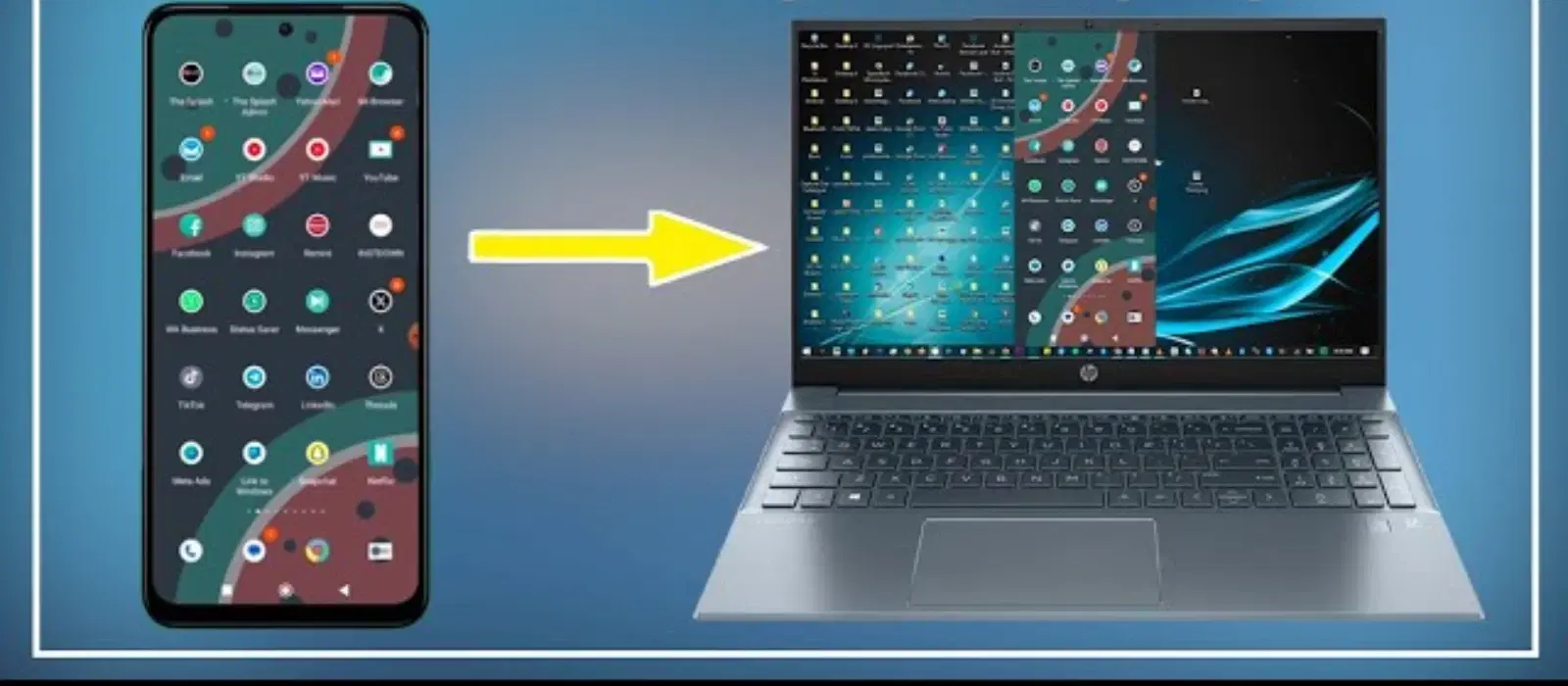
Tired of fumbling with cables every time you want to transfer photos from your phone to your laptop? Discover the ease and flexibility of wireless photo transfers. This article explores how to transfer photos from phone to laptop without USB by exploring various wireless photo transfer methods, from using Wi-Fi and cloud storage to utilising Bluetooth technology. You will find clear and easy guidance, as well as answers to frequently asked questions to help you send pictures from phone to laptop effortlessly.

Why Transfer Photos Without USB?

Convenience and Flexibility

Many users are embracing the freedom that comes with ditching cables. Whether you are travelling or working remotely, wireless methods allow you to send pictures from phone to laptop without the restriction of physical connectors. This ideal method is not only convenient but also boosts productivity when time is of the essence.

Common Challenges with USB Transfers

Traditional USB transfers can instead drain your time and energy. It is not uncommon for users to face compatibility issues, damaged cables or even lack of USB ports on the latest devices. In contrast, wireless photo transfer methods provide a hassle-free alternative that simplifies your everyday tech needs.

Wireless Photo Transfer Methods: An Overview

Using Wi-Fi for Photo Transfers

Wi-Fi provides a seamless way to share photos between your phone and laptop. By connecting both devices to the same network, you can quickly transfer images without the need for cables. This method is efficient and supports large files, making it ideal for high-resolution images. Many apps support photo transfer using Wi-Fi, offering an intuitive and straightforward experience.

Cloud Storage Solutions

Cloud storage services such as Google Drive, Dropbox, and OneDrive allow you to upload photos directly from your phone and access them on your laptop. When you transfer photos via cloud storage, your images are saved and accessible from anywhere. This added benefit ensures that your photos are not only transferred seamlessly but also safely backed up in the cloud.

Bluetooth for Quick Transfers

For a simpler solution, Bluetooth enables the quick transfer of photos between devices. Although it might be slower compared to Wi-Fi, Bluetooth is a great alternative for small batches of images. Follow the device pairing instructions, and soon you can start sending files with ease. This method makes it possible to send pictures from phone to laptop in a straightforward manner.

Step-by-Step Guides for Popular Methods

Environics Device Disinfector (Disinfects Up To 99.99%, 127ELGD, Blue)

Environics Device Disinfector (Disinfects Up To 99.99%, 127ELGD, Blue)

<b>Why Buy Environics Device Disinfector</b><ul><li><b></b> for optimised disinfection</li><li><b></b> makes sure all the germs are killed</li></ul><p>To prevent harmful bacteria and fungi from getting in contact with you, buy <b>Environics Device Disinfector</b>. The usability of your device disinfector may be affected if its installation is complex. As this device disinfector has the it prevents the extra-spill and wastage of sanitizer. Your residence and office will stay clean and hygienic with products from this device disinfector that have 99.99% high resistance against germs and viruses. </p><p>The <b>Environics Device Disinfector's</b> price is cost-effective so you don't have to adjust your budget. The longer it takes for the device disinfector to disinfect, the longer you will have to wait. As a result of its efficient and effective operation, this device disinfector requires only to inject. Your device disinfector needs to have the latest technology to make sure it kills all the germs. As this device disinfector has the to prevent viruses, you can rest assured. Purchase the <b>Environics Device Disinfector</b> online at this instant!</p>

114249
Earn NeuCoins

Sync Photos to Laptop Without Cable Using Google Photos

Google Photos offers automatic syncing between your devices. To set up, install the app on your phone, log in, and enable auto-backup for your photo library. Your images will be regularly updated and available on your laptop through the Google Photos website. Remember to manage storage limits on free plans by periodically reviewing and deleting unwanted photos.

Transfer Images Using Wi-Fi Direct

Wi-Fi Direct offers a direct connection between your phone and laptop without an intermediary network. Once enabled, apps such as ShareIt or Zapya can facilitate the transfer. Simply choose the photos you wish to transfer and let the app guide you through a quick and secure sharing process.

Share Files Between Phone and Laptop via Email

Another practical option is to send photos as email attachments. Compose a new message on your phone, attach the desired photos, and send it to yourself. On your laptop, open your email to download the images. To avoid delays or failures, compress the files if they are too large, ensuring a smoother transmission experience.

Backup Photos Without USB Connection

Benefits of Wireless Backups

Backing up your photos is essential. Wireless backups simplify this process by automatically storing your images on cloud services like iCloud or Google Photos, ensuring your memories are safe and easily accessible. This method eliminates the worry of losing photos due to device problems, providing peace of mind and continuous data protection.

Transfer Media Files Wirelessly with Dedicated Software

For users dealing with large media files, dedicated software such as MobileTrans or DroidKit can be extremely helpful. These applications are designed to manage and enhance file transfers by offering premium features and reliable performance. Evaluate the features and pricing to choose the best option for your specific needs.

Pro Tip: Maximise Your Wireless Transfer Speed

Did you know? Ensuring both devices are connected to the same high-speed Wi-Fi network can significantly boost transfer speeds and reduce interruptions during wireless photo transfers.

Troubleshooting Wireless Photo Transfers

Common Issues and Fixes

Environics Enviroglobe Anti Radiation Ball for House & Car (001EG, Grey)

Environics Enviroglobe Anti Radiation Ball for House & Car (001EG, Grey)

<p><strong>Why buy Environics Enviroglobe Anti Radiation Ball for House &amp; Car</strong></p> <p>&nbsp;</p> <ul> <li><strong>Provides E-Smog and Radiation Protection</strong> for healthier homes and families</li> <li><strong>It Covers A Radius</strong> of 250 sq.ft protect you and your loved ones from harmful radiation</li> <li><strong>Clinically Tested EMF Harmonizer</strong> that provides us 360-degree protection from radiation sources that are beyond our control</li> </ul> <p>&nbsp;</p> <p>Buy the <strong>Environics Enviroglobe Anti Radiation Ball for House &amp; Car</strong> which is based on Envirochip&rsquo;s radiation protection technology that helps you protect you and your loved ones from harmful radiation within an area of 250 sq. feet. You can extend the range of protection by placing multiple Enviroglobes at equal distances from one another. It is a clinically tested EMF harmonizer and provides us 360-degree protection from radiation sources that are beyond our control. Electromagnetic Radiation (EMR) refers to the constant waves of the electromagnetic field (EMF) produced by wireless communication devices such as mobile phones, laptops, Wi-Fi routers, and other sources such as mobile towers and high-tension wirelines, etc. However, The human body is accustomed to random waves and hence the constant exposure to electromagnetic radiation causes serious biological disorders such as higher stress and fatigue, irritation, headache, weakened immunity, cancer, fertility issues to name a few. The technology used in Enviroglobe changes the nature of electromagnetic radiation from constant to random waveform making it human body-friendly.</p> <p>&nbsp;</p> <p>When you get <strong>Environics Enviroglobe Anti Radiation Ball for House &amp; Car</strong> online, you also get awesome companion for your home. It comes with Internationally tested and certified technology. No need of batteries or adaptors, you can simply charge by placing it under the sunlight, for only a couple of minutes every week. Enviroglobe is simple to use. Simply place it at your desk, table, living room, bedroom, car, office space, absolutely wherever you want, and get a radiation protected zone of up to 250 sq. feet. It provides e-smog and radiation protection for healthier homes and families. Purchase&nbsp;<strong>Environics Enviroglobe Anti Radiation Ball for House &amp; Car</strong> online, now!</p>

27044499
Earn NeuCoins

Occasionally, wireless transfers might face difficulties due to connectivity hiccups or incompatible device settings. If you encounter slow speeds or disruptions, check that both devices are well-connected to a stable network. Verifying application settings and ensuring compatibility are practical steps to resolve minor issues quickly and efficiently.

How to Ensure Privacy During Wireless Transfers

Privacy is as important as convenience. When transferring photos, avoid public Wi-Fi and consider using encrypted networks to secure your data. This extra measure helps protect your privacy every time you transfer images, adding an extra layer of safety to your digital life.

Frequently Asked Questions

How to transfer photos and files from phone to laptop without USB?

Use wireless methods such as cloud storage, Bluetooth, or Wi-Fi Direct to transfer photos and files easily.

How do I transfer photos from my phone to my laptop wirelessly?

You can use apps like Google Photos, AirDrop alternatives, or dedicated software to send photos wirelessly.

How do I transfer photos from phone to laptop easily?

For a seamless experience, opt for cloud storage services like Google Drive or use Wi-Fi Direct-enabled apps.

What are the fastest wireless photo transfer methods?

Using Wi-Fi Direct or cloud storage services typically offers faster transfer speeds compared to Bluetooth or email.

Can I transfer photos without Wi-Fi or USB?

Yes, you can use Bluetooth or offline apps like Feem to transfer photos without relying on Wi-Fi or USB cables.

Transferring photos from your phone to your laptop without USB has never been easier, thanks to the variety of wireless options available. Wireless methods not only simplify the process but also offer flexibility and convenience for users on the go. By following the steps outlined and utilising the various wireless photo transfer techniques, you can confidently manage your digital memory library without the need for cables. Explore these options and enjoy hassle-free, secure photo transfers that match your dynamic lifestyle.

Sangria Experience Logo