





Consumer Electronics
•04 min read

Connecting your phone to a laptop with a USB cable can transform your everyday tasks into seamless digital experiences. Whether you wish to transfer files, utilise USB tethering for internet access, or debug your device, understanding the basics can make it all a breeze. This guide unravels frequently asked questions on how to connect phone to laptop with USB, offering simple solutions and expert recommendations that ensure a smooth process.
USB connections offer a reliability that wireless methods sometimes cannot match. They provide faster transfer speeds, steady charging, and enhanced security when transferring data. Whether you are transferring large files or using your phone as an internet modem, a USB connection is a robust solution for your needs. It is especially useful for tasks such as file transfer, phone charging, USB tethering, or even enabling USB debugging for advanced tasks.
Before you get started, ensure you have the correct USB cable for your device, such as Type-A, Type-C, or Lightning cables. In addition, your laptop should run a compatible operating system like Windows, macOS, Linux, or Chromebook. For users who wish to access advanced features, enabling USB debugging in Android’s Developer Options is crucial. This setting opens up a range of possibilities from troubleshooting to using third-party tools for enhanced functionality.
For those looking to transfer data, the process starts with ensuring your phone is set to the file transfer mode. On Android devices, you will be prompted via the notification bar once connected, whereas on iPhone, you may need to select the option manually. Remember, your device may default to charging mode. Therefore, selecting file transfer mode is essential to enable the transfer of photos, documents, and other media.
At times, you might need to share your phone’s internet connection. With USB tethering, you can use your phone as a modem. On both Android and iOS devices, this is available under network or connectivity settings. This is particularly valuable when you have no reliable Wi-Fi connection but need uninterrupted access to the internet to carry out work or studies.
For tech enthusiasts and developers, USB debugging is an essential tool. When enabled, it allows your device to communicate with your laptop to perform advanced tasks like diagnosing issues or running specialised applications. Usually accessed via the Developer Options on an Android device, USB debugging serves as a bridge to explore deeper customisation and troubleshooting.
Expert Tip: Did You Know? Maximise USB Connection Efficiency
USB cables come in different grades. For smoother file transfers and reliable connections, opt for high-speed USB 3.0 cables. These cables not only transfer data faster but also minimise connection issues when linking your phone to your laptop.
It is frustrating when your phone does not connect via USB. In most cases, this can be attributed to a faulty or incompatible cable, outdated drivers on your laptop, or a misconfigured USB mode on your phone. Begin by testing a different cable. If that does not resolve the problem, check for any driver updates on your laptop and verify that your phone is set to the correct connection mode.
Sometimes your USB connection might be recognised by the laptop, but file transfer remains an issue. This complication can arise due to selecting the wrong mode, issues with corrupted files, or even permissions errors on your device. Double-checking that your device is in file transfer mode and rebooting the system often resolves these issues.
Many devices default to a charging mode to conserve battery life. To access data transfer options, tap on the USB notification on your phone and choose the correct setting. Once set, you will be able to browse, send, and receive your data quickly and effortlessly. You can even continue using the connection for sharing your mobile data through USB tethering.
Beyond basic file transfer, a USB connection can help synchronise your contacts, calendars, and media files between your devices. This is particularly useful for those who depend on up-to-date data across multiple platforms. Numerous software options are available to ensure that syncing your phone with your laptop is as automated and secure as possible.
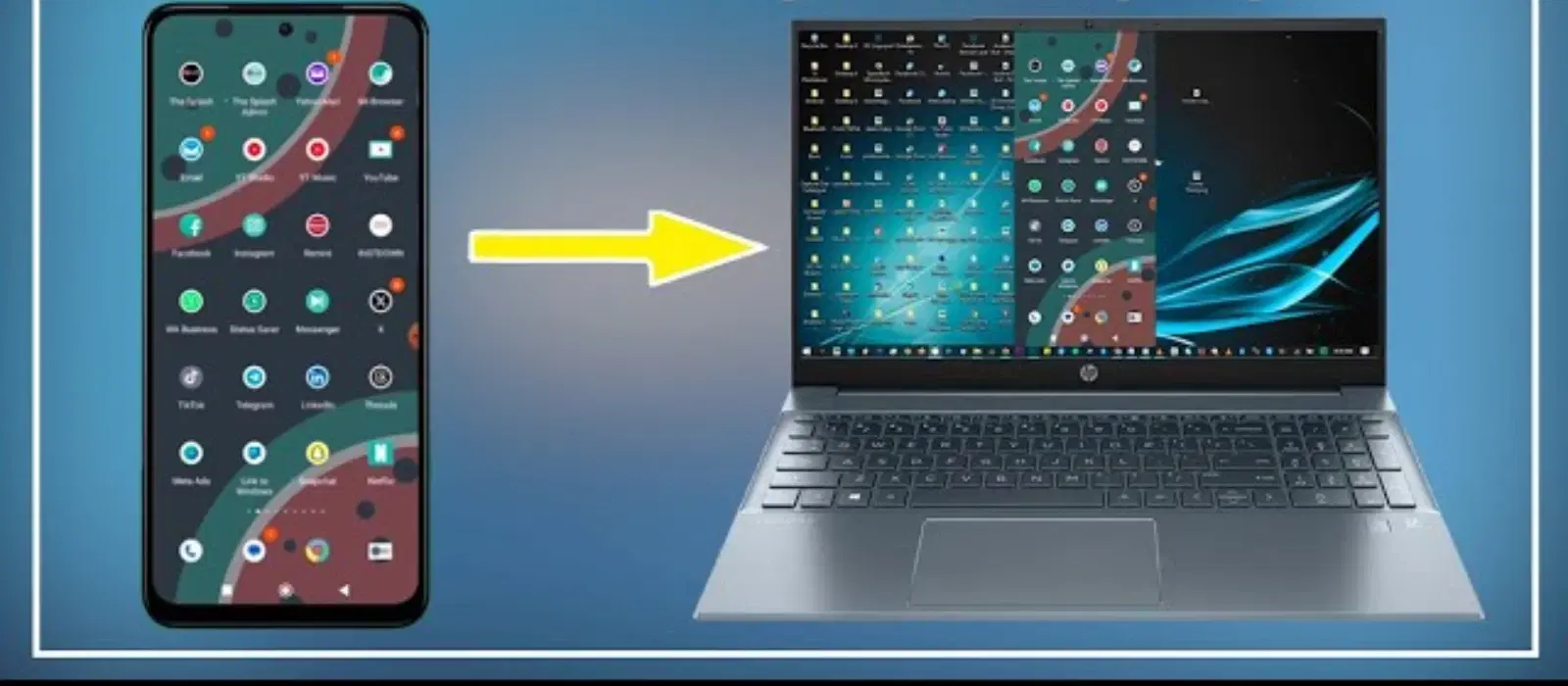
For presentations, gaming, or simply reviewing media on a larger screen, screen mirroring is a fantastic feature. By connecting your phone with a reliable USB cable and using third-party tools such as Vysor, you can display your phone’s screen on your laptop with ease. This method is perfect for those who require a bigger view of their mobile content.
When faced with large files, such as videos or high-resolution images, transferring data via USB is undeniably efficient. This secure method not only speeds up the process considerably but also enhances the safety of sensitive files. Whether you are transferring work documents or personal media, the ease of data transfer ensures valuable time is allotted to other important tasks.
Throughout your digital journey, Tata Neu rewards your loyalty with NeuCoins every time you shop smartly on our platform. Much like establishing a secure USB connection, our rewards system is designed to offer trust, convenience, and additional value as you progress in your everyday life.
Ensure your phone is unlocked, plug in the USB cable, and then select the appropriate mode such as File Transfer or USB Tethering from your phone's notifications.
This issue might be due to a faulty cable, outdated drivers on your laptop, or an incorrect USB mode setting on your phone. Testing with another cable and updating drivers can often resolve the problem.
Use a screen mirroring tool like Vysor or scrcpy. Connect your phone via USB, enable USB debugging if you're on an Android device, and follow the app's instructions to start mirroring your screen.
USB debugging is a mode that facilitates advanced communication between your Android device and your laptop, allowing for enhanced troubleshooting and development capabilities.
Yes, enabling USB tethering on your phone allows you to share your mobile data connection with your laptop easily.
In summary, connecting your phone to a laptop using a USB cable opens up a myriad of opportunities—from quick file transfers to advanced debugging and tethering options. The information provided above simplifies the process by addressing common concerns and offering clear, concise solutions. With a seamless setup and expert troubleshooting tips, you can confidently manage your data and enjoy enhanced features that support your everyday needs. As you continue to explore digital solutions on Tata Neu, you also earn NeuCoins rewards, ensuring you get more value while staying connected and empowered.
