
Consumer Electronics
•03 min read

<p>Danger can overpower you at any time and your voice will not be enough in such situations to get the required aid. The amazing new <strong>Juvo PSB01 Personal Alarm</strong> is crafted for all ages and is a necessary precaution from all kinds of danger. It rings a very loud alarm at 120 dB as well as flashes the torch to warn people nearby about a danger. Whether you have a medical emergency or you are attacked by predators your voice may not be heard but this alarm will be enough to deter attackers or draw attention of people close by to give you the immediate assistance required.</p> <p><strong>Extremely Easy To Use</strong></p> <p>The <strong>Juvo PSB01 Personal Alarm</strong> is small and portable, can be attacked to even a keychain if you want. To start the siren all you need to do is separate or pull the metal key chain from the main black unit. The siren may go on for 1 1/2 hours in case nobody heard it in the first minutes. This is very important for girls returning home alone at night as it acts as a security anti-attack panic alarm that is sure to scare off a molester. Its easy portability accentuates its use.</p> <p><strong>Lights Your Way</strong></p> <p>The little and portable <strong>Juvo PSB01 Personal Alarm</strong> also features a small LED torch that helps you find your way in the dark. Don’t be scared of dark alleys when you have this with you because it is equipped to save you from all dangers.</p>
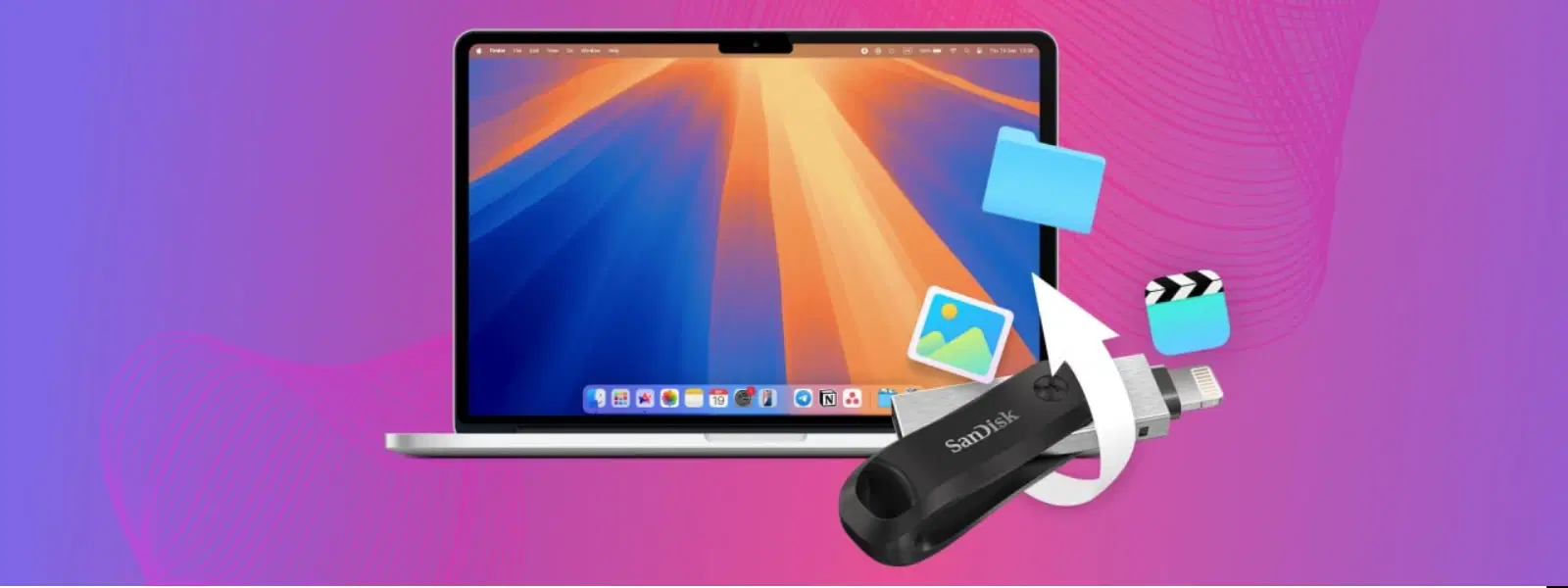
Ever faced the frustration of trying to format a pendrive on your Mac, only to be met with confusing steps and technical jargon? You’re not alone! In this guide, we simplify the process and answer common questions on how to format a pendrive in Mac. Whether you need to erase a pendrive on macOS to prepare it for use or troubleshoot issues with your USB drive, read on and learn easy, step-by-step methods using tools like Mac Disk Utility.
Formatting a pendrive means preparing the drive by setting up a file system and erasing the old data. It is different from simply erasing data. Formatting makes the pendrive ready for a new task – be it storing files, running apps or even troubleshooting issues. When you reformat USB drive Mac, you are essentially creating a clean slate. This ensures that your drive is optimised for the type of files you plan to store or for use in specific systems.
Mac users have several file system options. FAT32 and ExFAT are popular when you need to prepare USB for Mac use across different systems, such as Windows and macOS. For users sticking strictly to the Mac environment, APFS or HFS+ is ideal. Knowing your intended use is key. If you want to clean pendrive using Mac for both Windows and Mac, ExFAT is a reliable choice.
The simplest method is to use the built-in Disk Utility. Follow these steps:
Open Finder and navigate to Applications > Utilities > Disk Utility.
Select your pendrive from the list on the left.
Click the Erase button and choose a file system that suits your needs.
Name your drive and confirm the action.
Once complete, verify the formatted drive and start using it right away.

<p>The <strong>Lyfro Battery Powered Disinfectant Solution Generator</strong> is non-toxic and has no side effects</p> <ul> <li><strong>Free of Chemical Residues</strong> makes it an eco-friendly, cost-effective disinfectant</li> <li><strong>Uses Electrolysis</strong> to produce natural powerful disinfectant</li> <li><strong>300 mAh Battery</strong> with USB recharging facility</li> </ul> <p>Buy <strong>Lyfro Battery Powered Disinfectant Solution Generator</strong> to experience its awesome usages. It is an ultra-portable non-toxic disinfectant maker. It comes with an electrolysed water generator. Useful to sterilize public places as well. Use <strong>Lyfro Battery Powered Disinfectant Solution Generator</strong> which allows you to create your own non-toxic disinfectant in just 3 minutes. Simply add salt and water together. Uses electrolysis to produce natural powerful disinfectants proven to be effective against bacteria, viruses, and mold.</p> <p>When you get <strong>Lyfro Battery Powered Disinfectant Solution Generator</strong> online, you also get an awesome eco-friendly, cost-effective disinfectant for your everyday life. It is equipped with a 300 mAh battery with USB recharging facility. It is usable at home, office, or in transit. It eliminates up to 99.9 percent pathogens. It is free of chemical residues. It is a self-made disinfectant.</p>
For those comfortable with the command line, Terminal offers an alternative method. Using commands such as diskutil eraseDisk, you can format a USB drive on Mac quickly. Please note: this should only be attempted by advanced users as improper use may lead to data loss.
If you need your drive to work on both Mac and Windows, choose file systems like ExFAT or FAT32. This approach not only guides how to format pendrive in Mac but also ensures seamless operation across devices. With this method, you can format USB drive on Mac while ensuring compatibility with various operating systems.
Sometimes the USB drive may not appear in Disk Utility. This issue could be a result of hardware concerns or even an outdated macOS. Simple remedies include reconnecting the USB, restarting your Mac, or checking your system preferences for issues. If the drive still doesn't appear, consider exploring Mac pendrive troubleshooting steps for further guidance.
You may occasionally encounter errors like "Erase Failed" or issues related to unmounting the disk. In such cases, try force-unmounting the pendrive or repair it using Disk Utility. These steps help when you are trying to erase pendrive on macOS and secure the format.
For added security, you might want to perform a secure wipe rather than a simple format. This method overwrites the existing data several times, ensuring sensitive information is removed. Follow the on-screen prompts in Disk Utility to set the Mac disk utility USB format to a secure erase mode, protecting your data thoroughly.

<p><strong>Why buy Environics Enviroglobe Anti Radiation Ball for House & Car</strong></p> <p> </p> <ul> <li><strong>Provides E-Smog and Radiation Protection</strong> for healthier homes and families</li> <li><strong>It Covers A Radius</strong> of 250 sq.ft protect you and your loved ones from harmful radiation</li> <li><strong>Clinically Tested EMF Harmonizer</strong> that provides us 360-degree protection from radiation sources that are beyond our control</li> </ul> <p> </p> <p>Buy the <strong>Environics Enviroglobe Anti Radiation Ball for House & Car</strong> which is based on Envirochip’s radiation protection technology that helps you protect you and your loved ones from harmful radiation within an area of 250 sq. feet. You can extend the range of protection by placing multiple Enviroglobes at equal distances from one another. It is a clinically tested EMF harmonizer and provides us 360-degree protection from radiation sources that are beyond our control. Electromagnetic Radiation (EMR) refers to the constant waves of the electromagnetic field (EMF) produced by wireless communication devices such as mobile phones, laptops, Wi-Fi routers, and other sources such as mobile towers and high-tension wirelines, etc. However, The human body is accustomed to random waves and hence the constant exposure to electromagnetic radiation causes serious biological disorders such as higher stress and fatigue, irritation, headache, weakened immunity, cancer, fertility issues to name a few. The technology used in Enviroglobe changes the nature of electromagnetic radiation from constant to random waveform making it human body-friendly.</p> <p> </p> <p>When you get <strong>Environics Enviroglobe Anti Radiation Ball for House & Car</strong> online, you also get awesome companion for your home. It comes with Internationally tested and certified technology. No need of batteries or adaptors, you can simply charge by placing it under the sunlight, for only a couple of minutes every week. Enviroglobe is simple to use. Simply place it at your desk, table, living room, bedroom, car, office space, absolutely wherever you want, and get a radiation protected zone of up to 250 sq. feet. It provides e-smog and radiation protection for healthier homes and families. Purchase <strong>Environics Enviroglobe Anti Radiation Ball for House & Car</strong> online, now!</p>
Did You Know? File System Selection Matters!
Choosing the right file system for your USB drive can save you a lot of headaches. For example, FAT32 is ideal for compatibility across multiple devices, while APFS is perfect for Mac-exclusive use. Always consider your usage needs before formatting!
Open Disk Utility, select your pendrive, click Erase, and choose FAT32 as the file system before confirming the action.
It depends on your use case. APFS is best for Mac-only use, while ExFAT is ideal for cross-platform compatibility.
Yes, you can format a USB drive using Terminal commands like diskutil eraseDisk. This method is recommended for advanced users.
This could be due to hardware issues, outdated macOS, or a poor connection. Try reconnecting the drive or restarting your Mac.
Use Disk Utility’s Erase function and choose the Security Options to overwrite your data multiple times.
Formatting a pendrive on Mac doesn’t have to be complicated. With the step-by-step guide provided, you can easily erase, reformat, or prepare your USB drive for a variety of uses. Following these clear instructions, you are empowered to troubleshoot any issues, explore different file systems, and make informed decisions. Tata Neu is here to support your tech journey by offering not only clear guidance but also rewards such as NeuCoins with every transaction to help you shop smartly. Experience convenience and genuine care with tools and services that fit your modern lifestyle.
