





Consumer Electronics
•03 min read

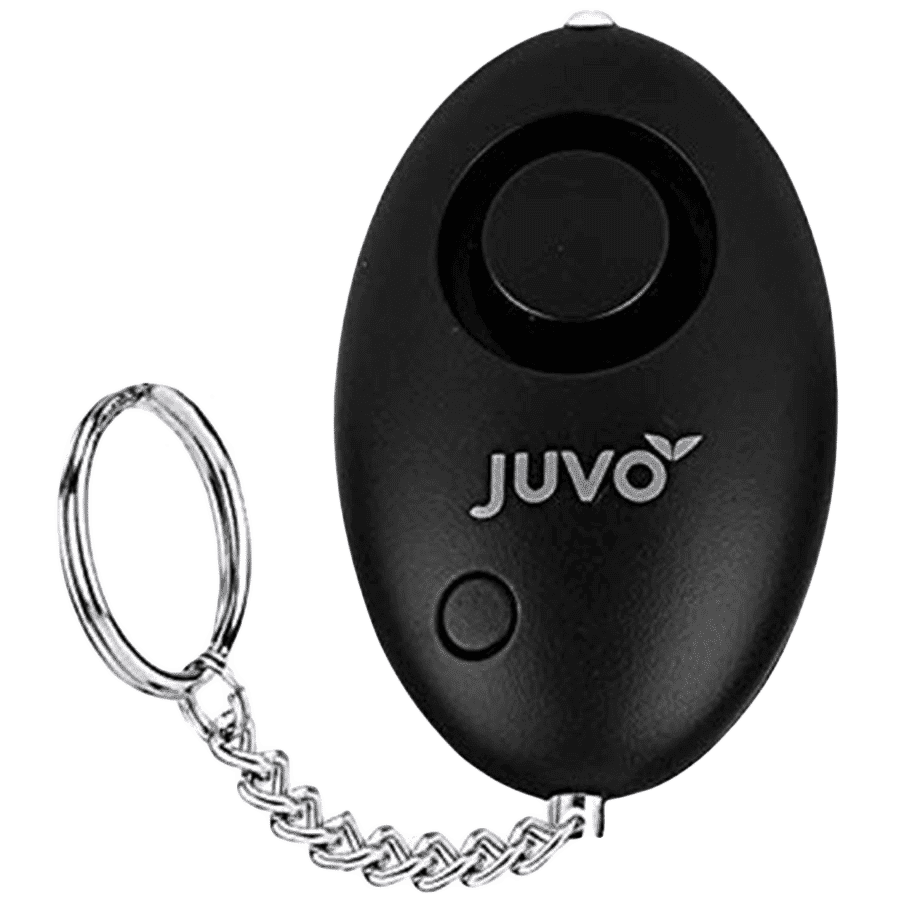
<p>Danger can overpower you at any time and your voice will not be enough in such situations to get the required aid. The amazing new <strong>Juvo PSB01 Personal Alarm</strong> is crafted for all ages and is a necessary precaution from all kinds of danger. It rings a very loud alarm at 120 dB as well as flashes the torch to warn people nearby about a danger. Whether you have a medical emergency or you are attacked by predators your voice may not be heard but this alarm will be enough to deter attackers or draw attention of people close by to give you the immediate assistance required.</p> <p><strong>Extremely Easy To Use</strong></p> <p>The <strong>Juvo PSB01 Personal Alarm</strong> is small and portable, can be attacked to even a keychain if you want. To start the siren all you need to do is separate or pull the metal key chain from the main black unit. The siren may go on for 1 1/2 hours in case nobody heard it in the first minutes. This is very important for girls returning home alone at night as it acts as a security anti-attack panic alarm that is sure to scare off a molester. Its easy portability accentuates its use.</p> <p><strong>Lights Your Way</strong></p> <p>The little and portable <strong>Juvo PSB01 Personal Alarm</strong> also features a small LED torch that helps you find your way in the dark. Don’t be scared of dark alleys when you have this with you because it is equipped to save you from all dangers.</p>

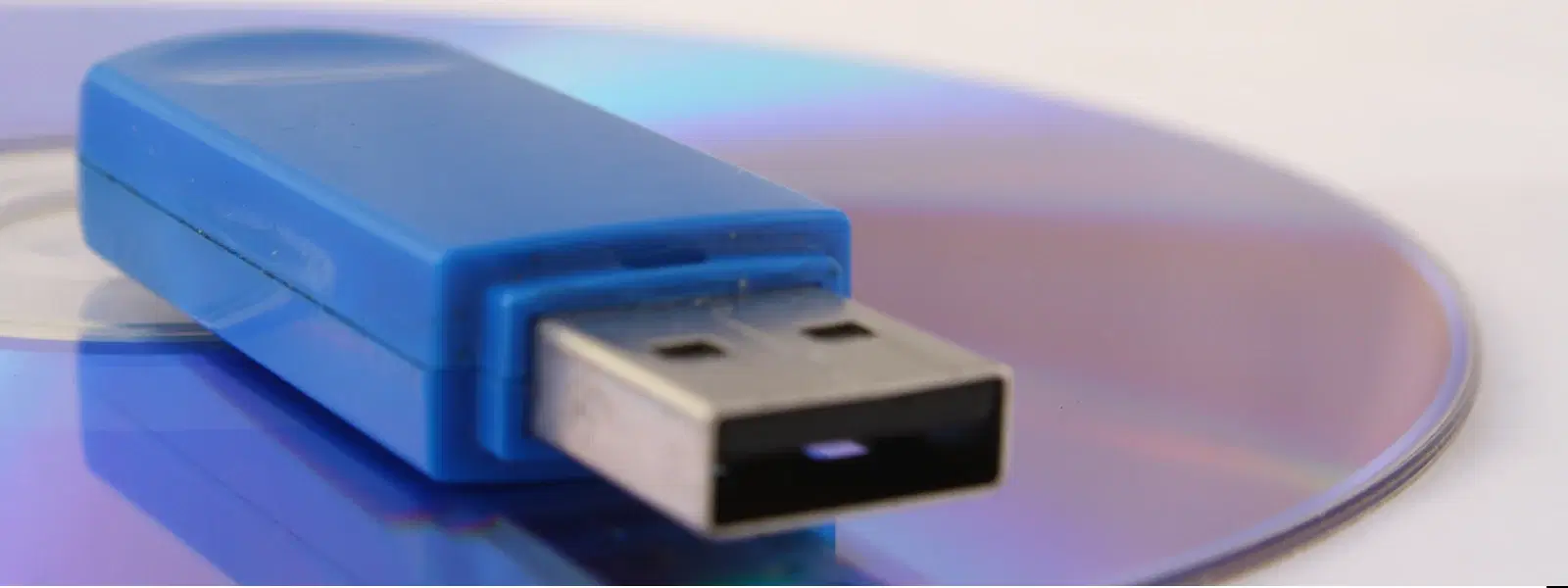
Burning ISO files to USB drives is an essential skill for many tasks in today’s digital landscape. This process allows you to install operating systems, recover crucial data, or simply create a bootable drive without any spending. Whether you are a seasoned tech enthusiast or just starting out, you'll find that learning how to burn ISO to USB free is both empowering and practical.
An ISO file is a complete image of a disk, capturing all its data and file structure. These files are commonly used to install operating systems or to recover software, offering a convenient way to replicate entire systems.
When you burn an ISO file to a USB drive, you take advantage of benefits such as portability, durability, and faster performance compared to traditional DVDs or CDs. This setup not only makes your drive bootable but also an indispensable tool for troubleshooting and system installations.
You can choose from a range of free ISO to USB tools that simplify the process. Applications such as Rufus, UNetbootin, Balena Etcher, Ventoy, and PowerISO provide handy features and built-in compatibility with different operating systems. Each tool offers a unique set of features to suit your individual needs while ensuring an intuitive user experience.
Begin by downloading Rufus from the official website. Once installed, insert your USB drive into your computer and select your ISO file using the tool. Configure the necessary options such as the partition scheme (MBR/UEFI) and choose the appropriate file system like FAT32 or NTFS. When ready, click the 'Start' button to create your bootable USB drive seamlessly.
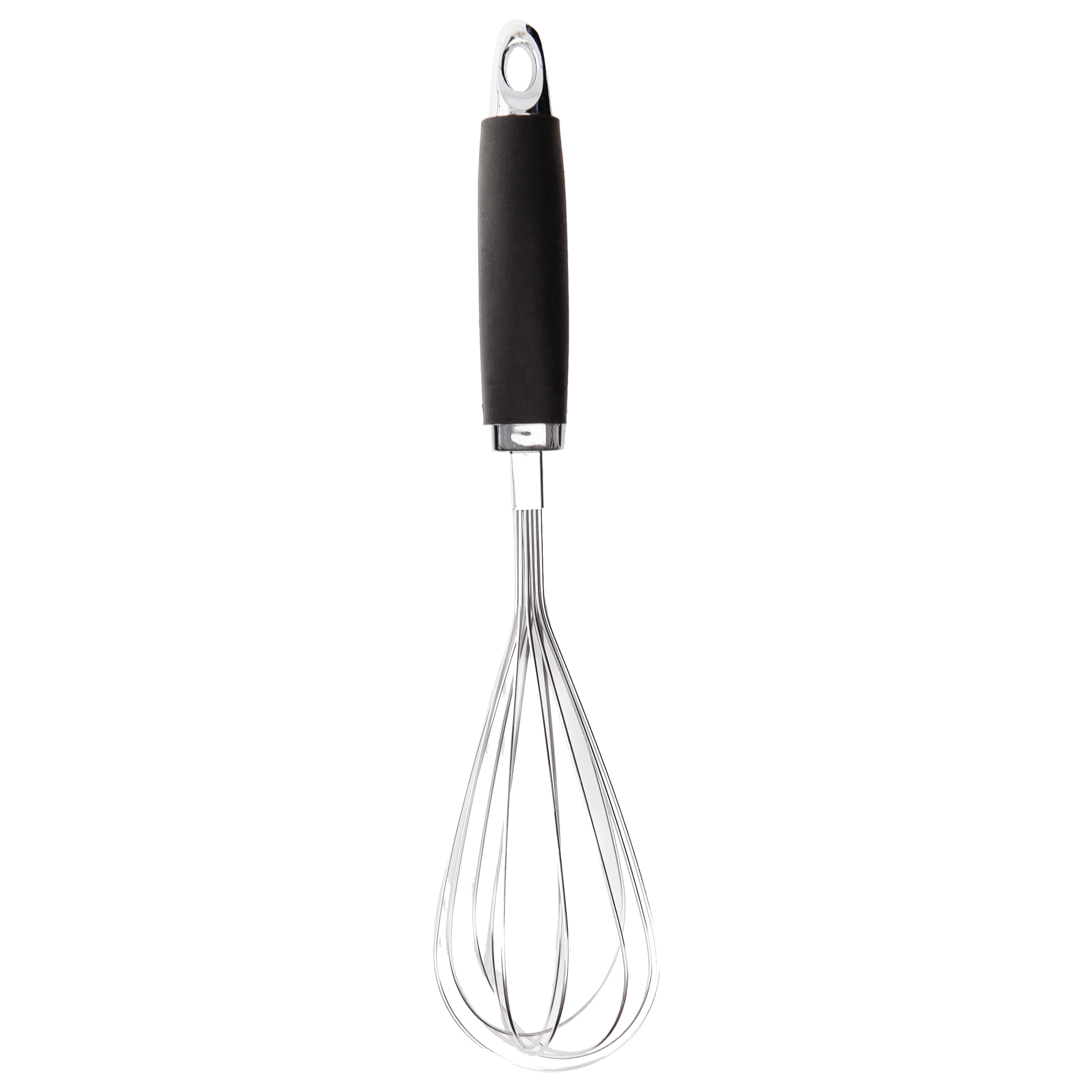
<p><strong>Effortless Performance</strong><br /> <br /> The sabichi Mono 24cm Whisk is designed for smooth and efficient whisking. Its polished stainless-steel wires and narrow shape ensure even blending and make it ideal for small bowls or containers. From whipping meringues to beating eggs, this whisk brings ease to every task.<br /> <br /> <br /> <strong>Versatile Whisking Tool</strong><br /> <br /> Whether you're blending batters, keeping lumps out of sauces, or creating airy meringues, this 24cm whisk is up to the challenge. It’s a kitchen essential that adapts to various culinary needs with precision and consistency.<br /> <br /> <br /> <strong>Safe for All Cookware</strong><br /> <br /> The whisk is gentle on all surfaces, including non-stick, ceramic, and metal cookware. You can whisk worry-free without scratching or damaging your kitchenware. This ensures long-lasting durability for your pots and pans.<br /> <br /> <br /> <strong>Ergonomic Design</strong><br /> <br /> Featuring an innovative handle with a soft, comfortable grip, this whisk absorbs pressure for strain-free usage. Its contoured shape ensures a secure hold, even during prolonged whisking tasks, for an effortless cooking experience.<br /> <br /> <br /> <strong>Convenient Storage</strong><br /> <br /> Equipped with a handy hanging loop, the whisk offers easy storage. It’s always within reach while saving counter and drawer space, making it as practical as it is efficient.</p>
If Rufus does not meet your specific requirements, you might want to try Ventoy or Balena Etcher. These alternatives provide straightforward approaches to write ISO to USB drive and even offer multi-boot features that can handle multiple ISO files on a single USB. Exploring these options can help you find the perfect tool for your unique setup.
Before proceeding, make sure that your USB drive offers sufficient storage space. Additionally, it is important to verify that the ISO file you plan to use is compatible with your target system, particularly in terms of 32-bit versus 64-bit operating systems. These checks help prevent unnecessary issues later in the process.
It is crucial to properly format your USB drive to eliminate any pre-existing data that might interfere with the burning process. Whether you're on Windows or Mac, formatting ensures that your drive is in the right condition to create a bootable environment. This preparatory step can save time and avoid complications during the ISO transfer.
If your newly created bootable USB drive fails to start, there are several potential reasons. It might be due to incorrect BIOS settings or perhaps the ISO file was corrupted during download. Revisiting and adjusting BIOS configurations or even re-burning the ISO file can often resolve these obstacles.
During the burning process, you might encounter errors such as a message indicating that the ISO file is too large or that the tool is not recognising the USB drive. In such cases, consider switching to a different tool or reallocating a USB drive with more available space. These minor adjustments go a long way in ensuring a smooth experience.
Pro Tip: Choose the Right Tool for Your Needs
Did you know? Rufus is one of the fastest and most reliable free tools for writing ISO to USB drive. If you require the flexibility of handling multiple ISO files, tools like Ventoy allow for the creation of multi-boot USB drives, making them an excellent option for those with varied requirements. Selecting the right tool based on your specific needs can significantly enhance your experience.
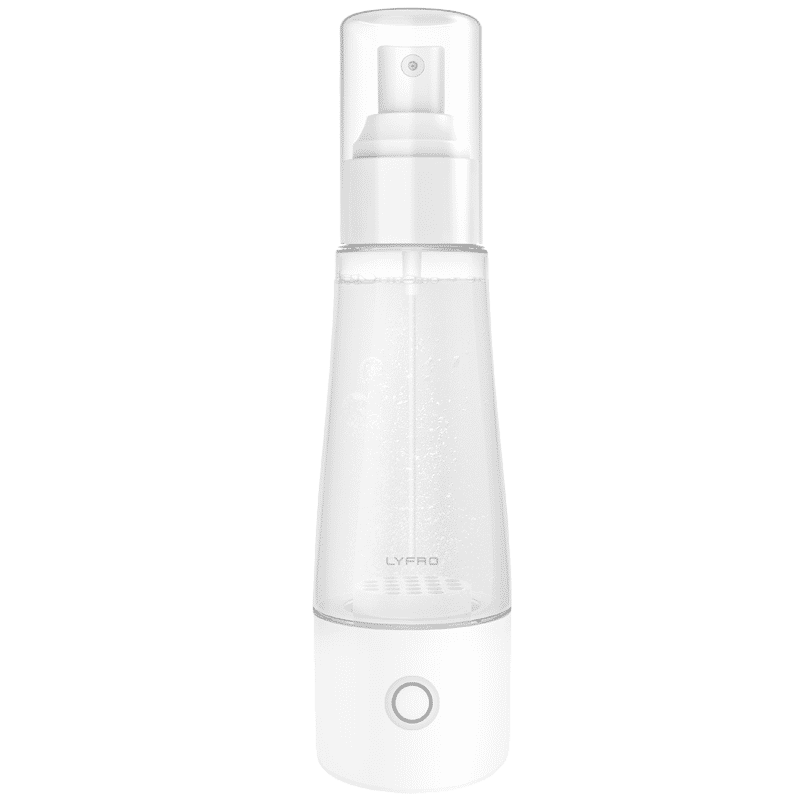
<p>The <strong>Lyfro Battery Powered Disinfectant Solution Generator</strong> is non-toxic and has no side effects</p> <ul> <li><strong>Free of Chemical Residues</strong> makes it an eco-friendly, cost-effective disinfectant</li> <li><strong>Uses Electrolysis</strong> to produce natural powerful disinfectant</li> <li><strong>300 mAh Battery</strong> with USB recharging facility</li> </ul> <p>Buy <strong>Lyfro Battery Powered Disinfectant Solution Generator</strong> to experience its awesome usages. It is an ultra-portable non-toxic disinfectant maker. It comes with an electrolysed water generator. Useful to sterilize public places as well. Use <strong>Lyfro Battery Powered Disinfectant Solution Generator</strong> which allows you to create your own non-toxic disinfectant in just 3 minutes. Simply add salt and water together. Uses electrolysis to produce natural powerful disinfectants proven to be effective against bacteria, viruses, and mold.</p> <p>When you get <strong>Lyfro Battery Powered Disinfectant Solution Generator</strong> online, you also get an awesome eco-friendly, cost-effective disinfectant for your everyday life. It is equipped with a 300 mAh battery with USB recharging facility. It is usable at home, office, or in transit. It eliminates up to 99.9 percent pathogens. It is free of chemical residues. It is a self-made disinfectant.</p>
Yes, Rufus is a free and highly popular tool for burning ISO files to USB drives. It supports creating bootable USB drives for various operating systems.
Yes, PowerISO includes features to write ISO file to USB drive; however, some advanced features may require a paid upgrade for full access.
Yes, Rufus is completely free to use and open-source, making it a top choice among free ISO to USB tools.
Download a free tool like Rufus, insert your USB drive, select the ISO file, and carefully follow the step-by-step guide to create your bootable USB drive.
Rufus, Ventoy, and Balena Etcher are some of the best free tools available that provide a straightforward bootable USB creation guide while keeping your process hassle-free.
Burning ISO files to USB drives for free is a straightforward process when equipped with the right tools and the correct steps. Understanding what an ISO file entails, selecting from reliable free ISO to USB tools, and considering compatibility ensure that your bootable USB drive functions as intended. By troubleshooting common issues and following clear, methodical instructions, you can make confident, informed decisions in your consumer electronics ventures. With the added benefit of NeuCoins rewards on Tata Neu, each seamless transaction not only enhances your digital experience but also brings extra value to your smart shopping journey.
